
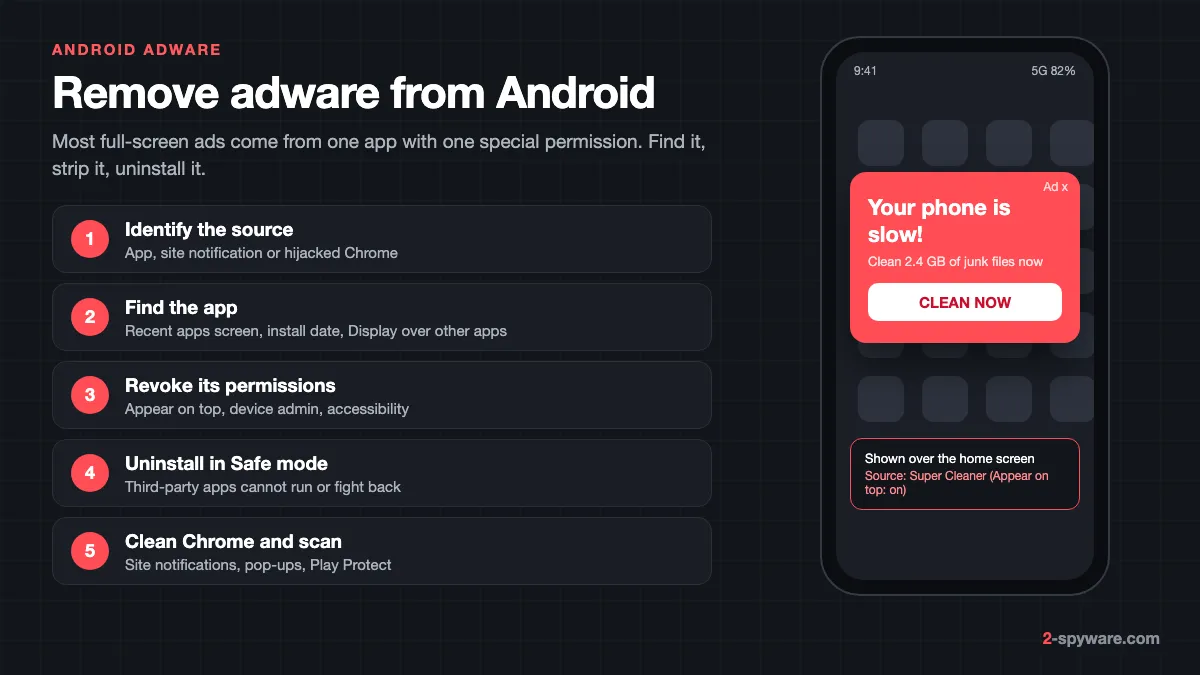
Three kinds of Android ad problems
Before you start deleting apps, work out which kind of problem you have. Android ad trouble comes from three different places, and each one is fixed in a different spot. Our adware guide explains the category in general; this page is only about phones and tablets running Android.
| What you see | Most likely source | Where to fix it |
|---|---|---|
| Full-screen ads over the home screen, over other apps or as soon as you wake the phone | An adware app with the Display over other apps permission | Settings, Apps |
| Notifications with a website name under them, such as "virus found" or "you won" | A site you allowed to send notifications | Chrome, Settings, Notifications |
| Chrome opens odd pages, new tabs or redirects only while you browse | Pop-up and redirect permissions, or a bad site you keep visiting | Chrome, Settings, Site settings |
| Ads on the lock screen or in a new launcher you do not remember choosing | A launcher, lock screen, cleaner or keyboard app that carries ads | Settings, Apps, Default apps |
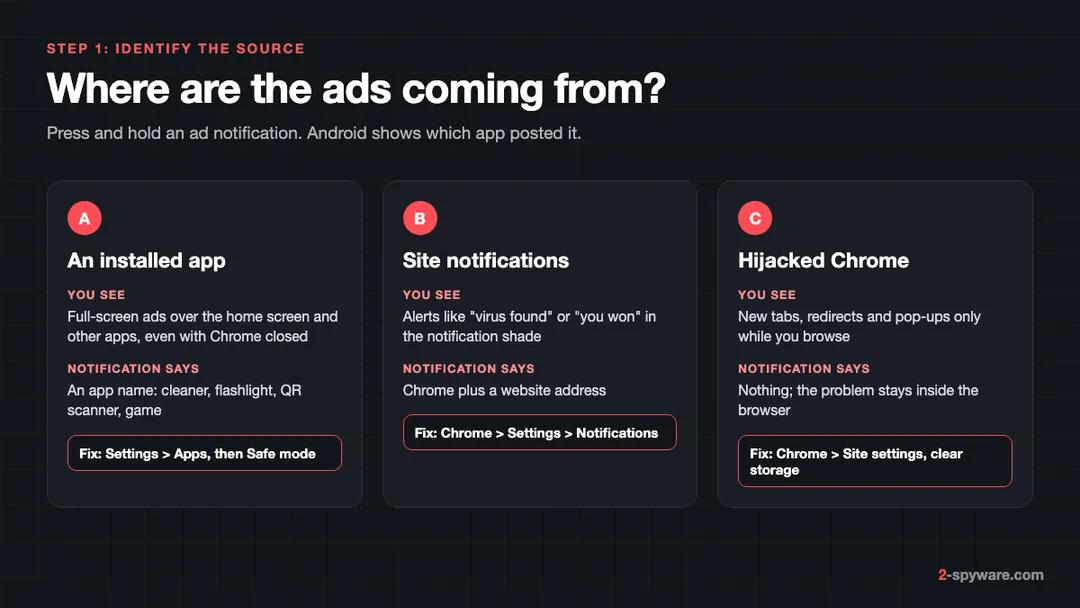
A quick test: pull down the notification shade and press and hold one of the ad notifications. Android shows the name of the app that posted it. If it says Chrome and a website address, you are dealing with push notification spam, not an installed adware app. If it names an app, that app is your suspect.
Ads that cover the whole screen while you are in another app, or that appear when the phone sits idle, come from an installed app. Websites cannot draw over other apps. Only installed apps can do that, and only with a permission you or the installer granted.
Find the app behind full-screen ads
Adware apps try hard to stay anonymous. Many hide their launcher icon after the first run, use a blank name, or copy the icon of a system app such as Settings. Kaspersky counted HiddenAd, BrowserAd and Adlo among the most common Android adware families in 2024, and HiddenAd is named after exactly this trick [7]. These four checks find the culprit in most cases.
1. Use the recent apps screen the moment an ad appears
When a full-screen ad shows, do not tap it. Open the recent apps view instead: swipe up from the bottom and hold, or tap the square button if you use three-button navigation. The ad usually sits in its own card. Press and hold the app icon at the top of that card and tap App info. That opens the settings page of the app that showed the ad, and you can uninstall it from there.
2. Sort your apps by install date
Ads almost always start within a day or two of the app that brings them. On a Pixel or other phone with stock Android 14 or 15, open Settings, then Apps, then See all apps. On a Samsung Galaxy with One UI 6 or 7, open Settings, then Apps, then tap the sort icon next to Your apps and choose Last used or Last updated.
The Play Store gives a cleaner list. Open Google Play, tap your profile picture, then Manage apps and device, then Manage. Use the sort option and choose Recently added. Anything installed the same week the ads began goes on your shortlist.
3. Check who can draw over other apps
Full-screen ads over other apps need the Display over other apps permission. Samsung calls it Appear on top. Few apps truly need it: chat bubbles, screen recorders, accessibility tools and some navigation apps.
- Stock Android 14 and 15: Settings, then Apps, then Special app access, then Display over other apps.
- Samsung One UI 6 and 7: Settings, then Apps, then the three-dot menu, then Special access, then Appear on top.
- Turn the switch off for any app you do not recognize, and for anything like a wallpaper, flashlight, game or cleaner app.
Once the permission is off, the app can no longer cover your screen, even before you uninstall it. If the ads stop, you have found the source.
4. Check device admin and accessibility access
Some adware asks for device admin rights so that the Uninstall button turns gray. Others abuse accessibility access to read the screen, close settings pages you open, or tap through ads on their own. Both are serious red flags in an app that has no clear reason to need them.
- Device admin on stock Android: Settings, then Security and privacy, then More security settings, then Device admin apps. On Samsung: Settings, then Security and privacy, then Other security settings, then Device admin apps.
- Accessibility on stock Android: Settings, then Accessibility, then Downloaded apps. On Samsung: Settings, then Accessibility, then Installed apps.
- Expect to see Find My Device, a work profile manager or a screen reader you chose. Turn off anything else.
Uninstall the adware in Safe mode
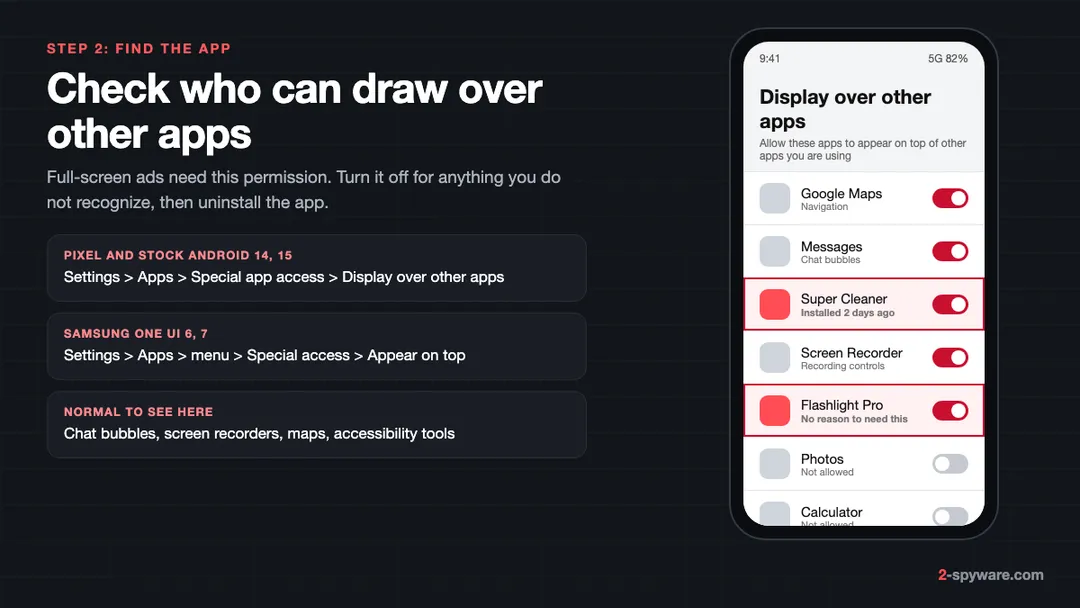
Safe mode starts Android with only the apps that came with the phone. Third-party apps cannot run, so they cannot show ads, close your settings screens or reinstall themselves while you work. Google suggests it for exactly this job: boot into Safe mode, then remove recently downloaded apps one by one [1][2].
- Press and hold the power button. On newer Pixels, press power and volume up together.
- Touch and hold Power off (or Restart on some phones) until the Safe mode prompt appears, then tap OK [2]. On Samsung, touch and hold Power off, then tap the Safe mode button [6].
- Check for the words Safe mode at the bottom left. If the ads have stopped, an installed app is the cause.
- Open Settings, then Apps, and uninstall your suspects one by one, newest first. Write down what you remove so you can reinstall the good ones later [1].
- Restart normally after each removal and use the phone for a while. When the ads stop, you have found the right app.
Safe mode removes some home screen widgets [2]. Take a screenshot of your home screen first if you rely on them.
When the Uninstall button is gray
A grayed-out Uninstall button means the app has device admin rights or it is a preinstalled system app. Remove admin rights in Device admin apps as described above, and the button becomes active again. If the app is preinstalled, you can usually tap Disable instead. A disabled app cannot run or show ads.
Preinstalled adware on cheap, unbranded phones is a separate and harder problem. Our report on Triada malware found in the firmware of Android phones shows how it gets there. Disabling the app helps, but a full fix may need a firmware update from the maker, or a different phone.
Apps that hide their icon
An app without a home screen icon still shows up in Settings, then Apps. Look for blank names, generic names like "System Service" or "Update", and duplicate names. Tap each one and check Permissions, Battery usage and the install date in the App details section. A real system app does not appear in your Play Store Manage list as something you installed.
Clean up Chrome on Android
If the ads are notifications from a site, or appear only inside the browser, the fix is in Chrome rather than in the app list. Our walkthrough on how to stop site notifications covers every browser; the Chrome for Android steps are below.
Block site notifications
- Open Chrome, tap the three-dot menu, then Settings, then Notifications [4].
- Scroll to the list of sites. Turn off every site you do not recognize, especially those with names like "news", "captcha" or random letters.
- For one site you are viewing right now, tap the icon left of the address, then Permissions, then Notifications, and turn Show notifications off [1].
These sites got permission when someone tapped Allow on a fake prompt, such as "tap Allow to prove you are not a robot". More examples of these prompts are on our push notification spam topic page.
Turn pop-ups, redirects and intrusive ads back to blocked
In Chrome, tap the three-dot menu, then Settings, then Site settings, then Pop-ups and redirects, and make sure it is off [5]. Go back to Site settings, tap Intrusive ads, and keep it blocked. Chrome then filters ads on sites known for misleading or abusive ones.
Clear site settings and reset Chrome
Chrome for Android has no Reset settings button like the desktop version. You have two practical options:
- Lighter reset: Chrome, Settings, Site settings, All sites, then tap Clear & reset on each suspicious site. This removes its permissions, cookies and stored data.
- Full reset: Android Settings, then Apps, then Chrome, then Storage and cache, then Clear storage (Clear data on Samsung). Chrome returns to its first-run state. Your bookmarks and passwords come back after you sign in if sync is on.
On Samsung Internet, the same settings are under the menu, then Settings, then Sites and downloads.
Run a Play Protect scan
Google Play Protect checks the apps on your phone, including those from outside Google Play, and can warn about, disable or remove harmful ones [3]. It also flags apps that break Google's Unwanted Software Policy, which covers a lot of adware [3].
- Open the Google Play Store app.
- Tap your profile picture, then Play Protect.
- Tap the gear icon and make sure Scan apps with Play Protect is on [1].
- Go back and tap Scan. Remove anything it lists.
A clean scan does not prove a phone is free of adware. Play Protect focuses on harmful apps, and many ad apps sit in a gray zone that it does not flag. Treat the scan as a second opinion after your own checks, not a replacement for them.
Launchers, keyboards and cleaner apps that carry ads
A lot of what people call adware is a legitimate-looking app with an aggressive ad model. Three types cause most complaints:
- Launchers and lock screen apps. They control your home screen and lock screen, so they can show ads every time you wake the phone. Check Settings, then Apps, then Default apps, then Home app, and switch back to the phone's own launcher. Our page on Android ads on the lock screen covers this case in detail.
- Keyboards. A free keyboard sees everything you type. If it shows ad banners or "offers" in the suggestion bar, switch back to Gboard or Samsung Keyboard under Settings, then General management, then Keyboard list and default (Samsung), or Settings, then System, then Keyboard (stock Android).
- Cleaners, boosters, battery savers and antivirus apps from unknown makers. Android manages memory itself, so these apps add little. Many earn money by showing full-screen ads after they "finish cleaning".
Factory reset as the last step
If ads keep coming after you have checked permissions, uninstalled suspects in Safe mode, cleaned Chrome and run Play Protect, a factory reset removes every app you installed. It is rarely needed for adware alone, and it will not remove adware built into the firmware.
- Back up first. Turn on Google One backup under Settings, then System, then Backup (Settings, then Accounts and backup on Samsung). Copy photos to Google Photos or a computer.
- Note the Google account and password on the phone. Factory reset protection will ask for them after the reset.
- Stock Android: Settings, then System, then Reset options, then Erase all data. Samsung: Settings, then General management, then Reset, then Factory data reset.
- After the reset, do not restore all apps at once. Reinstall the ones you need by hand from Google Play, and leave out any you suspected.
If you are not sure whether your symptoms point to adware or something worse, our Android virus guide lists the signs of banking trojans and spyware, which need more than an uninstall.
How to keep adware off your phone
- Install apps only from Google Play or the Galaxy Store. Leave Install unknown apps off for Chrome, your file manager and messaging apps under Settings, then Apps, then Special app access.
- Read the newest reviews, not the star rating. Adware apps often start clean and add ads in a later update. One-star reviews mentioning "ads everywhere" or "can't uninstall" are the warning.
- Question permissions. A flashlight or wallpaper app has no reason to ask for Display over other apps, accessibility, or device admin.
- Tap Block, never Allow, on site notification prompts unless you know the site.
More cases and fixes for specific Android threats are on our Android topic page and the Android help hub. If you are not sure whether a domain or app name is known for ads, look it up with our checker.
A note for iPhone readers
iPhones rarely get adware apps, because iOS does not let apps draw over other apps or run hidden in the background the way Android does. Ads on an iPhone usually come from Safari pop-ups, a website notification you allowed, or a spam calendar subscription that floods your calendar with fake alerts. The fixes are in the browser and calendar settings, not the app list. Our iPhone help hub walks through each one.
Frequently asked questions
How do I know if my Android phone has adware?
Full-screen ads that appear over other apps, on the home screen or right after unlocking are the clearest sign. Other signs are ads in the notification shade, a launcher or keyboard you do not remember installing, and apps without an icon. Press and hold an ad notification to see which app posted it.
How do I find which app is causing pop-up ads on Android?
Open the recent apps screen while the ad is showing and check which app owns that card. Then look at Settings, Apps, Special app access, Display over other apps, and sort your apps by install date. The app installed shortly before the ads began is usually the cause.
How do I get rid of pop-up ads on Android Chrome?
In Chrome, open Settings, then Notifications, and turn off every site you do not recognize. Then go to Site settings, check that Pop-ups and redirects is off and Intrusive ads is blocked. If redirects continue, clear Chrome's storage in Android Settings, Apps, Chrome.
Why can't I uninstall an app on Android?
The app most likely has device admin rights, which gray out the Uninstall button. Remove them under Settings, Security and privacy, Device admin apps, then uninstall. If it is a preinstalled system app, you can disable it instead, which stops it from running.
Does Safe mode remove adware?
No. Safe mode only stops third-party apps from running while you are in it. That gives you a quiet window to uninstall the adware without ads covering the screen or the app interfering. You still have to remove the app yourself.
Will Google Play Protect remove adware?
Sometimes. Play Protect can warn about, disable or remove harmful apps and apps that break Google's Unwanted Software Policy. Many ad-heavy apps are not flagged, though, so a clean scan does not mean the phone is free of adware.
Should I factory reset my phone because of adware?
Only as a last step. Most adware is removed by uninstalling one app and cleaning up Chrome. A factory reset erases everything you installed, so back up first, and it does not remove adware that came built into the phone's firmware.
Can adware on Android steal my data?
Most adware is after ad revenue, not your data, but many apps collect device and usage details to target ads. Adware with accessibility or device admin access is a bigger risk, because it can read the screen. Remove such apps first and change important passwords if you typed them while it was installed.
Sources
- Google Chrome Help: Remove unwanted ads, pop-ups and malware (Android phone and tablet) read 2026-10-08
- Android Help: Find problem apps by rebooting to safe mode on Android read 2026-10-08
- Google Play Help: Use Google Play Protect to help keep your apps safe and your data private read 2026-10-08
- Google Chrome Help: Use notifications to get alerts read 2026-10-08
- Google Chrome Help: Block or allow pop-ups in Chrome read 2026-10-08
- Samsung US Support: Manage pop-up ads on your Galaxy phone read 2026-10-08
- Kaspersky Securelist: The mobile threat landscape in 2024 (published February 2025) read 2026-10-08
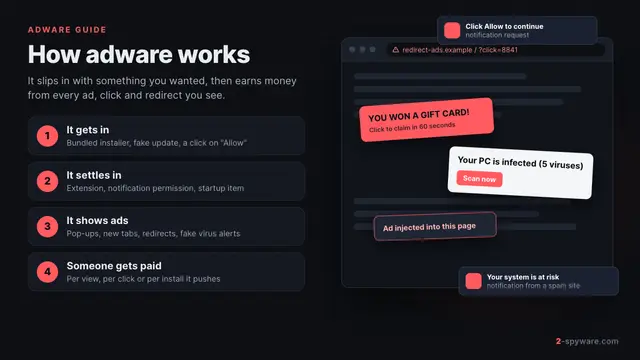 What is adware and how to remove it
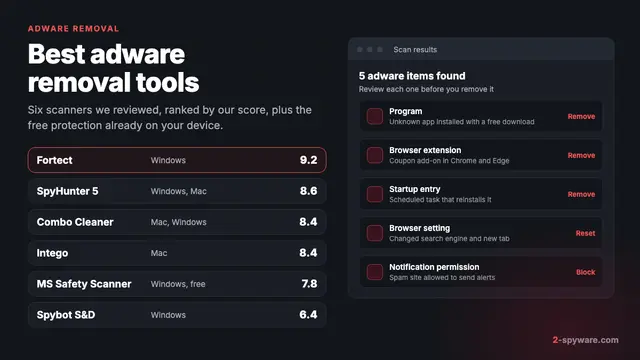 Best adware removal tools in 2026
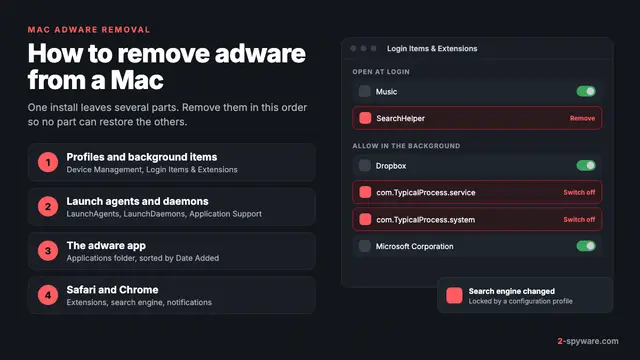 How to remove adware from a Mac