
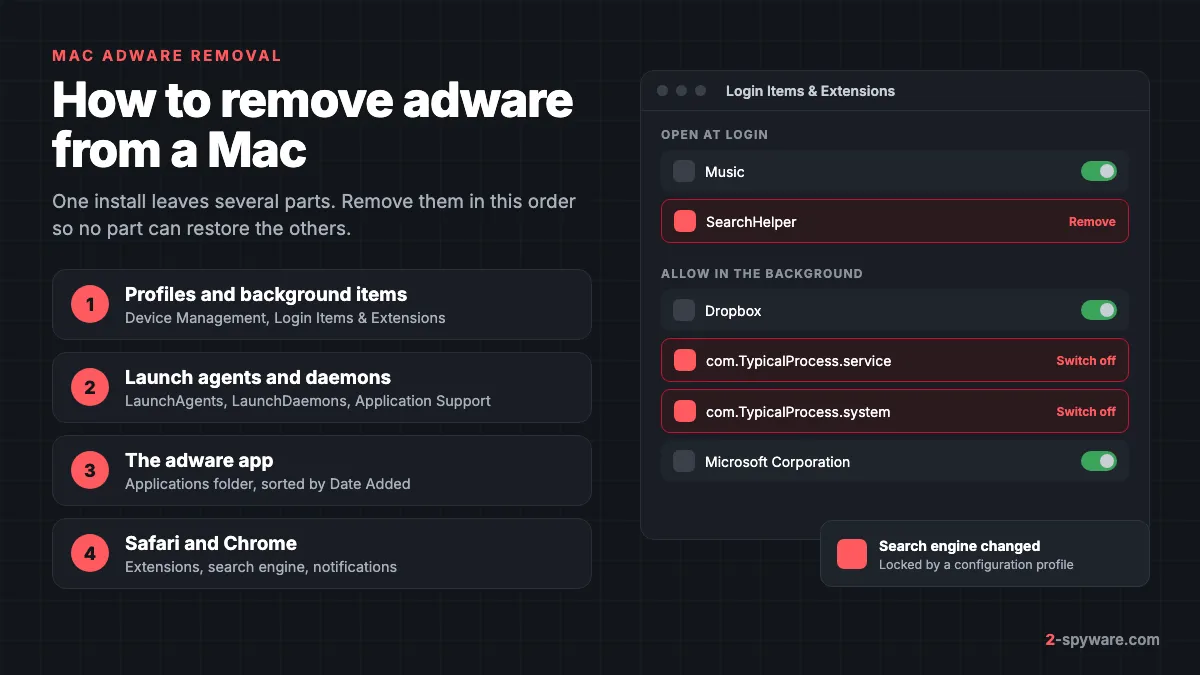
How Mac adware works
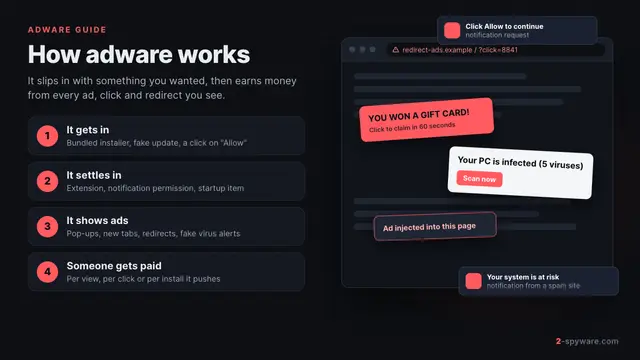
Mac adware is a program or browser add-on that puts ads, redirects and changed search results in front of you. Our adware guide explains the basics on every system. This page goes further on the Mac: the exact places adware hides on macOS Sonoma 14 and Sequoia 15, and the order to remove them so they stay gone.
Almost all of it arrives with your own approval: a fake player update, a free download, a cracked app asking for your password. The installer then sets up several parts at once, so dragging the visible app to the Trash rarely ends the ads.
The families you are most likely to meet
- Adload. Active since at least 2017 and still changing [6]. It installs a launch agent and a launch daemon named like com.label.service.plist and com.label.system.plist, and keeps its program in a hidden numbered folder under Application Support [6]. Labels seen in one campaign include DominantCommand and OperativeMachine [6].
- Shlayer. A downloader that usually poses as a Flash Player or video player update. Its job is to fetch other adware, so one bad click can install several programs at once.
- Pirrit and its relatives. An older family that injects ads into pages and rewrites search results. Its GoSearch22 variant was among the first Mac adware built for Apple silicon.
- Fake system helpers. Items such as Imklaunchagent or SearchPartyd use names that look like Apple processes, so you hesitate to delete them.
- Browser-only adware. Some cases are just a Safari or Chrome extension that changes your search engine, or a site you allowed to send notifications, such as the fake alerts from Update-macos.com.
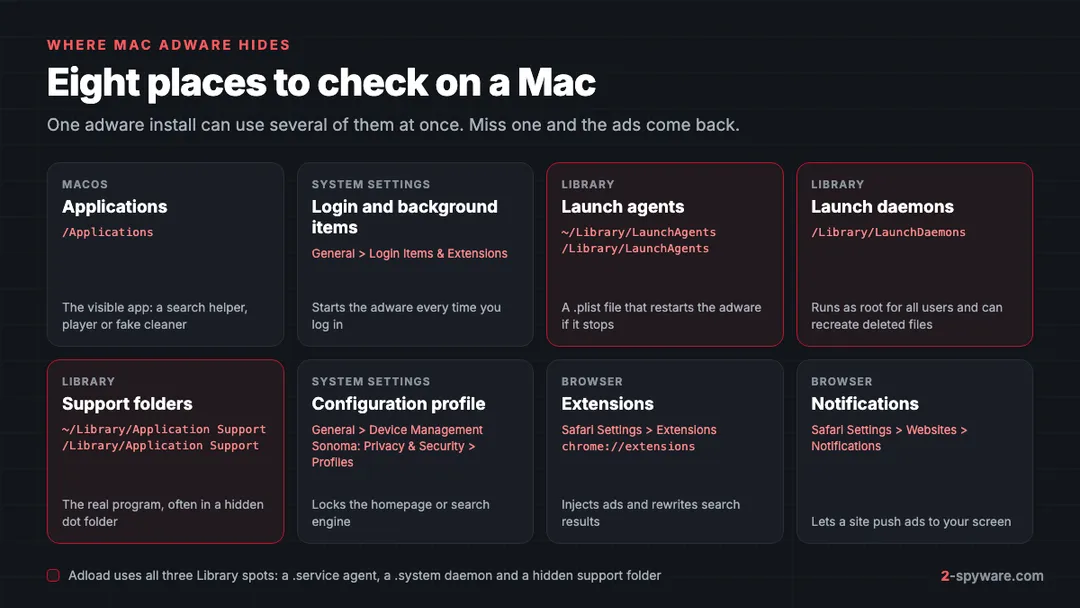
The parts one infection can install
A full adware install on a Mac usually has several of these parts. Each one does a different job, so each place needs its own check.
| Part | Where it lives | What it does |
|---|---|---|
| App | /Applications or ~/Applications | The visible piece: a search helper, video player or fake cleaner |
| Login or background item | System Settings > General > Login Items & Extensions | Starts the adware each time you log in |
| Launch agent | ~/Library/LaunchAgents and /Library/LaunchAgents | A .plist file that starts a program for your user and restarts it if it stops |
| Launch daemon | /Library/LaunchDaemons | Same idea, but runs as root for every user and needs your admin password to install |
| Support files | ~/Library/Application Support and /Library/Application Support | The real program, often in a folder whose name starts with a dot so Finder hides it |
| Configuration profile | General > Device Management (Sequoia) or Privacy & Security > Profiles (Sonoma) | Locks Safari or Chrome to a homepage or search engine you cannot change |
| Browser extension | Safari Settings > Extensions, or chrome://extensions | Injects ads, rewrites search results and can read the pages you visit |
| Notification permission | Safari Settings > Websites > Notifications | Lets a site push ads to the corner of your screen |
Before you start
- Write down odd names: the redirect site, unknown apps, items in Login Items. One label often repeats in the app, the .plist file and the support folder.
- Have your Mac admin password ready. Anything in /Library needs it.
- If this is a work Mac, ask your IT team before removing profiles. Companies install real profiles and browser policies that you should keep.
- Show hidden files in Finder with Shift-Command-Period. Press it again later to hide them.
Step by step: remove adware from your Mac
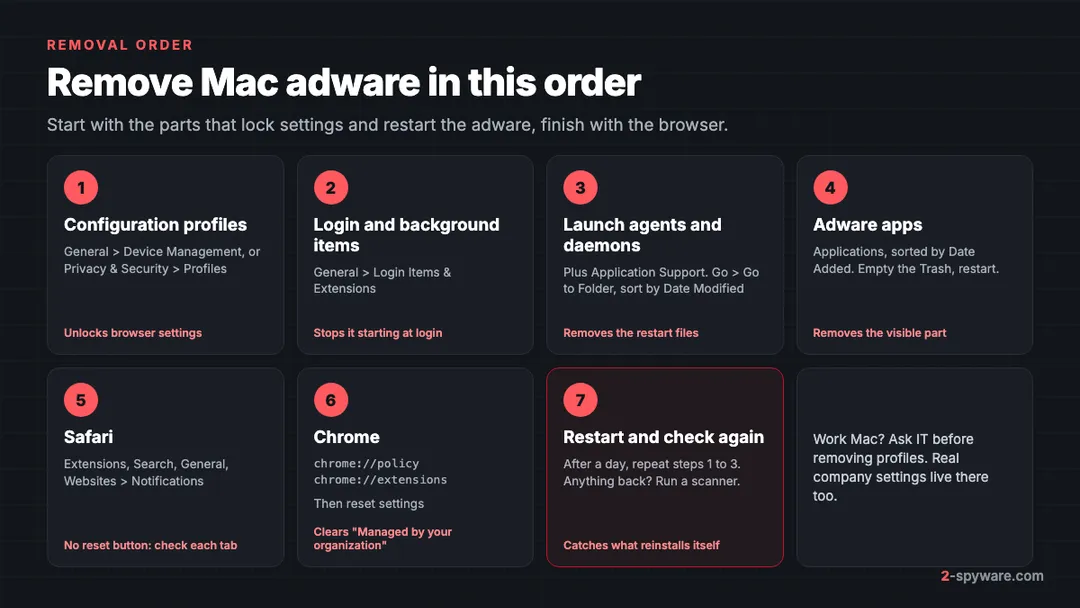
1. Remove configuration profiles you did not add
Start here, because a profile can lock browser settings and undo the rest of your cleanup. On macOS Sequoia 15 and later, open Apple menu > System Settings > General > Device Management [3]. On macOS Sonoma 14, open System Settings > Privacy & Security and scroll to Profiles at the bottom.
Double-click each profile to see what it sets [3]. Adware profiles often have vague names such as AdminPrefs or Chrome Settings and contain a homepage or default search provider for Safari or Chrome. Select the profile, click the minus button and enter your password [3]. If you see no Device Management or Profiles entry at all, no profile is installed and you can move on.
2. Check Login Items and background items
On Sequoia 15, open System Settings > General > Login Items & Extensions [2]. On Sonoma 14 the same pane is called Login Items. The top list, Open at Login, shows apps that start when you log in. Select anything you do not recognize and click the minus button [2].
The second list matters more. It shows apps allowed to work in the background, labelled Allow in the Background on Sonoma and Sequoia and App Background Activity on newer releases [2]. Launch agents and daemons appear here under the name of the app or developer behind them. Switch off entries with random names, misspelled developers or apps you plan to delete.
3. Delete launch agents, launch daemons and support folders
In Finder, choose Go > Go to Folder (Shift-Command-G) and open each of these folders in turn:
- ~/Library/LaunchAgents (your user only)
- /Library/LaunchAgents (all users)
- /Library/LaunchDaemons (all users, runs as root)
- ~/Library/Application Support
- /Library/Application Support
Switch to list view and sort by Date Modified, so files that appeared when the ads started rise to the top. Look for .plist names that match what you wrote down, random word pairs such as com.TypicalProcess.service.plist, or names that copy Apple's style without being from Apple. Adload uses exactly this pattern of a .service agent next to a .system daemon [6].
Before you delete a .plist file, select it and press Space to preview it. The ProgramArguments entry shows which program it starts; delete both, as the program often sits in a hidden folder of digits under Application Support [6]. Leave files from Apple, your printer maker, cloud storage and security software alone. If unsure, search the name in our Mac virus guides or on the Mac topic page first.
4. Uninstall the adware apps
Open Finder > Applications and sort by Date Added. Drag apps you did not mean to install to the Trash. Typical ones are search helpers, video players, PDF converters and system optimizers such as TuneupMyMac. If macOS says an app is still open, restart and try again. The background item you switched off in step 2 should no longer start it. Empty the Trash and restart the Mac.
5. Clean Safari
- Open Safari > Settings > Extensions. Select each extension you do not use and click Uninstall [4]. Safari extensions come inside an app, so Safari may send you to Finder to delete that app as well.
- Open the Search tab and set the search engine back to the one you want.
- Open the General tab and check the Homepage field and what new windows and tabs open with.
- Open Websites > Notifications. Select sites you do not know and click Remove, or set them to Deny.
- Open Websites > Pop-up Windows and set the default for other websites to Block and Notify.
Safari has no reset button, so these five checks replace one. Our Safari guides cover redirect sites that keep coming back.
6. Clean Chrome on Mac
- Open the three-dot menu. If the bottom line says Managed by your organization on a personal Mac, something has set browser policies [5]. Type chrome://policy in the address bar to see them [5].
- Removing the profile in step 1 clears most adware policies on a Mac. Quit Chrome with Command-Q, reopen it and check chrome://policy again.
- Open chrome://extensions and click Remove on anything you do not recognize. Extensions forced by a policy cannot be removed while the policy is active; chrome://management lists them [5].
- Open Settings > Reset settings > Restore settings to their original defaults [5]. This resets the start page, new tab page, search engine and site permissions, and switches extensions off.
- Check Settings > Privacy and security > Site settings > Notifications and remove sites you do not know.
7. Restart and check again
Restart, use the Mac for a day and revisit sites that showed ads. Repeat steps 1 to 3. If a .plist file or profile has come back, something is reinstalling it, and that is when a scanner earns its place.
Why the ads come back
- A launch daemon in /Library/LaunchDaemons was missed. It runs as root and can recreate the user files you deleted.
- The profile is still installed, so the browser keeps returning to the forced search page.
- Chrome sync restored the extension. If it is saved in your Google account, it returns on every Mac where you sign in. Remove it while signed in so the removal syncs too.
- The app that carries the Safari extension is still in Applications, or its installer is still in Downloads.
- A downloader such as Shlayer is still present and fetches new adware with fresh names.
- The ads come from a site notification, not a program. No file scan finds those; only the browser's Notifications setting removes them.
What XProtect does and does not catch
Every Mac has Apple's built-in antivirus, XProtect. It uses YARA signatures that Apple updates separately from macOS updates, and macOS checks for new ones daily by default [1]. XProtect scans an app when it first launches, when it changes on disk and when the signatures update [1]. When it finds known malware, it blocks it, moves it to the Trash and alerts you in the Finder [1].
Apple also describes a remediation engine, known as XProtect Remediator, that removes malware already on the Mac once Apple ships new information and keeps checking periodically [1]. A behavioural engine looks for unknown malware as well [1]. You do not need to switch any of this on. You only need to leave automatic security updates enabled.
The limits are real. Signatures follow a family; they do not precede it. SentinelLabs found over 150 samples in one Adload campaign that XProtect did not detect, some of them notarized by Apple [6]. XProtect also does not judge extensions you installed, notifications you allowed, search settings or a profile you approved.
| Adware part | Built-in protection | What you do |
|---|---|---|
| Known adware apps and launch agents | XProtect and XProtect Remediator block and remove them [1] | Keep automatic security updates on |
| New Adload variants | Can be missed until Apple adds signatures [6] | Check the launch folders or run a scanner |
| Safari and Chrome extensions | Not scanned as malware | Remove them in browser settings |
| Configuration profiles | Listed in Device Management, not removed | Remove profiles you did not add |
| Site notifications | Not covered | Remove sites in Safari or Chrome settings |
| Unwanted cleaner apps | Usually not flagged | Uninstall them from Applications |
When a Mac scanner helps
A scanner is worth it when ads return after the steps above, when a .plist file reappears, or when you cannot tell an Apple file from a fake one.
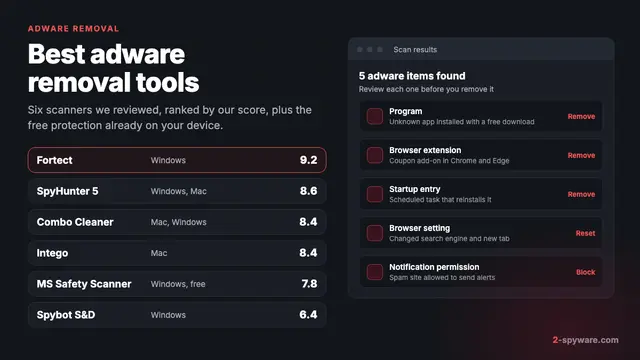
Fortect for Mac is the tool we offer on this page. It is a security product, separate from the Windows repair suite, with real-time malware protection, browsing and phishing protection, cloud-based detection and a VPN [8]. Real-time scanning helps break the reinstall loop, because files a downloader drops are checked as they appear. Our Fortect review explains what it covers, how renewal works and how to uninstall it.
We have also reviewed two other Mac tools. Combo Cleaner pairs a Mac malware scanner with disk cleanup, and removal needs a subscription that renews every six months. Intego ONE combines real-time antivirus with an outbound firewall and scored 96.7% Mac malware protection in AV-Comparatives' 2026 Mac test.
Whichever you use, give it Full Disk Access in System Settings > Privacy & Security, or it cannot see your Library folders, and run one real-time scanner at a time.
How to keep adware off your Mac
- Get apps from the App Store or the developer's own site. Apple calls the App Store, and Gatekeeper with notarization, its first layer of defense against malware [1][7].
- Take Gatekeeper warnings seriously. On Sequoia 15 you can no longer skip them with Control-click; you have to approve the app in System Settings > Privacy & Security. If an installer's own instructions walk you to that screen, treat it as a red flag [7].
- Never install a player, codec or Flash update from a pop-up. Adobe ended Flash Player in 2020, so every Flash update page is fake.
- Skip cracked apps and torrent sites such as Torrentmac.net. Pirated Mac software is a common carrier for Adload and Shlayer.
- Do not type your admin password into an installer you did not expect. Launch daemons and profiles need it to install.
- Leave Install Security Responses and system files switched on under System Settings > General > Software Update > Automatic Updates. That keeps XProtect current [1].
If a warning about a specific process or file worries you, our Mac help pages and the ReceiverHelper guide show how to tell a real threat from a harmless system message.
Frequently asked questions
How do I know if my Mac has adware?
The usual signs are a search engine that changes on its own, new tabs or redirects to sites you did not open, ads on pages that never had them, and pop-up alerts in the corner of the screen. Check Login Items, Device Management and your browser extensions for names you do not recognize.
Does XProtect remove adware automatically?
It blocks and removes known adware apps and launch agents once Apple has signatures for them. It does not remove browser extensions, notification permissions or configuration profiles you approved, and new variants can slip past it for a while.
Is it safe to delete files in LaunchAgents?
Deleting an adware file there is safe. Deleting one from Apple, your printer, cloud storage or security software can break that app. If unsure, move the file to the Desktop, restart and see what changes.
Why does Safari keep switching to a different search engine?
Usually a Safari extension or a configuration profile is forcing it. Remove unknown extensions in Safari Settings, then remove unknown profiles in Device Management on Sequoia or under Privacy and Security on Sonoma. After that the Search setting will stay where you put it.
Why does Chrome on my Mac say Managed by your organization?
On a personal Mac this usually means adware installed browser policies, often through a configuration profile. Open chrome://policy to see them, remove the profile from System Settings, then restart Chrome and check again.
Do I need antivirus on a Mac?
XProtect covers known malware, and many people manage with it plus careful downloads. A separate scanner helps if adware keeps returning or you often install software from outside the App Store.
Can Mac adware steal my passwords?
Most adware is after ad revenue, not passwords. Extensions can still read the pages you visit, and some adware downloaders install worse software. If you typed passwords on a page the adware opened, change them and turn on two-step verification.
Should I erase my Mac and reinstall macOS?
Rarely. Adware sits in user-level folders and browser settings that the steps on this page reach. Consider erasing only if the ads return after a careful manual cleanup and a scan, or if you suspect more than adware.
Sources
- Apple Platform Security: Protecting against malware in macOS read 2026-10-08
- Apple Support: Change Login Items & Extensions settings on Mac read 2026-10-08
- Apple Support: Use configuration profiles to standardize settings on Mac computers read 2026-10-08
- Apple Support: Use Safari extensions on your Mac read 2026-10-08
- Google Chrome Help: Check if your Chrome browser is managed read 2026-10-08
- SentinelLabs: Massive new AdLoad campaign goes entirely undetected by Apple's XProtect read 2026-10-08
- Apple Support: Safely open apps on your Mac read 2026-10-08
- Fortect: Fortect for Mac read 2026-10-08
 What is adware and how to remove it
 Best adware removal tools in 2026
 How to remove adware from Android