
NetSupport Manager: what it is and how to remove it
NetSupport Manager is a legitimate remote administration tool misused by criminals as malware. Attackers disguise it as software updates and use it to steal credentials, monitor activity, and install additional malware.
Facts checked October 5, 2026. Removal steps tested on Windows 11 (26H2) and checked against Microsoft's and the browser makers' current documentation. Sections marked as our earlier report are the original text: they describe the threat as it was then and have not been reviewed since. The 2026 status, the removal steps and the questions are current.
Automatic
Get a free scan and check if your PC is infected.
Fortect finds malware, unwanted programs and the Windows damage they leave behind, and repairs it in one pass.
An automatic scan can look at Update.js and the other programs installed around the same time.
Do it yourself · free Remove NetSupport Manager yourself 6 steps, about 18 minutes, no software needed.
Start the steps
NetSupport Manager: summary
| Distribution | Fake updates, The HoeflerText font wasn't found scam |
|---|---|
| Name | NetSupport Manager |
| Type | Remote Administration Tool (RAT) |
| Developer | NetSupport Limited |
| Related files | Update.js |
| Risk factors | Loss of valuable information, other malware infection, identity theft, data loss, etc. |
| Removal | Scan the PC with security software to find and remove the malware and anything installed with it. Fortect scans Windows for malware and repairs the system files and settings it damaged. Remove it nowTo use the full-featured product, you have to purchase a license for Fortect. The scan is free. |
Show 8 more facts
| Symptoms | Usually no symptoms |
|---|---|
| Termination | Download an install reputable security software that can detect the malicious payload |
| Detection names | No Microsoft detection name is known |
| Damage | Not recorded in the old report |
| Evidence | 5 write-ups by security sites; details still limited |
| File names | Update.js |
| First seen | 11 April 2019 |
| Facts checked | 5 October 2026 |
What NetSupport Manager does on an infected PC
From our report of Apr 2019 · outdated details corrected in October 2026
NetSupport Manager is a legitimate remote management tool that can be used as a RAT by cybercriminals
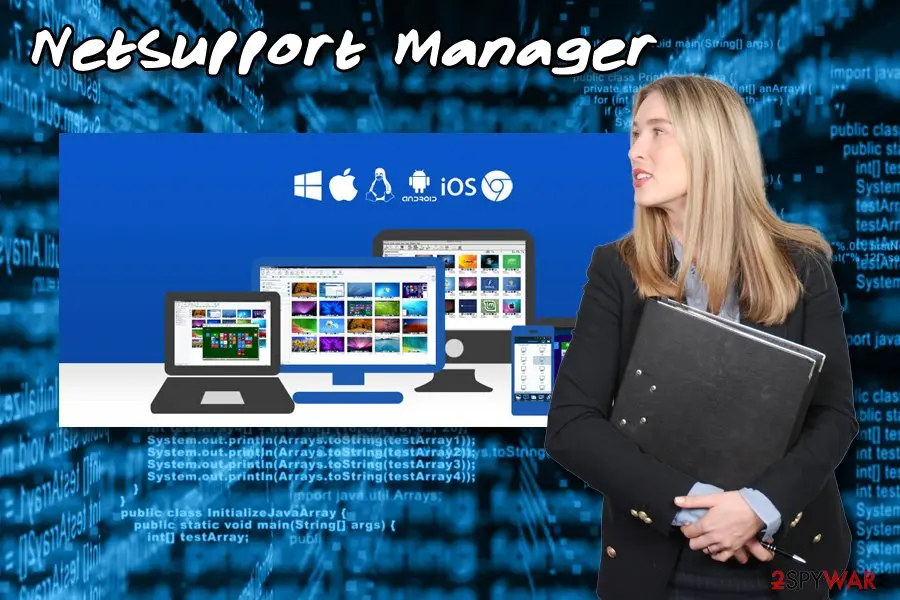
NetSupport Manager is a cross-platform commercial application that was developed by NetSupport Limited.
Initially, it used as a Remote Administration Tool for admins to access clients' computers remotely. However, just like many other RATs, this application can also be misused by bad actors to gain illegal access to victims' machines.
NetSupport Manager would allow hackers to remotely control the affected device, i.e., install additional malware, harvest banking details or account credentials, gain access to the camera, take screenshots, and much more. The malicious version of the app is being spread with the help of fake updates, such as browser or codec updates, Chrome or Firefox.
Additionally, some versions are found being distributed with the help of the infamous HoeflerText Pop-up scam, which was also involved in GandCrab ransomware campaigns. In the detailed research study by FireEye experts, it was reported that NetSupport Manager malware is mostly infecting users from the USA, Netherlands, and Germany, although other countries might be affected as well.
To get infected with NetSupport Manager RAT, users need to visit a compromised website (redirects might be caused by adware) which prompts them to update Chrome, or something else.
If agreed, victims will execute a JavaScript file which is usually hosted on Dropbox, sends technical information, and downloads the malicious payload. The initial malicious JS file uses a variety of obfuscation techniques, which might prevent anti-malware programs from detecting the threat before it is downloaded and populated.
After downloading the payload, NetSupport Manager establishes a contact with a C&C server controlled by hackers. At this point, the malware sends the current date set on the system - and information that is sent encrypted. Next, the virus will collect a variety of information, such as:
The remote server responds with a download of another JS file - Update.js, which will download and execute the final payload. The malware then utilizes PowerShell commands to download a password-protected 7zip file, which contains a NetSupport Manager. Additionally, the malware also creates a NetSupport client on the system for the remote access feature to be available.
In addition to establishing NetSupport Manager RAT, the malicious payload also modifies Windows registry, disables Windows Error Reporting function, adds an exception in the firewall, and hides a variety of files on the system. Unfortunately, but the latter means that system files are infected as well, so even after NetSupport Manager removal, the OS might experience a variety of malfunctions.
Be aware that NetSupport Manager virus might not let you terminate it due to the interference with security software.
- User name
- Computer name
- OS version
- Details of anti-malware software installed
- MAC address
- Process list, etc.
From our report of Apr 2019 · not reviewed since
Terminate NetSupport Manager RAT from your device using powerful anti-malware software
You should even attempt manual NetSupport Manager removal, as the malicious payload performs a variety of changes within the system, and only trained IT professionals can revert the damages without any automated tools. Such a task should always be left for anti-malware applications that are specifically designed to detect and terminate parasites like NetSupport Manager.
If you do not have a security application installed yet, download , , or another tool (be aware that AV vendors use different databases for malware detection, so not all engines might be able to detect the threat). Before you remove NetSupport Manager virus, you should access the Safe Mode environment which would temporarily stop the malicious tasks from running.
After that, you should make sure you reset and change passwords on all your accounts, as hackers might be able to access it due to stolen data from your PC.
[GI=method-1]To remove NetSupport Manager RAT from your machine, you should enter Safe Mode with Networking. This way, you stop the malware from tampering with your security software:
[GI=method-2]System Restore might also be used as an option to terminate NetSupport Manager infection
How NetSupport Manager got on your PC
From our report of Apr 2019 · outdated details corrected in October 2026
Fake updates are among one of the most prominent malware delivery methods used in the wild.
Fake software updates are one of those which you should be especially worried about, as they are commonly used by criminals to initiate malware delivery. This outdated tactic is still relevant today.
Therefore, you should always make sure that the update prompt is legitimate. To avoid any type of confusion, experts recommend setting automatic mode for updates. Alternatively, downloading new patches from the official websites only is a good idea as well. In general, do not trust any update prompts that come from your browser on various sites (always check the URL bar - you will most likely see some dodgy domain name).
To improve the overall security of your device, you should keep the security application running at all times, apply system updates, avoid spam email attachments or links, and most certainly stay away from software cracks or keygens.
How to check the PC for NetSupport Manager
- File:
Update.js
How to remove NetSupport Manager
Someone may have had remote control of the PC.
Cut the connection first, then remove the trojan and secure your accounts.
Step 1: Remove remote access tools and lock the attacker out
Unplug the network cable or turn off Wi-Fi first, so any remote session drops.
In Settings > Apps > Installed apps (Windows 11) or Apps & features (Windows 10), uninstall remote access programs you did not set up yourself, such as AnyDesk, ScreenConnect, TeamViewer or an unknown "support" tool.
Check Settings > Accounts > Other users (Family & other users in Windows 10) for accounts you did not create. Turn off Remote Desktop under Settings > System unless you use it.
Full procedure with screenshots: Uninstall a program or app in Windows On uGetFix
Step 2: Check where Update.js runs from and stop it
Update.jsis the part you can see, and its location tells you whether it belongs there. Right-click it on the Processes page of Task Manager and choose Open file location, then right-click the file > Properties > Digital Signatures to see who signed it.An unsigned file, or one in a user folder such as
%AppData%, is the one to remove: end the task, then delete the file.Note the folder name, because the same folder usually holds its other files. This is the same in Windows 11 and Windows 10.
Full procedure with screenshots: Close a frozen app (Task Manager, Force Quit) On uGetFix
Step 3: Delete scheduled tasks that bring it back
Open Task Scheduler from the Start menu and click Task Scheduler Library. Select each task you do not recognise and read the Actions tab:
- a task that starts a file in
%AppData%or%Temp% - runs
powershellwith a long encoded line - opens a web address belongs to NetSupport Manager or a similar program
Right-click such a task and choose Delete, and check the subfolders too. Leave tasks from Microsoft, your PC's maker and programs you use. Task Scheduler is the same in Windows 11 and Windows 10.
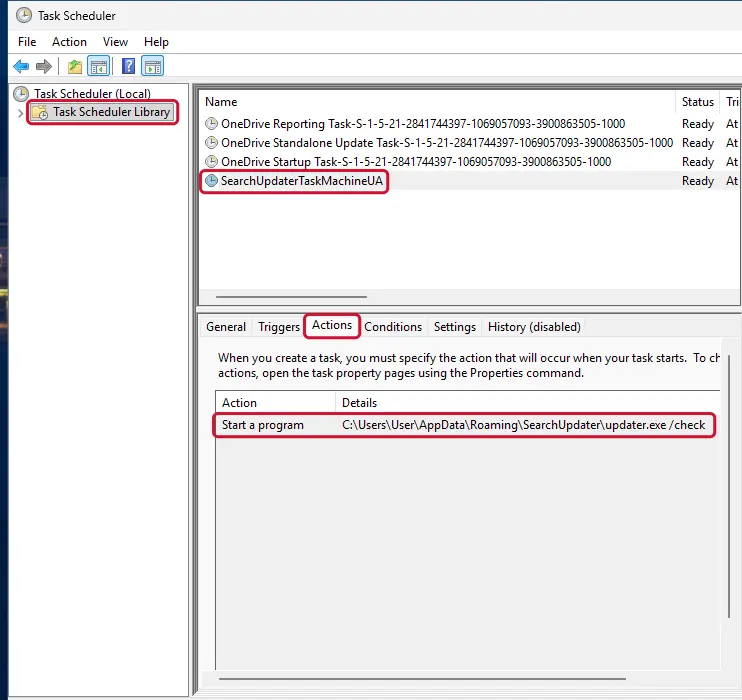
Windows 11: Task Scheduler Library, the task selected, the Actions tab shows the file it runs. Full procedure with screenshots: Remove what malware leaves behind in Windows
- a task that starts a file in
Step 4: Remove it from startup
Whatever NetSupport Manager installed usually starts with Windows. Open Task Manager with Ctrl + Shift + Esc, go to Startup apps in Windows 11 or the Startup tab in Windows 10, and disable what you do not know, starting with entries that have an empty Publisher column.
Open file location on the right-click menu shows the file, which helps you decide and tells you what to delete later. Disabling is safe: if something you need stops working, switch it back on.
Full procedure with screenshots: Stop apps from opening at startup On uGetFix
Step 5: Scan the PC, then run the offline scan
Open Windows Security > Virus & threat protection > Scan options, run a Full scan and remove everything it finds. Then select Microsoft Defender Antivirus (offline scan) and click Scan now: the PC restarts and scans before Windows loads, which finds files that hide while Windows runs.
Save your work first, because the offline scan takes about 15 minutes. Both scans are built into Windows 11 and Windows 10, and a second scanner from another vendor is a useful extra opinion.

Windows 11: Windows Security > Virus & threat protection > Scan options. Full procedure with screenshots: Run a Microsoft Defender Offline scan
Step 6: Change passwords from another device and sign out other sessions
Assume that the passwords saved in this PC's browsers, and the accounts that were open in them, are known to the attacker. From a phone or a clean computer, change the e-mail password first, then banking, shopping, social and gaming accounts.
Use each service's option to sign out of all other sessions, because stolen cookies keep a session open even after a password change. Turn on two-step verification on each account. Wait with the infected Windows 11 or Windows 10 PC until the scans are clean.
Full procedure with screenshots: Turn on two-step verification / secure a hacked account
Instructions for each browser and system
The detailed steps for every browser and system this guide covers. Open the one you use.
Manual removal using Safe Mode
Important! →
Manual removal guide might be too complicated for regular computer users. It requires advanced IT knowledge to be performed correctly (if vital system files are removed or damaged, it might result in full Windows compromise), and it also might take hours to complete. Therefore, we highly advise using the automatic method provided above instead.
Step 1. Access Safe Mode with Networking
Manual malware removal should be best performed in the Safe Mode environment.
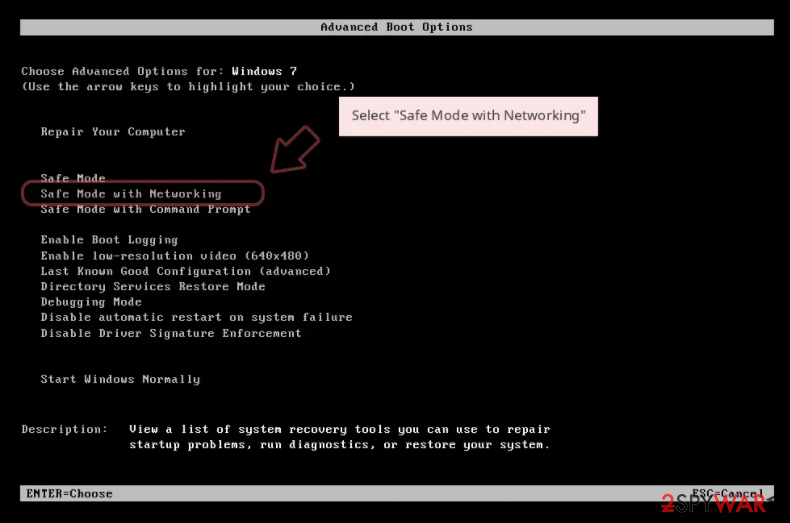
Windows 7 / Vista / XP
- Click Start > Shutdown > Restart > OK.
- When your computer becomes active, start pressing F8 button (if that does not work, try F2, F12, Del, etc. - it all depends on your motherboard model) multiple times until you see the Advanced Boot Options window.
- Select Safe Mode with Networking from the list.
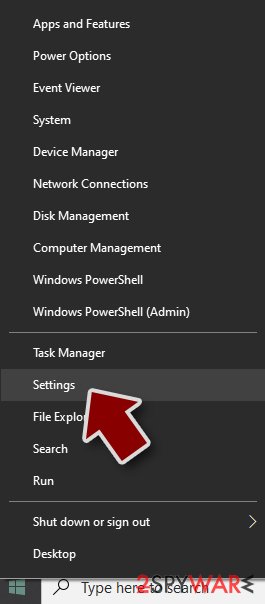
Windows 10 / Windows 8
- Right-click on Start button and select Settings.
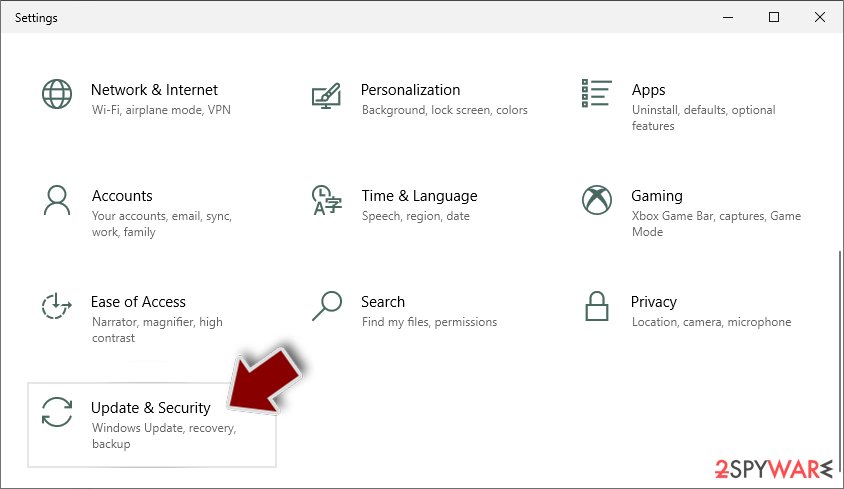
- Scroll down to pick Update & Security.
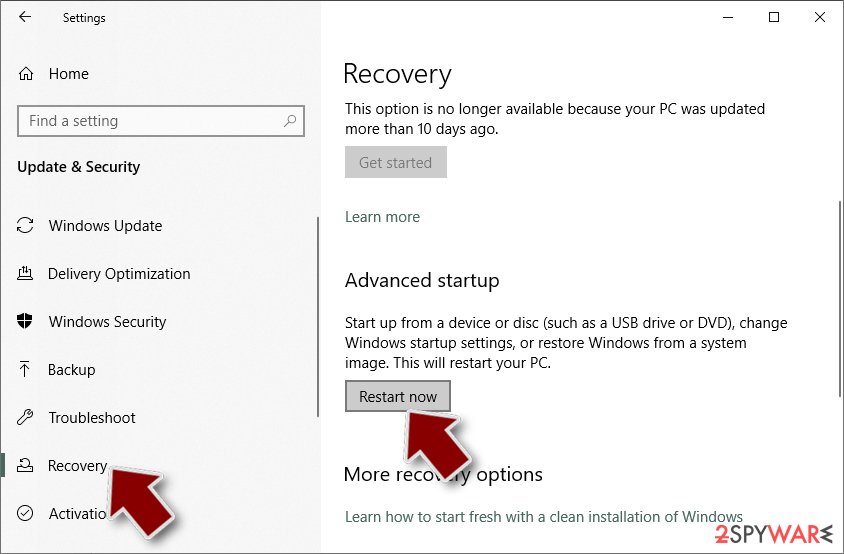
- On the left side of the window, pick Recovery.
- Now scroll down to find Advanced Startup section.
- Click Restart now.
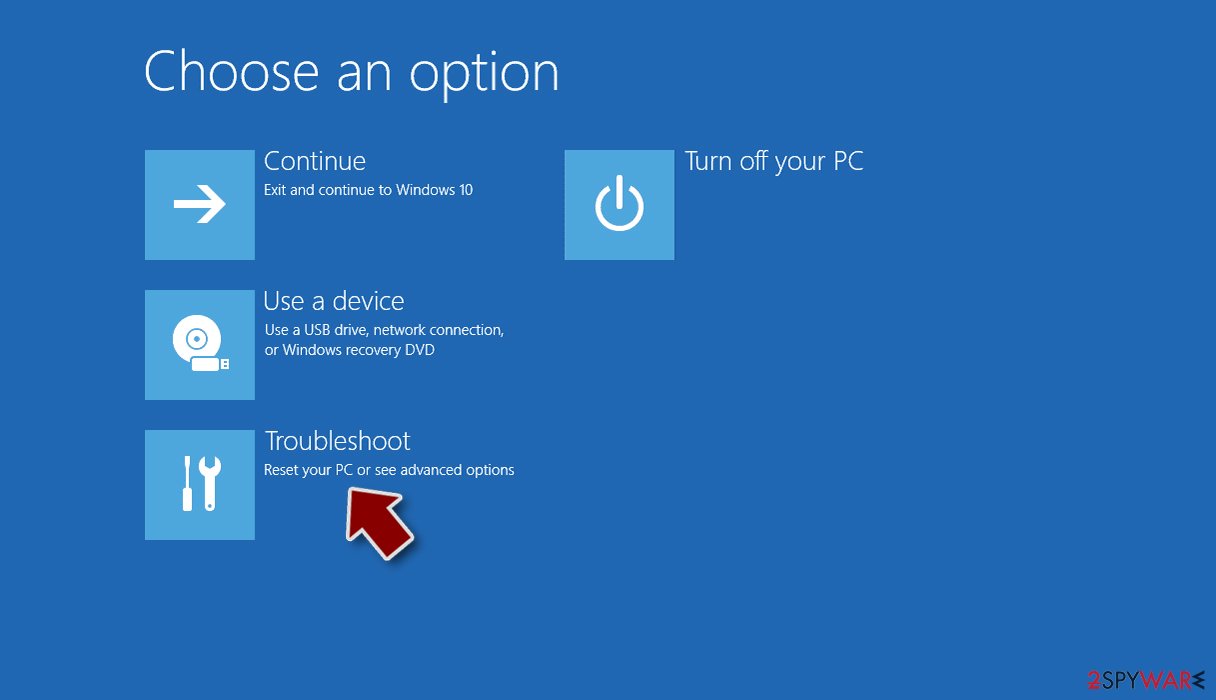
- Select Troubleshoot.
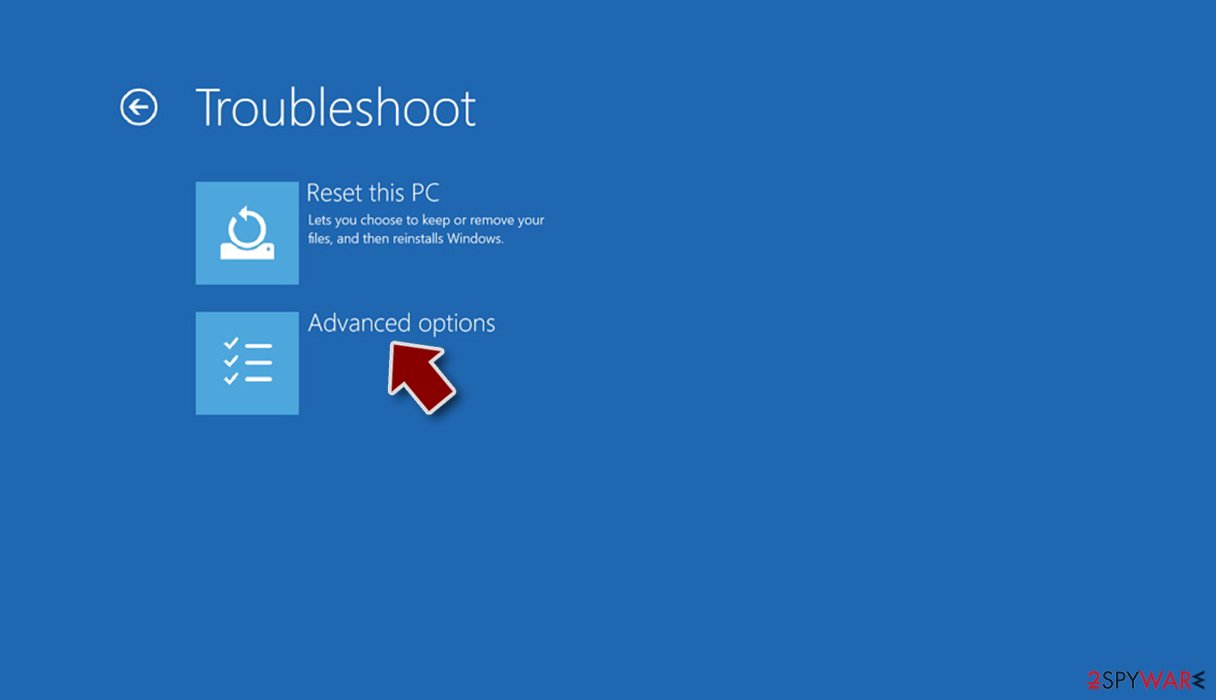
- Go to Advanced options.
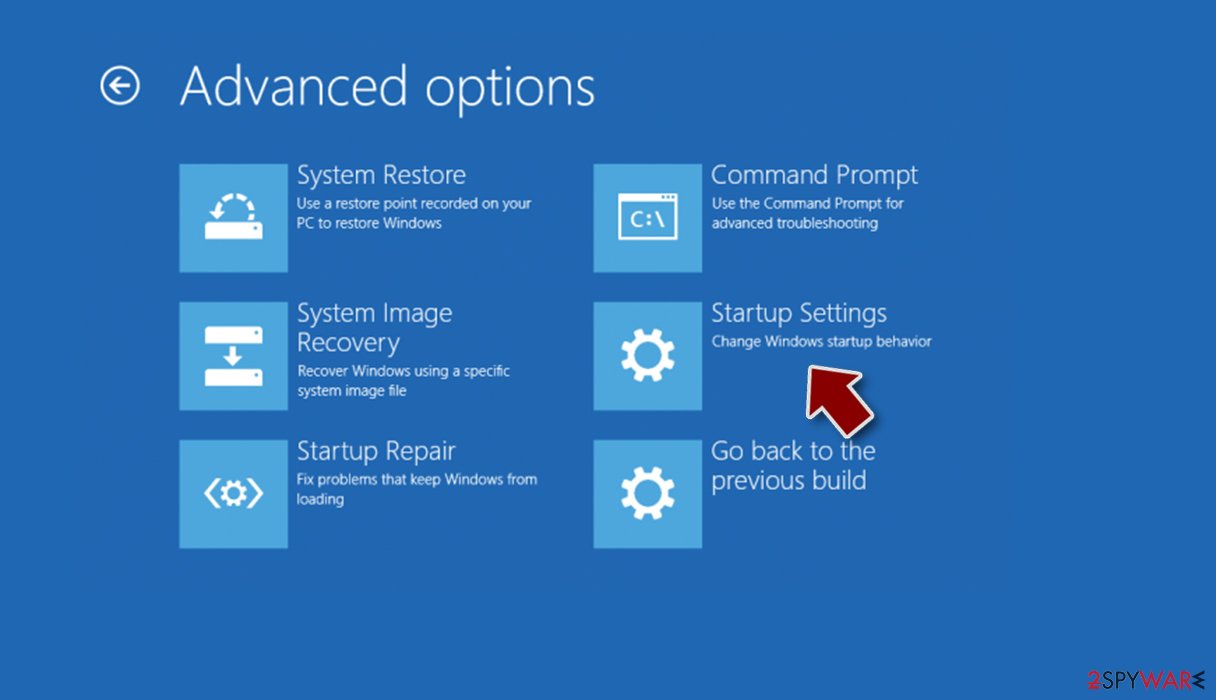
- Select Startup Settings.
- Press Restart.
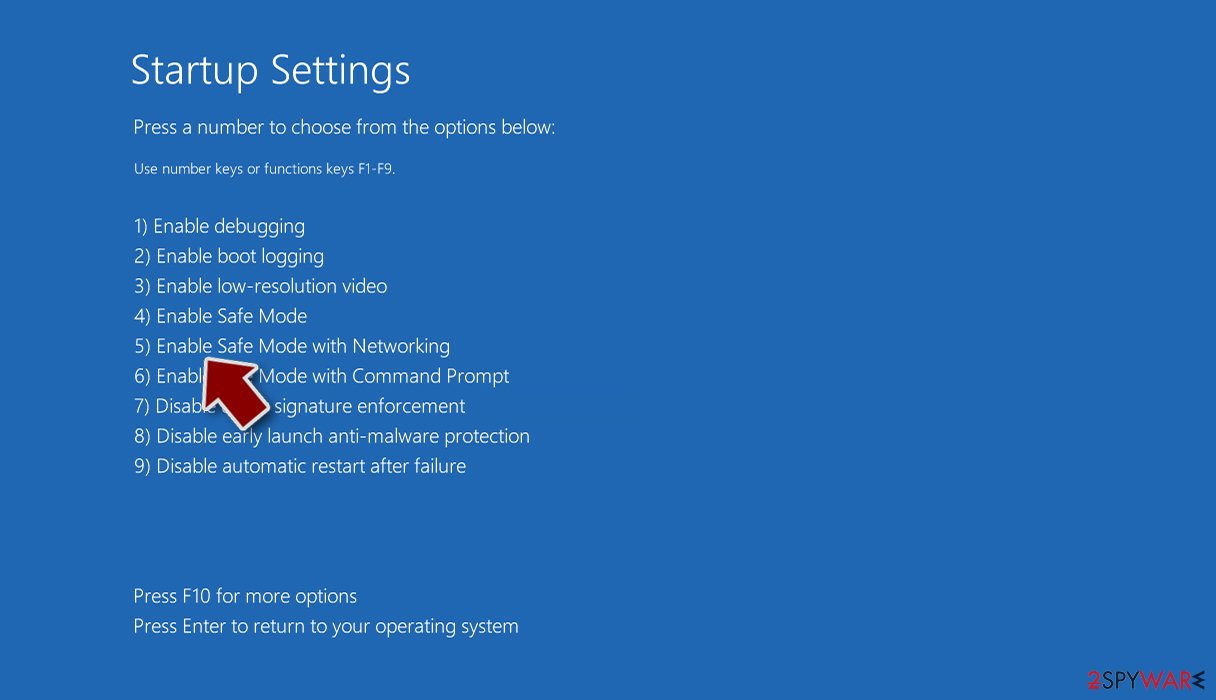
- Now press 5 or click 5) Enable Safe Mode with Networking.
Step 2. Shut down suspicious processes
Windows Task Manager is a useful tool that shows all the processes running in the background. If malware is running a process, you need to shut it down:
- Press Ctrl + Shift + Esc on your keyboard to open Windows Task Manager.
- Click on More details.
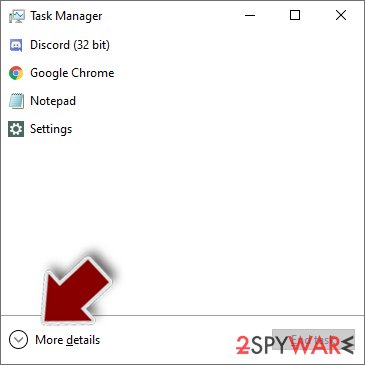
- Scroll down to Background processes section, and look for anything suspicious.
- Right-click and select Open file location.
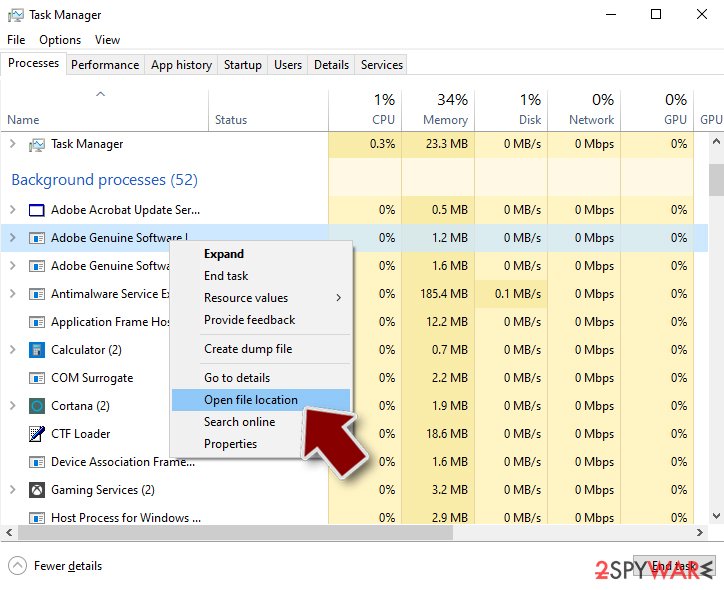
- Go back to the process, right-click and pick End Task.
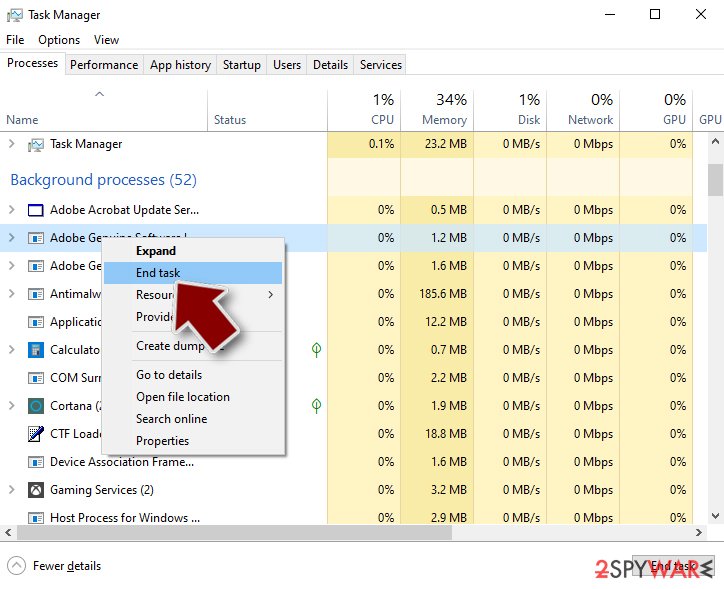
- Delete the contents of the malicious folder.
Step 3. Check program Startup
- Press Ctrl + Shift + Esc on your keyboard to open Windows Task Manager.
- Go to Startup tab.
- Right-click on the suspicious program and pick Disable.
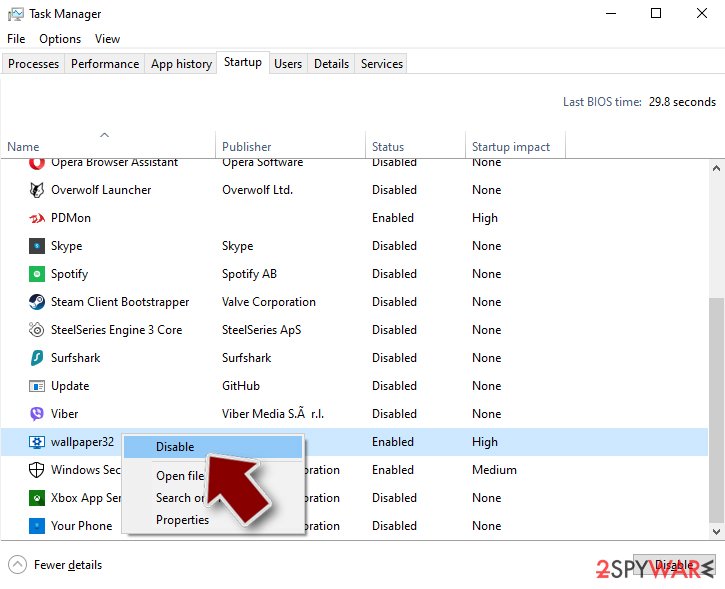
Step 4. Delete virus files
Malware-related files can be found in various places within your computer. Here are instructions that could help you find them:
- Type in Disk Cleanup in Windows search and press Enter.
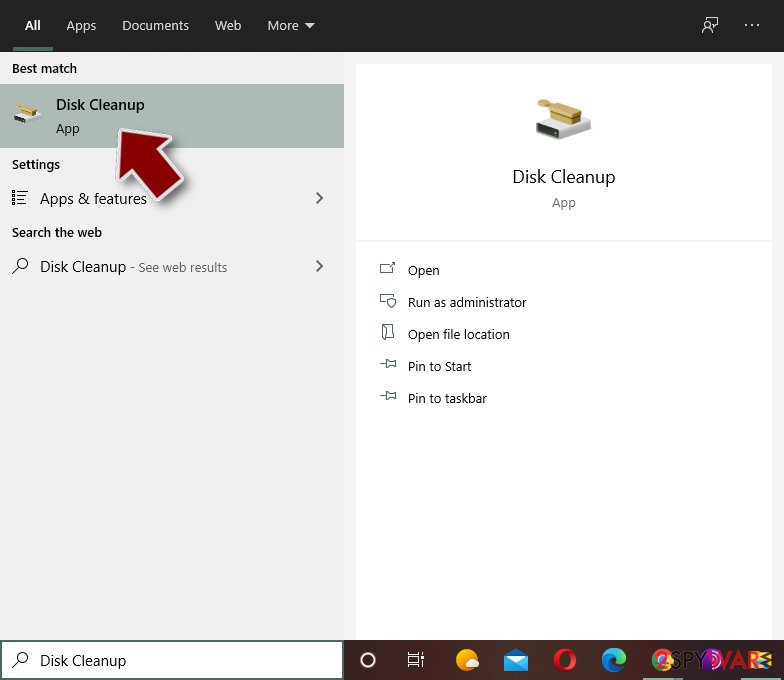
- Select the drive you want to clean (C: is your main drive by default and is likely to be the one that has malicious files in).
- Scroll through the Files to delete list and select the following:
Temporary Internet Files
Downloads
Recycle Bin
Temporary files - Pick Clean up system files.
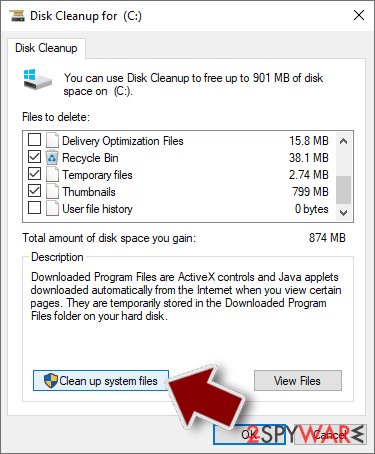
- You can also look for other malicious files hidden in the following folders (type these entries in Windows Search and press Enter):
%AppData%
%LocalAppData%
%ProgramData%
%WinDir%
After you are finished, reboot the PC in normal mode.
After removal: passwords, accounts and prevention
Secure your accounts after the clean-up
Assume that whatever was saved in the browsers on this PC while the PC showed an unfamiliar process called Update.js in Task Manager has been copied:
- passwords
- cookies
- autofill data
Work from a clean device, or from this PC once the offline scan finds nothing.
Start with your main e-mail account, because it can reset everything else, then banking and payment, then social and gaming accounts. Change each password, sign out of all sessions and turn on two-step verification: Turn on two-step verification / secure a hacked account.
The full order, including crypto wallets and card replacement, is in securing your accounts after malware.
Do not let government spy on you
The government has many issues in regards to tracking users' data and spying on citizens, so you should take this into consideration and learn more about shady information gathering practices.
Avoid any unwanted government tracking or spying by going totally anonymous on the internet.
You can choose a different location when you go online and access any material you want without particular content restrictions. You can easily enjoy internet connection without any risks of being hacked by using VPN.
Control the information that can be accessed by government any other unwanted party and surf online without being spied on. Even if you are not involved in illegal activities or trust your selection of services, platforms, be suspicious for your own security and take precautionary measures by using the VPN service.
Backup files for the later use, in case of the malware attack
Computer users can suffer from data losses due to cyber infections or their own faulty doings.
Ransomware can encrypt and hold files hostage, while unforeseen power cuts might cause a loss of important documents. If you have proper up-to-date backups, you can easily recover after such an incident and get back to work. It is also equally important to update backups on a regular basis so that the newest information remains intact - you can set this process to be performed automatically.
When you have the previous version of every important document or project you can avoid frustration and breakdowns. It comes in handy when malware strikes out of nowhere. Use for the data restoration process.
Questions about NetSupport Manager
What is NetSupport Manager?
NetSupport Manager is a legitimate remote management tool developed by NetSupport Limited designed for IT administrators to access and control client computers remotely.
However, cybercriminals misuse this commercial application as a Remote Access Trojan (RAT) to gain unauthorized control over victims' machines. When deployed maliciously, it allows attackers to install additional malware, steal banking credentials, access webcams, capture screenshots, and monitor user activity without permission.
The malicious versions are typically spread through deceptive fake updates disguised as Flash Player, Chrome, or Firefox installations. According to FireEye researchers, this abuse primarily affects users in the USA, Netherlands, and Germany, though other countries are targeted as well.
How does the NetSupport Manager malware infection work?
The infection begins when users visit compromised websites that redirect them to fake update prompts for popular software like Chrome. If users click the update button, a JavaScript file hosted on Dropbox is executed, which transmits system information to attackers' servers.
The initial malicious script uses obfuscation techniques to avoid detection by security software. The remote server responds by sending another file called Update.js, which downloads the actual NetSupport Manager payload. The malware uses PowerShell commands to retrieve a password-protected 7zip archive containing the final payload, then establishes remote access capabilities on the infected system.
What damage does NetSupport Manager cause?
Beyond establishing remote access, NetSupport Manager modifies the Windows registry, disables Windows Error Reporting, adds firewall exceptions to hide its presence, and conceals files on the system. System files become infected, potentially causing malfunctions even after removal. The malware can download additional malicious software, harvest sensitive information, and create backdoors for future attacks.
Some versions prevent users from terminating the process due to interference with security software. Victims may experience unexplained system behavior changes, inability to run security tools, and compromised passwords or financial accounts if attackers gain access to banking platforms through remote sessions.
Is NetSupport Manager itself malicious?
NetSupport Manager itself is legitimate software developed by NetSupport Limited for authorized remote administration purposes. The application becomes malicious only when deployed without user consent by cybercriminals. The tool's remote control capabilities that are beneficial for IT support become dangerous when abused by attackers.
Many antivirus programs detect malicious variants as threats because of the unauthorized installation and misuse context, not because the software itself is inherently malicious. Users should only encounter legitimate NetSupport Manager if their IT department intentionally installs it on their machine as part of authorized system administration.
How can I tell if I'm infected?
Signs of NetSupport Manager infection include unexpected firewall changes, disabled Windows Error Reporting, modified registry entries, unexplained background processes, and inability to run security software effectively. You may notice your computer behaving strangely, security tools being blocked from operation, or inability to access certain system settings.
The HoeflerText font warning pop-ups are often associated with the infection vector, though the font issue and malware are separate problems. System performance may degrade due to background remote access activity. If you suspect infection, do not attempt to remove it manually since system files may be corrupted; use professional anti-malware tools instead.
Should I contact the attackers?
No, never contact cybercriminals or engage with them in any way. Attackers have no incentive to help you or limit the damage they cause. Contacting them only confirms your email is active and may lead to additional targeting, extortion attempts, or identity theft.
There is no legitimate reason to communicate with malware operators, and such communication could be used as evidence against you in legal proceedings. Instead, focus entirely on removal using proper security software and recovery procedures. Report the infection to relevant authorities and notify anyone whose information may have been compromised through your system.
How do I safely remove NetSupport Manager?
Boot your computer into Safe Mode with Networking to prevent the malware from interfering with removal attempts. Download and run reputable anti-malware software from a clean device if possible, then perform a full system scan.
Professional security tools are essential because manual removal is extremely risky; system files infected by the malware cannot be safely identified and deleted by untrained users.
After removal, use a system optimization tool to repair any registry changes and corrupted files left behind. Change all passwords from a different device, monitor financial accounts closely, and consider credit monitoring services if banking information was accessed.
How can I prevent NetSupport Manager infection?
Never download software updates through browser pop-ups or notifications from websites. Always initiate updates directly from official software websites or through built-in update mechanisms. Keep your operating system and all software fully patched to prevent exploitation.
Use reputable security software and keep it updated with the latest threat definitions. Avoid clicking links or downloading attachments from untrusted emails, and be suspicious of urgent-sounding messages requesting immediate action.
Use advanced or custom installation settings when installing new programs to prevent bundled PUPs. Practice caution when browsing untrusted websites, and consider using ad-blocking software to prevent malicious advertisements.
What should I do after removing the malware?
After confirming NetSupport Manager removal with a successful security scan, immediately change passwords for all accounts from a clean device, paying special attention to email, banking, and financial services. Monitor your credit reports and consider placing a fraud alert with credit bureaus if financial information was exposed.
Review financial accounts for unauthorized transactions and contact your bank if any suspicious activity appears. Reset your browser settings to defaults and remove any unfamiliar extensions or toolbars. Run additional full system scans to ensure complete removal, and consider consulting with a cybersecurity professional if the infection was particularly severe or if data access is suspected.
Will Fortect remove NetSupport Manager?
Fortect scans Windows for malware and unwanted programs and repairs the system files and settings they change, and its free scan shows what it finds on your PC before you decide anything.
For NetSupport Manager, follow the plan above as well: the browser steps take back permissions and settings that no scanner treats as a threat, and uninstalling the program that brought it removes the source.
Run Microsoft Defender's full scan and, if anything was found, its offline scan as a second opinion. If the symptoms are gone after the plan and both scans are clean, there is nothing more to do.
Sources
- 2-spyware: How to remove Remote Administration Tools (read October 5, 2026)
- FireEye: Fake Software Update Abuses NetSupport Remote Access Tool (read October 5, 2026)
- WhatIs: Command-and-control server (C&C server) (read October 5, 2026)
- FTC: How to recognize, remove and avoid malware (read October 5, 2026)
- Microsoft Learn: Microsoft Defender Offline (read October 5, 2026)