

General information about Search.funmovietabsearch.com
If your homepage has been replaced without your consent, do not start thinking that your computer has been severely compromised. If the homepage value has been set to Search.funmovietabsearch.com, it means that your PC has been affected by Search.funmovietabsearch.com virus, which belongs to spyware, but not malware category. This suspicious application can slow your computer down and also negatively impact Internet’s speed. Besides, this web page presents a regular looking search engine, and it is important not to use it; otherwise you might encounter curious case of Search.funmovietabsearch.com redirect issue. It appears that this search engine integrates sponsored third-party links within its search results. You might think that there is nothing wrong with that; however, you can be greatly surprised to find out where such sponsored search results can lead you to. When using such unknown and suspicious search engines, you risk being redirected to high-risk websites. Of course, we cannot state that every single link provided by this search engine is dangerous, but still, you should be careful.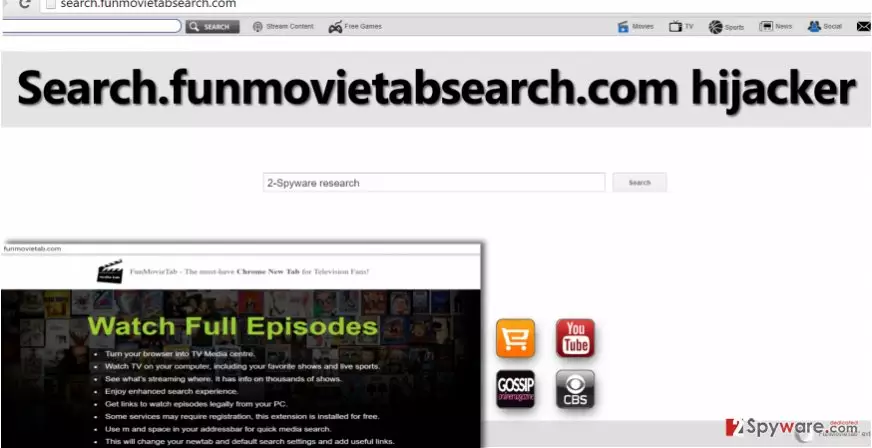
If you seek to keep your computer safe and sound, try to avoid visiting websites filled with flashy ads, download buttons, offers to win a million in some suspicious lottery, and other too-good-to-be-true offers. Clicking on these ads or revealing information on sites accessible via them can lead to various problems, for instance, infiltration of malware, data leakage, etc. Therefore, we recommend you to stay cautious while browsing through insecure web pages. If you do not like the indicated search engine and if you would like to change your homepage address with google.com or similar URL, you should remove Search.funmovietabsearch.com hijacker first. The easiest way to do it is to check your system with FortectIntego or a similar spyware removal tool.
Methods of distribution
In order to prevent Search.funmovietabsearch.com hijack in the future, you should learn how such PUPs spread. Typically, they spread together with other free programs, and can be rejected during their installation procedure. Therefore, when you open software’s installation wizard, we recommend you to be very careful and pay close attention to every piece of information that installer provides. The most important thing is to alter installation setup by changing its settings. Instead of choosing Default or Standard settings, opt for Advanced or Custom ones. These settings will allow you to modify and decompose the software pack. Just deselect unknown and unwanted suggested programs and finish the installation then.
You can also download this program from funmovietab(dot)com, a website that promotes Fun Movie Tab extension. It appears that this browser hijacker is compatible with Google Chrome browser only. If your browser has been affected, follow instructions provided below to carry out Search.funmovietabsearch.com removal.
Instructions on how to uninstall Search.funmovietabsearch.com
You must remove Search.funmovietabsearch.com virus if you wish to restore previous browser settings and be able to change your homepage again. Choose how you want to uninstall this browser hijacker – you can install anti-spyware software and scan your PC with it to detect all components related to spyware and malware and eliminate them from the computer system. Alternatively, you can try to find these components by yourself. However, make sure you are experienced enough for this; otherwise, you can unintentionally delete essential system files or files that belong to other software. Deleting wrong files can cause system malfunctions and make error messages appear. To prevent such issues, we recommend choosing automatic Search.funmovietabsearch.com removal method.
Uninstall from Windows
Uninstall from Windows 10/8:
- Type Control Panel into the Windows search box and open the result.
- Under Programs, select Uninstall a program.


Uninstall from Windows 7/XP:
- Click on Windows Start > Control Panel (Windows XP users should click on Add/Remove Programs).
- In Control Panel, select Programs > Uninstall a program.


Remove the unwanted program:
- In the Programs and Features window, look for any recently installed suspicious entries, select them, and click Uninstall.
- If User Account Control appears, click Yes to confirm, then complete the removal.


Delete from macOS
Remove the unwanted application:
- From the menu bar, select Go > Applications.
- In the Applications folder, look for any suspicious entries, then drag them to Trash (or right-click and pick Move to Trash).


Delete leftover files and folders:
- Select Go > Go to Folder.
- Enter /Library/Application Support and remove any suspicious folders related to the unwanted program.
- Repeat the same check in the /Library/LaunchAgents and /Library/LaunchDaemons folders, deleting any suspicious entries.

- Finally, empty the Trash to permanently remove the leftovers.

Remove from Google Chrome
Delete malicious extensions from Google Chrome:
- Open Google Chrome, click on the Menu (three vertical dots at the top-right corner) and select More tools > Extensions.
- In the newly opened window, you will see all the installed extensions. Uninstall all suspicious extensions related to the unwanted program by clicking Remove.


Clear cache and web data from Chrome:
- Click on Menu and pick Settings.
- Under Privacy and security, select Clear browsing data.
- Select Browsing history, Cookies and other site data, as well as Cached images and files.
- Click Clear data.


Change your homepage:
- Click menu and choose Settings.
- Look for a suspicious site in the On startup section.
- Click on Open a specific or set of pages and click on three dots to find the Remove option.
Reset Google Chrome:
If the previous methods did not help you, reset Google Chrome to eliminate all the unwanted components:
- Click on Menu and select Settings.
- In the Settings, scroll down and click Advanced.
- Scroll down and locate Reset and clean up section.
- Now click Restore settings to their original defaults.
- Confirm with Reset settings.


Did this guide help?
4 comments
Rhytm
Guys, just remove Fun Movie Tab from your computer and youre basically done
Zedd
Cannot find it anywhere!
Zedd
nevermind just removed it with anti-malware software.
Dunya
This browser hijacker is freaking annoying! I am glad that I have found a way to remove it, finally!