

Why do you see Slivnewbest.ru instead of your homepage?
Slivnewbest.ru is a browser hijacker program and this is primarily the reason why you see this suspicious website as your homepage. The tricky thing about it is that this site is nearly identical to the legitimate search engines, and closely resembles the well-known Google interface. Nevertheless, this suspicious site should not be mistaken or used instead of any reputable search providers. This website is unable to provide the same level service as the previously mentioned legitimate engines, and its creators are not even planning on doing anything about that. Why? Because the actual purpose of the Slivnewbest.ru malware is quite different. This site is programmed to display ads and sponsored links all the way to the last result page. Unfortunately, Slivnewbest is designed to use you instead of providing quality service. The ads and links that are displayed via this site run through the pay-per-click system which allows malware creators to monetize every single click. That’s how crooks make a fortune while you battle with unexpected redirects and a freezing browser. But this does not have to last forever. You can always stop such potentially unwanted programs by eliminating them from your computer using reputable antivirus software. FortectIntego is one of the Slivnewbest.ru removal options.
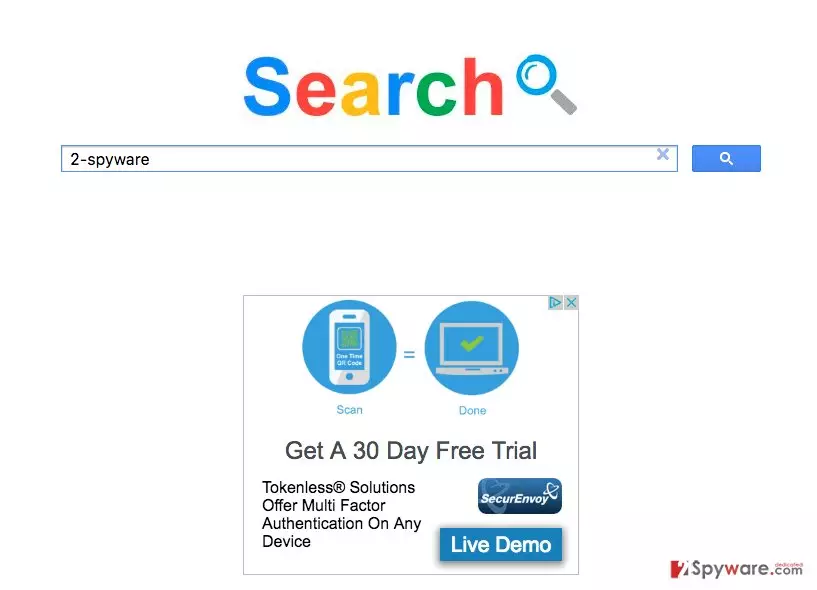
Usually, the users can immediately tell they have become victims of Slivnewbest.ru hijack, simply because they notice the changed homepage and search engine and the suspicious search results it provides. But apart from these obvious changes, there are also processes that continue to run silently in the background of the system. For instance, this hijacker may be tracking every move you make online. It can keep track of what websites you are visiting, the pages you go to and, overall, what interests you the most. It can base the promoted content on this information and generate targeted ads accordingly. Slivnewbest.ru redirect issue, like with any other browser hijacker, can also be expected. Because of all the mentioned processes the virus needs to carry out, it may start “eating up” quite a lot of CPU and, as a result, slow down computer’s performance and trigger malfunctions. To prevent that from happening remove Slivnewbest.ru from your computer unhesitatingly.
What is known about browser hijacker distribution?
There is quite a lot of mystery that surrounds the distribution of potentially unwanted programs. Most of the time, the users think that these programs break into their computers self-willingly and there is nothing can be done on their behalf. That is not true. Slivnewbest.ru needs permission to enter the computer, only the users have no idea when and how they have granted it. To shed some light on this deceptive system infiltration, we must remind you that potentially unwanted programs mostly hide in software packages and the highest chance to get infected is by installing newly downloaded programs carelessly. You can lessen this risk by scanning these packages with antivirus scanners and proceeding with the installation in “Custom” or “Advanced” modes. If you follow this simple rule consistently, you should save your PC from Slivnewbest.ru or other malware infection.
Slivnewbest.ru removal tips:
If you have found out that all the problems you are experiencing boil down to the Slivnewbest.ru virus, it’s high time you took action and fixed this issue. Of course, the only way to do it is to banish the virus and its malicious components from the computer till the last malicious file. The executable of this infection may be stopped using the Add/Remove Programs feature, but this will not stop the hijacker and its related components from working in the background of the system. Thus, to hunt them all down and finally remove Slivnewbest.ru from your computer you may need some extra assistance. Luckily, antivirus and antispyware programs are designed to provide you with that assistance. If you are looking for some alternative Slivnewbest.ru removal solutions, you may use the manual virus removal guide our experts have prepared for you below.
Uninstall from Windows
Uninstall from Windows 10/8:
- Type Control Panel into the Windows search box and open the result.
- Under Programs, select Uninstall a program.


Uninstall from Windows 7/XP:
- Click on Windows Start > Control Panel (Windows XP users should click on Add/Remove Programs).
- In Control Panel, select Programs > Uninstall a program.


Remove the unwanted program:
- In the Programs and Features window, look for any recently installed suspicious entries, select them, and click Uninstall.
- If User Account Control appears, click Yes to confirm, then complete the removal.


Delete from macOS
Remove the unwanted application:
- From the menu bar, select Go > Applications.
- In the Applications folder, look for any suspicious entries, then drag them to Trash (or right-click and pick Move to Trash).


Delete leftover files and folders:
- Select Go > Go to Folder.
- Enter /Library/Application Support and remove any suspicious folders related to the unwanted program.
- Repeat the same check in the /Library/LaunchAgents and /Library/LaunchDaemons folders, deleting any suspicious entries.

- Finally, empty the Trash to permanently remove the leftovers.

Remove from Microsoft Edge
Delete unwanted extensions from MS Edge:
- Select Menu (three horizontal dots at the top-right of the browser window) and pick Extensions.
- From the list, pick the extension and click on the Gear icon.
- Click Remove.


Clear cookies and other browser data:
- Click on the Menu (three horizontal dots at the top-right of the browser window) and select Settings > Privacy, search, and services..
- Under Clear browsing data, pick Choose what to clear.
- Select Cookies and other site data and Cached images and files. (apart from passwords, although you might want to include Media licenses as well, if applicable) and click on Clear.


Restore new tab and homepage settings:
- Click the menu icon and choose Settings.
- Then find On startup section.
- Click Remove next to any suspicious startup page.
Reset MS Edge if the above steps did not work:
- Press on Ctrl + Shift + Esc to open Task Manager.
- Click on More details arrow at the bottom of the window.
- Select Details tab.
- Now scroll down and locate every entry with Microsoft Edge name in it. Right-click on each of them and select End Task to stop MS Edge from running.


Instructions for Chromium-based Edge
Delete extensions from MS Edge (Chromium):
- Open Edge and click select Settings > Extensions.
- Delete unwanted extensions by clicking Remove.


Clear cache and site data:
- Click on Menu and go to Settings.
- Select Privacy, search and services.
- Under Clear browsing data, pick Choose what to clear.
- Under Time range, pick All time.
- Select Clear now.


Reset Chromium-based MS Edge:
- Click on Menu and select Settings.
- On the left side, pick Reset settings.
- Select Restore settings to their default values.
- Confirm with Reset.
- This will disable extensions and reset startup pages but will not delete bookmarks, saved passwords, or browsing history.


Remove from Mozilla Firefox (FF)
Remove dangerous extensions:
- Open Mozilla Firefox browser and click on the Menu (three horizontal lines at the top-right of the window).
- Select Add-ons.
- In here, select the unwanted extension and click Remove.


Reset the homepage:
- Click three horizontal lines at the top right corner to open the menu.
- Choose Settings.
- Under Home, set your preferred homepage and new tab settings.
Clear cookies and site data:
- Click Menu and pick Settings.
- Go to Privacy & Security section.
- Scroll down to locate Cookies and Site Data.
- Click on Clear Data...
- Select Cookies and Site Data and Temporary cached files and pages, then click Clear.


Reset Mozilla Firefox
If clearing the browser as explained above did not help, reset Mozilla Firefox:
- Open Mozilla Firefox browser and click the Menu.
- Go to Help and then choose Troubleshooting Information.

- Under Give Firefox a tune up section, click on Refresh Firefox...
- Once the pop-up shows up, confirm the action by pressing on Refresh Firefox.



Remove from Google Chrome
Delete malicious extensions from Google Chrome:
- Open Google Chrome, click on the Menu (three vertical dots at the top-right corner) and select More tools > Extensions.
- In the newly opened window, you will see all the installed extensions. Uninstall all suspicious extensions related to the unwanted program by clicking Remove.


Clear cache and web data from Chrome:
- Click on Menu and pick Settings.
- Under Privacy and security, select Clear browsing data.
- Select Browsing history, Cookies and other site data, as well as Cached images and files.
- Click Clear data.


Change your homepage:
- Click menu and choose Settings.
- Look for a suspicious site in the On startup section.
- Click on Open a specific or set of pages and click on three dots to find the Remove option.
Reset Google Chrome:
If the previous methods did not help you, reset Google Chrome to eliminate all the unwanted components:
- Click on Menu and select Settings.
- In the Settings, scroll down and click Advanced.
- Scroll down and locate Reset and clean up section.
- Now click Restore settings to their original defaults.
- Confirm with Reset settings.


Delete from Safari
Remove dangerous extensions:
- Open Safari, click Safari in the menu at the top-left of the screen, and select Preferences.
- Go to the Extensions tab, look for any suspicious entries, and click Uninstall to remove them.


Clear history and website data:
- Click Safari in the menu and pick Clear History.
- Set Clear to all history and confirm with Clear History.


Reset Safari:
- Click Safari in the menu and select Preferences > Advanced.
- Enable Show Develop menu in menu bar.
- From the menu bar, click Develop and select Empty Caches.


Did this guide help?
2 comments
Reenthal
I cannot run regular search engines.. Only this scamy site is available... Totally a virus
Thrill13
I would not expect anything more from a website that infiltrates computers by deception. Its a waste of time and computer space having it installed on the computer