
Windows 8 Security System: what it is and how to remove it
Windows 8 Security System is a fake antivirus. It is a very close variant to Windows Ultra Antivirus.
Facts checked October 6, 2026. Removal steps tested on Windows 11 (26H2) and checked against Microsoft's and the browser makers' current documentation. Sections marked as our earlier report are the original text: they describe the threat as it was then and have not been reviewed since. The 2026 status, the removal steps and the questions are current.
Automatic
Get a free scan and check if your PC is infected.
Fortect finds malware, unwanted programs and the Windows damage they leave behind, and repairs it in one pass.
If Windows 8 Security System keeps coming back after uninstalling, a scan can find what reinstalls it.
Do it yourself · free Remove Windows 8 Security System yourself 5 steps, about 15 minutes, no software needed.
Start the steps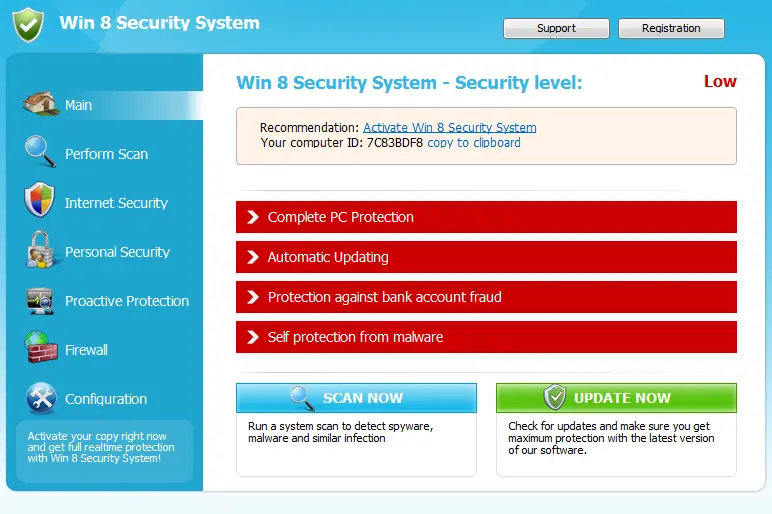
Windows 8 Security System: summary
| Damage | Money loss, severe malware infections |
|---|---|
| name | Windows 8 Security System |
| Type | Rogue antispyware software |
| Main goal | Trick users into believing that their Windows computers are riddled with viruses and the only tool capable of removing them is the fake security tools paid version |
| Detection names | No Microsoft detection name is known |
| Distribution | Not recorded in the old report |
| Removal | Scan the PC with security software to find and remove the malware and anything installed with it. Fortect scans Windows for malware and repairs the system files and settings it damaged. Remove it nowTo use the full-featured product, you have to purchase a license for Fortect. The scan is free. |
Show 6 more facts
| Name | Windows 8 Security System |
|---|---|
| Symptoms | An unknown program in Installed apps |
| Evidence | One write-up by a security site; details still limited |
| Program | Windows 8 Security System |
| First seen | 29 April 2021 |
| Facts checked | 6 October 2026 |
Is Windows 8 Security System a real security program?
From our report of Apr 2021 · not reviewed since
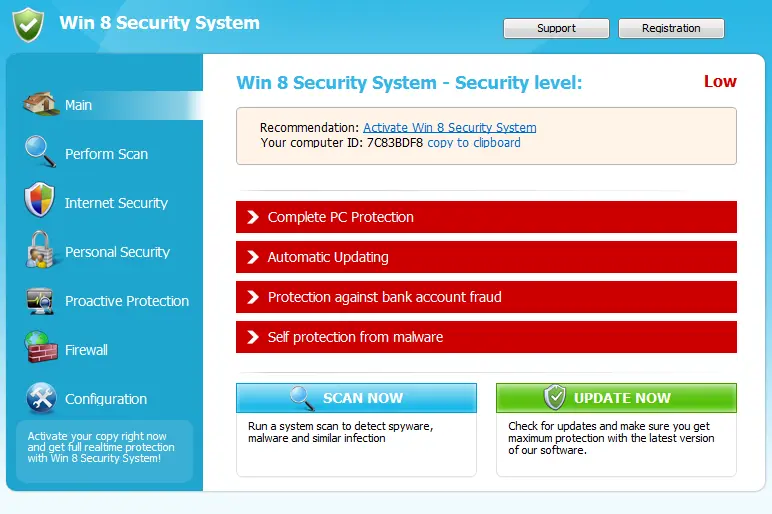
Windows 8 Security System – a rogue antispyware application that shows falsified virus scan results
Windows 8 Security System is a fake antivirus.
It is a very close variant to Windows Ultra Antivirus. Yet, it seems to be much more prepared to prevent its removal and rip its victims off. For that, Windows 8 Security System displays fake alerts and misleading messages that claim that your computer is infected with malware, and now you have to purchase its licensed version to remove them.
Of course, just like any other fake security application, Windows 8 Security System is all about deceiving PC users. All its reported viruses are fake, as well as its paid version. Instead of falling for the tricks of this cyber threat, you MUST remove Windows 8 Security System from your computer.
Windows 8 Security System enters computers via infected websites that can be hacked up if they are not looked after properly. The latest Trojan.Maljava!Gen24 can also be involved in distributing this virus, so make sure that you use updated anti-malware versions and have disabled JAVA in your browser.
This scam tool may also be propagated through fraudulent social engineering and other ways that leave no chances for the victim to notice the intrusion. Right after this infiltration, Windows 8 Security System is set to start as soon as the victim reboots the PC.
Typically, that means adding some new entries into the Registry and creating some harmless files in the system that will additionally be reported as viruses. As a result, this rogue anti-spyware starts showing fake notifications such as:
Here's another example of a deceptive message shown by the fake security tool:
Ignore these or any other alerts displayed by Windows 8 Security System because they report nonexistent infections. Note that the rogue antispyware may also find legitimate Windows files on your computer and report them as viruses. After making its victim concerned, it finishes its campaign by offering to install its licensed copy.
Please don't fall for these tricks. The only thing that's wrong with your PC is that it has Windows 8 Security System virus installed on it. Since it can prevent you from removing it by disabling anti-malware software, launch your device in Safe Mode with Networking.
Whilst in that mode, download, install, and update a legitimate security tool and perform a full threat scan with it. That will remove the rogue app with all of its associated files. Afterward, run system diagnostics with compatible software to revert any changes the infection has made to core system files and settings.
From our report of Apr 2021 · not reviewed since
More from our earlier report on Windows 8 Security System
- Remove any unwelcomed guests from your device with a trustworthy anti-malware tool.
- Undo all the damage caused by the rogue application by performing system optimization with the system recovery software
- Your computer was found to be infected with privacy-threatening software.
- Private data may get stolen and system damage may be severe.Recover your PC from the infection right now, perform a security scan.
- System scan for spyware, adware, trojans and viruses is complete.
- Win 8 Security System detected critical system objects.
- The list of infections and vulnerabilities detected will become available after registration.
How to remove Windows 8 Security System
Nothing it reports is real.
These steps remove it and undo a payment if you made one.
Step 1: Do not pay, and undo a payment if you made one
Nothing that Windows 8 Security System says it found needs fixing by Windows 8 Security System. Close its windows and do not enter card details.
If you bought it, contact your bank or card issuer about a dispute and cancel any renewal, keeping the receipt e-mail as evidence. Uninstalling it from Windows 11 or Windows 10 removes the program but leaves the subscription running.
Full procedure with screenshots: What to do after paying a scammer
Step 2: Uninstall Windows 8 Security System
Windows 8 Security System is removed like any other program, from the list of installed apps. In Windows 11 that is Settings > Apps > Installed apps, in Windows 10 Settings > Apps > Apps & features, and in both you can also use Control Panel > Programs and Features.
Select Windows 8 Security System, click Uninstall and follow the uninstaller to the end. Then look at the entries just above and below it when the list is sorted by date: bundled programs install at the same minute.
Full procedure with screenshots: Uninstall a program or app in Windows On uGetFix
Step 3: Remove it from startup
Press Ctrl + Shift + Esc to open Task Manager and select Startup apps (Windows 11) or the Startup tab (Windows 10). Disable entries you do not recognise, especially ones with no publisher or with a name that copies a Windows component.
Right-click an entry and choose Open file location to see where it runs from: programs in
%AppData%or%Temp%deserve a closer look. Some entries are not listed there but in the registry Run keys, which the procedure below shows how to check.Full procedure with screenshots: Stop apps from opening at startup On uGetFix
Step 4: Delete the folders left behind
Uninstalling often leaves the program's folders, and some threats reinstall themselves from them.
Press Windows + R, type
%LocalAppData%and press Enter, then do the same for%AppData%and %ProgramData%, and look for folders named after Windows 8 Security System, its publisher or created on the day the problem started.Delete those folders, and check
C:\Program FilesandC:\Program Files (x86)too.If Windows says a file is in use, end it in Task Manager or delete the folder after a restart in Safe Mode. The folders are the same in Windows 11 and Windows 10.
Full procedure with screenshots: Remove what malware leaves behind in Windows
Step 5: Scan the PC, then run the offline scan
A scan finds the parts of Windows 8 Security System that the manual steps cannot see. In Windows Security > Virus & threat protection > Scan options, start a Full scan and quarantine what it reports.
Follow it with Microsoft Defender Antivirus (offline scan) > Scan now, which restarts the PC and checks the disk while Windows and the malware are not running.
It takes about 15 minutes and works the same in Windows 11 and Windows 10. If either scan finds something, run the full scan again after removal until it comes back clean.

Windows 11: Windows Security > Virus & threat protection > Scan options. Full procedure with screenshots: Run a Microsoft Defender Offline scan
Instructions for each browser and system
The detailed steps for every browser and system this guide covers. Open the one you use.
Manual removal using Safe Mode
Important! →
Manual removal guide might be too complicated for regular computer users. It requires advanced IT knowledge to be performed correctly (if vital system files are removed or damaged, it might result in full Windows compromise), and it also might take hours to complete. Therefore, we highly advise using the automatic method provided above instead.
Step 1. Access Safe Mode with Networking
Manual malware removal should be best performed in the Safe Mode environment.
Windows 7 / Vista / XP
- Click Start > Shutdown > Restart > OK.
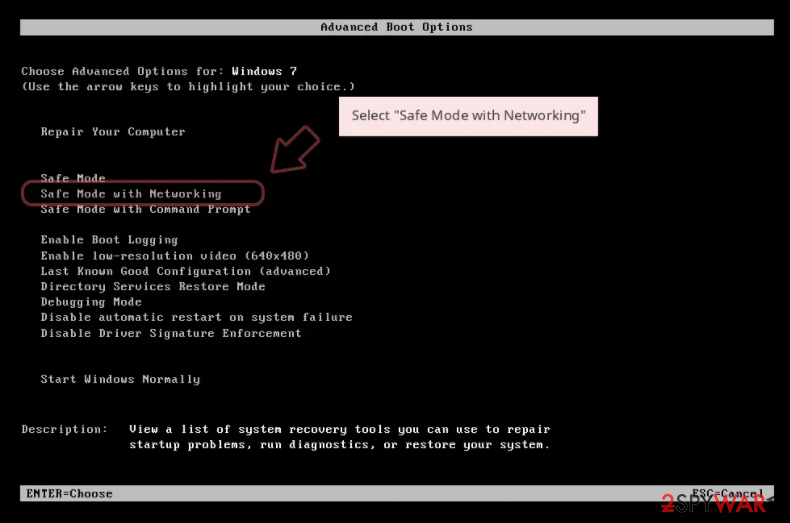
- When your computer becomes active, start pressing F8 button (if that does not work, try F2, F12, Del, etc. - it all depends on your motherboard model) multiple times until you see the Advanced Boot Options window.
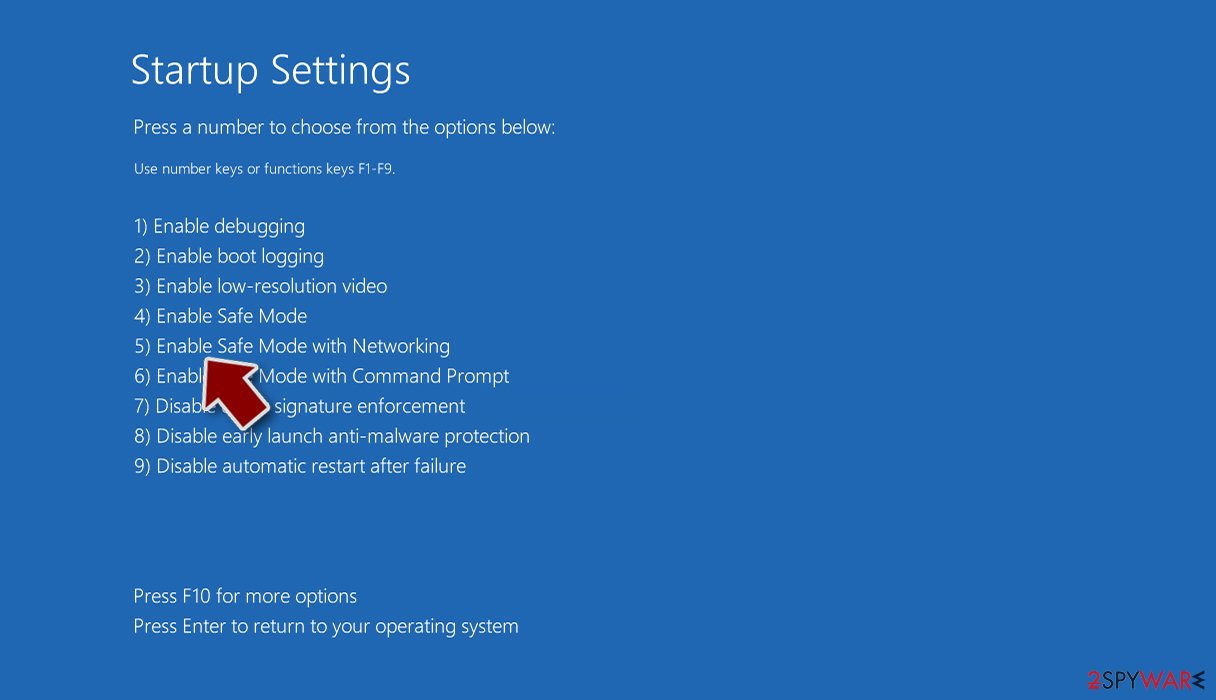
- Select Safe Mode with Networking from the list.
Windows 10 / Windows 8
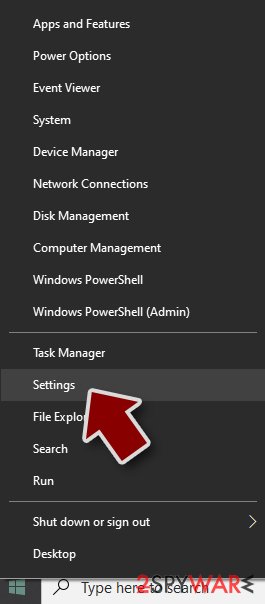
- Right-click on Start button and select Settings.
- Scroll down to pick Update & Security.
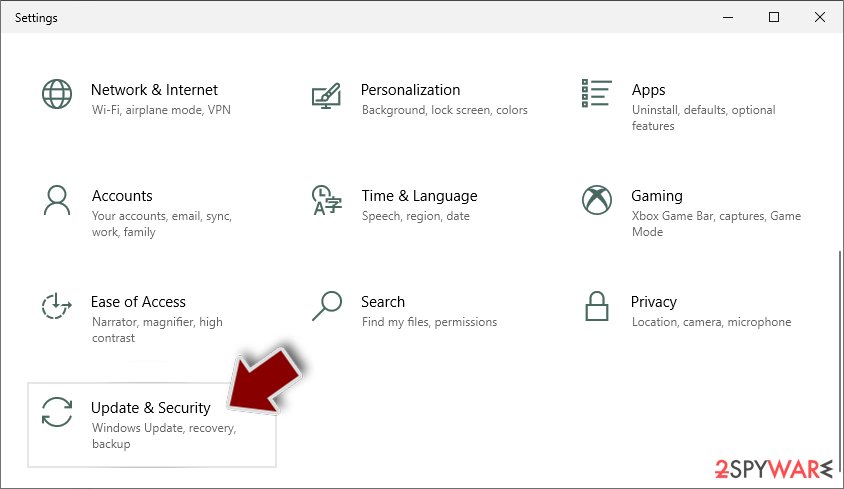
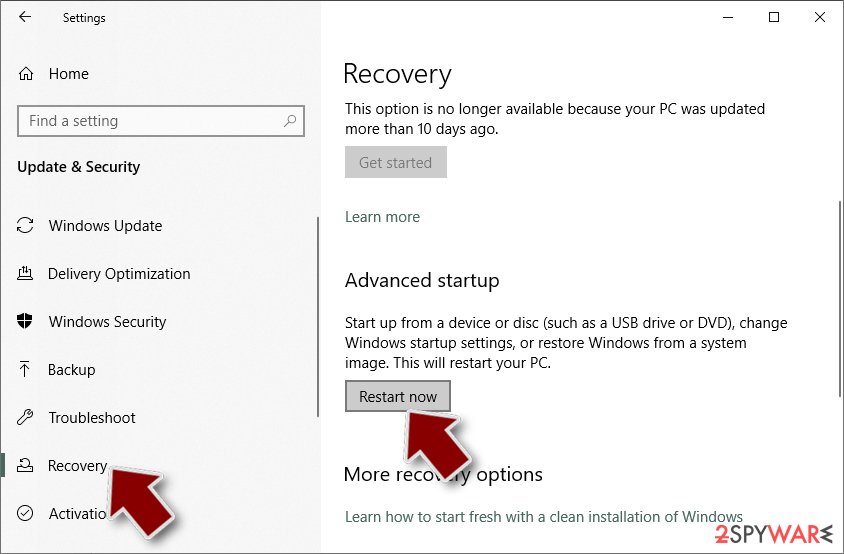
- On the left side of the window, pick Recovery.
- Now scroll down to find Advanced Startup section.
- Click Restart now.
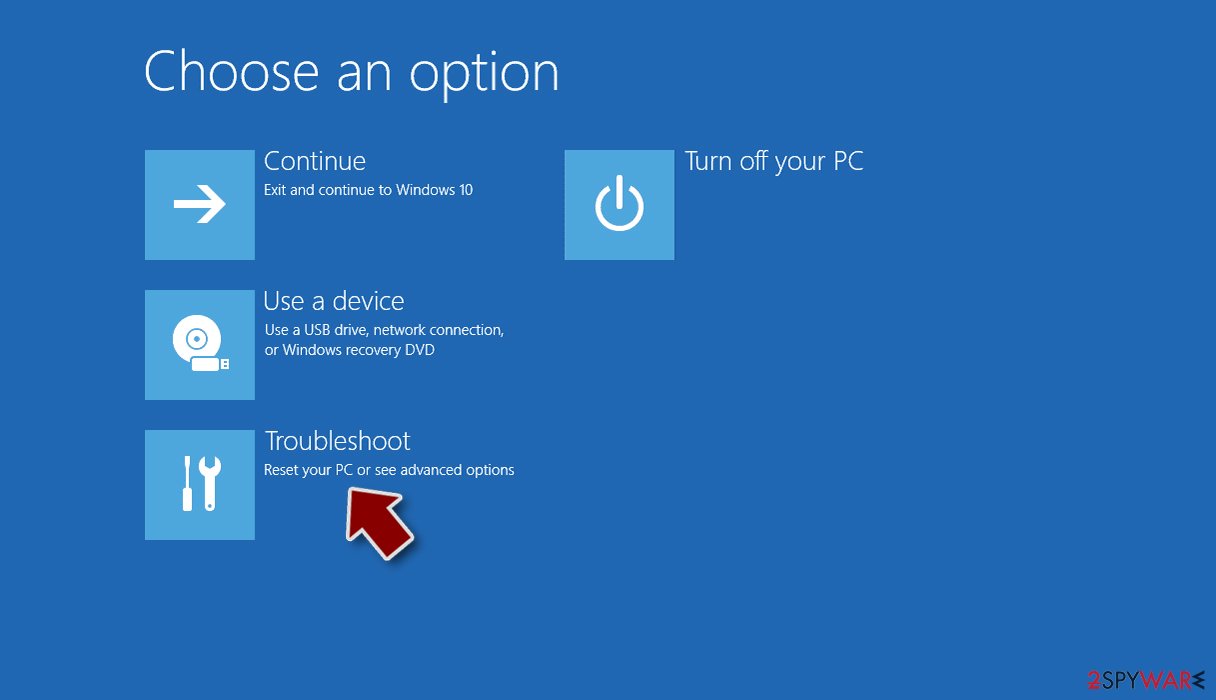
- Select Troubleshoot.
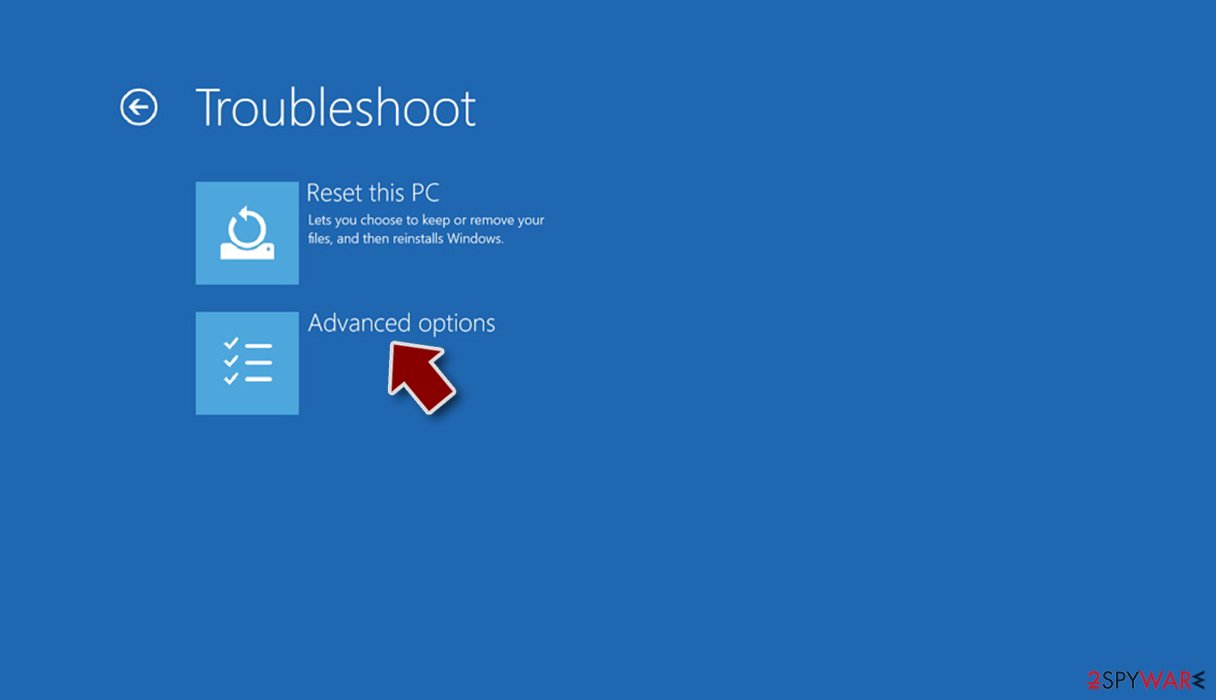
- Go to Advanced options.
- Select Startup Settings.
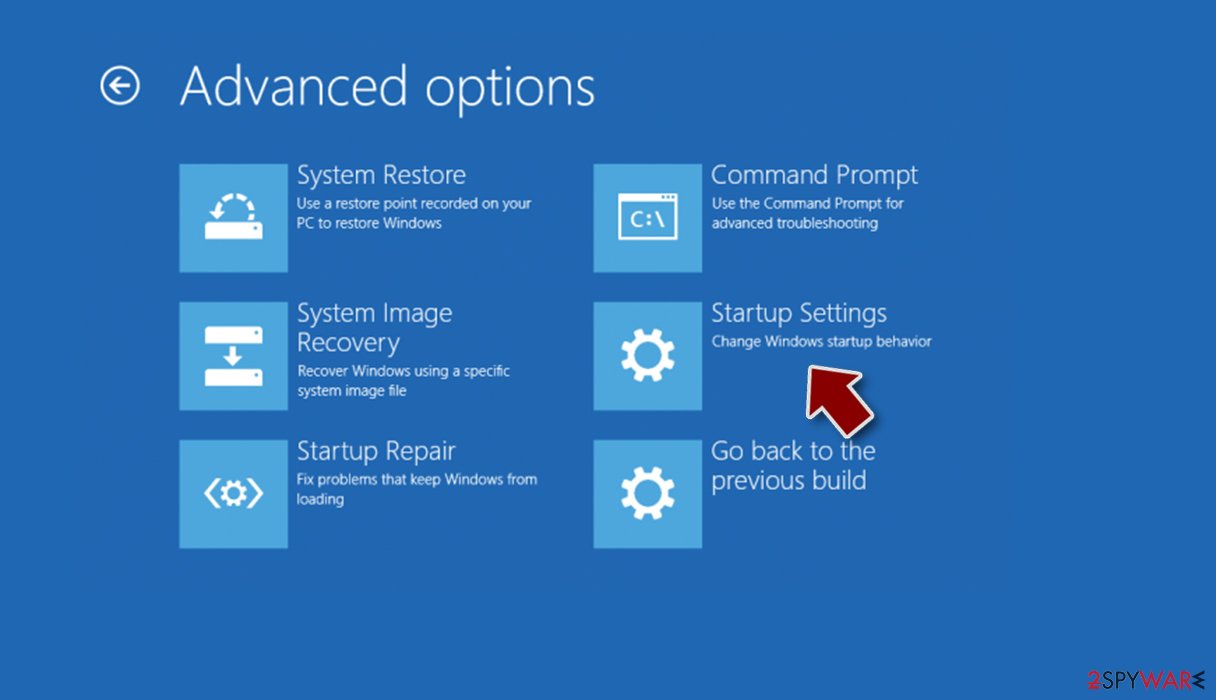
- Press Restart.
- Now press 5 or click 5) Enable Safe Mode with Networking.
Step 2. Shut down suspicious processes
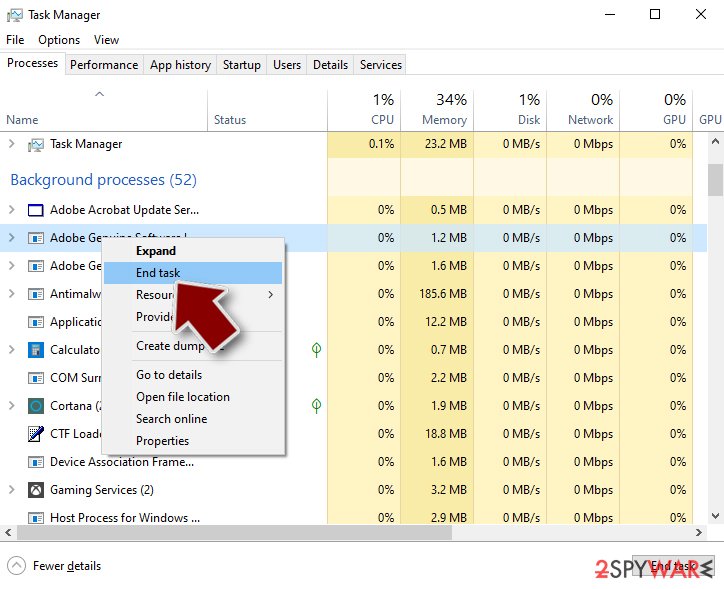
Windows Task Manager is a useful tool that shows all the processes running in the background. If malware is running a process, you need to shut it down:
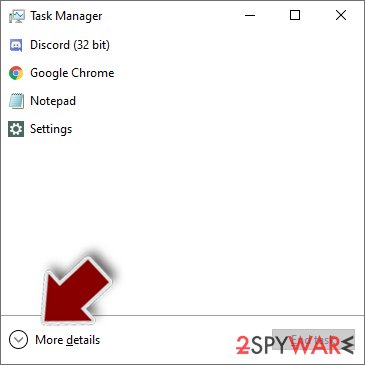
- Press Ctrl + Shift + Esc on your keyboard to open Windows Task Manager.
- Click on More details.
- Scroll down to Background processes section, and look for anything suspicious.
- Right-click and select Open file location.
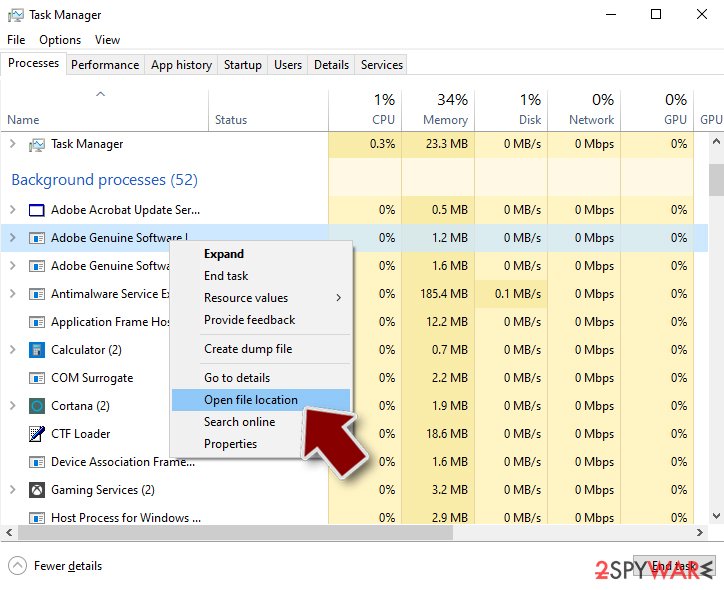
- Go back to the process, right-click and pick End Task.
- Delete the contents of the malicious folder.
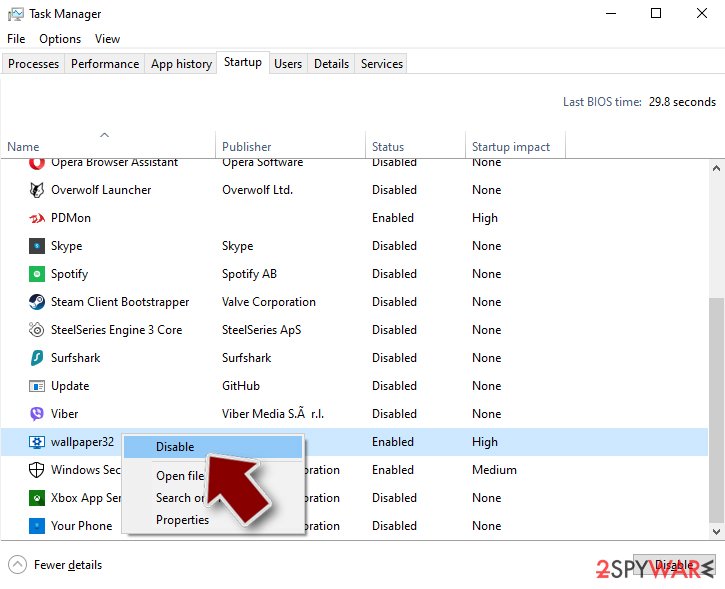
Step 3. Check program Startup
- Press Ctrl + Shift + Esc on your keyboard to open Windows Task Manager.
- Go to Startup tab.
- Right-click on the suspicious program and pick Disable.
Step 4. Delete virus files
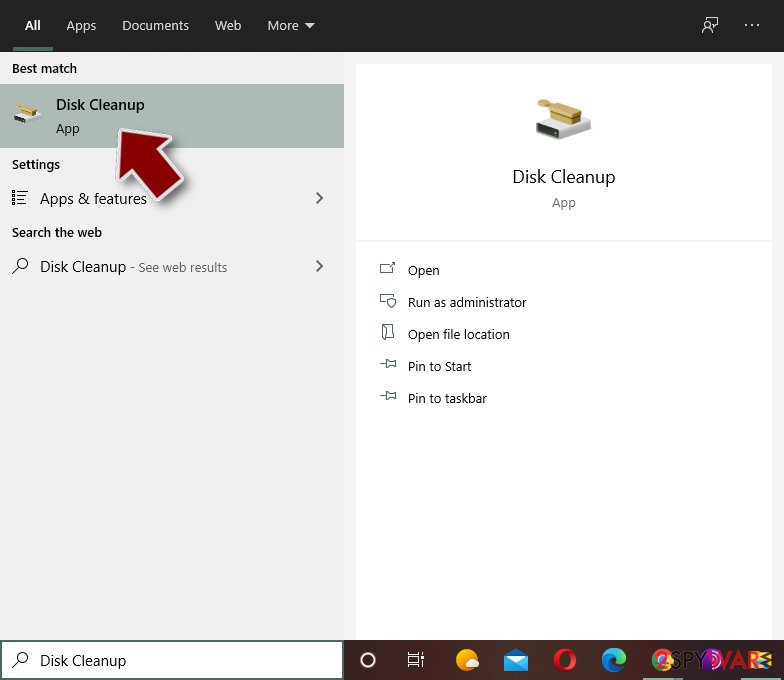
Malware-related files can be found in various places within your computer. Here are instructions that could help you find them:
- Type in Disk Cleanup in Windows search and press Enter.
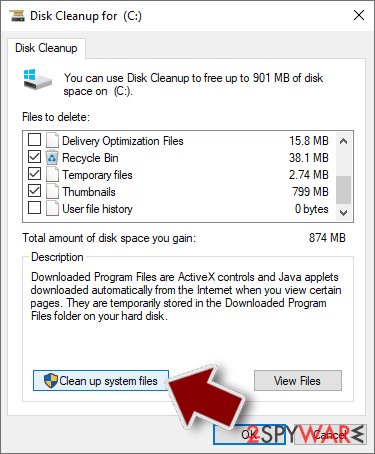
- Select the drive you want to clean (C: is your main drive by default and is likely to be the one that has malicious files in).
- Scroll through the Files to delete list and select the following:
Temporary Internet Files
Downloads
Recycle Bin
Temporary files - Pick Clean up system files.
- You can also look for other malicious files hidden in the following folders (type these entries in Windows Search and press Enter):
%AppData%
%LocalAppData%
%ProgramData%
%WinDir%
After you are finished, reboot the PC in normal mode.
Access your website securely from any location
When you work on the domain, site, blog, or different project that requires constant management, content creation, or coding, you may need to connect to the server and content management service more often. The best solution for creating a tighter network could be a dedicated/fixed IP address.
If you make your IP address static and set to your device, you can connect to the CMS from any location and do not create any additional issues for the server or network manager that needs to monitor connections and activities. VPN software providers like can help you with such settings and offer the option to control the online reputation and manage projects easily from any part of the world.
Recover files after data-affecting malware attacks
While much of the data can be accidentally deleted due to various reasons, malware is one of the main culprits that can cause loss of pictures, documents, videos, and other important files.
More serious malware infections lead to significant data loss when your documents, system files, and images get encrypted. In particular, ransomware is is a type of malware that focuses on such functions, so your files become useless without an ability to access them.
Even though there is little to no possibility to recover after file-locking threats, some applications have features for data recovery in the system. In some cases, can also help to recover at least some portion of your data after data-locking virus infection or general cyber infection.
Questions about Windows 8 Security System
What is Windows 8 Security System and why is it on my PC?
Windows 8 Security System is a program that was installed on the PC, most likely together with something else you downloaded. Free software sites and many installers add extra programs on setup pages with pre-ticked boxes, so the extra install looks like your choice even though nobody read the page.
Check the install date in Settings, Apps, Installed apps: the program you installed that day is the probable carrier. If you do not need Windows 8 Security System, uninstall it. If it belongs to your hardware or to a program you use, search its exact name and publisher first, because drivers and their tools can have unfamiliar names.
Windows 8 Security System will not uninstall. What can I do?
First restart the PC and try again, because the program may have been running and locked its own files. If the uninstaller is missing or fails, start Windows in Safe Mode, where most third-party programs do not start, and remove Windows 8 Security System from Installed apps there.
If it still refuses, delete its startup entry and its scheduled task, restart, and try once more. A program that actively prevents removal is behaving like malware, so finish with a Microsoft Defender offline scan. Avoid third-party uninstallers offered on search ads; several of them are unwanted programs themselves.
Is my card safe after buying Windows 8 Security System?
Treat it as exposed. The order page belongs to the seller of Windows 8 Security System, and you cannot know how the number is stored or shared. Ask your bank for a replacement card, which is usually free, and dispute the original charge as a misrepresented product.
Until the new card arrives, check your account daily for small or foreign transactions. If the bank offers alerts for every card payment, turn them on. Keep the receipt and screenshots, because they support the dispute.
Is Windows Security enough to protect me from programs like Windows 8 Security System?
For most home users, yes, especially with Potentially unwanted app blocking turned on in Windows Security > App & browser control > Reputation-based protection settings. That setting blocks many scareware installers before they run.
No security tool stops every scam, though, because programs like Windows 8 Security System are usually installed by the user after a frightening message. The habit that helps most is simple: ignore any website or pop-up that claims to have scanned your PC, and never call a number shown in a warning.
Someone called offering a refund for Windows 8 Security System. Is it genuine?
Almost certainly not. Refund calls are a well-known second stage of scareware and tech support scams. The caller says you are owed money, asks you to install a remote access program to "process" it, then opens your online banking, makes it look as if too much was refunded and asks you to send the difference back.
Hang up. Real refunds go back to the card or PayPal account you paid with, through your bank or the payment provider, and never need remote access or a gift card.
Is Windows 8 Security System an antivirus?
No. It looks like one, with a shield, a scan and a list of threats, but Windows 8 Security System is a rogue antivirus: its scans are designed to find something every time, and every fix leads to a payment page.
A real antivirus detects the same threats consistently, removes them without asking for money first and does not block other security tools. Windows 11 and Windows 10 already include Microsoft Defender in Windows Security, which is enough for most home users. Remove Windows 8 Security System and keep Defender on.
What could the caller do while connected to my PC?
Anything you could do. Callers working with fake alerts like Windows 8 Security System typically show you Windows logs as "proof", install their own remote tool for later, and steer you to online banking or a gift card purchase. Some add a password to Windows or lock the PC if you refuse to pay.
Remove every remote access program you did not install yourself, check Settings > Accounts > Other users for new accounts, and change important passwords from a clean device. If you cannot be sure what was changed, a reset of Windows is the safe choice.
I called the number from Windows 8 Security System. What now?
End the call and do not let them reconnect. If they installed a remote-access tool, disconnect the PC from the internet and uninstall that tool from Installed apps. Change passwords for e-mail, banking and anything you typed during the call, using another device.
If you paid, contact the bank today for a chargeback. Report the number to the authorities in your country. The program behind windows 8 Security System in the list of installed apps still needs removing: follow the plan in this guide, then run a full scan in Windows Security.
Do I need to reinstall Windows to get rid of Windows 8 Security System?
Usually not. A thorough clean-up is enough when the offline scan finds nothing afterwards and you do not see windows 8 Security System in the list of installed apps again. A reset is the safer choice if an attacker had remote control, if security tools were switched off, or if detections come back after every clean-up.
Windows 11 can reset itself without a USB stick under Settings > System > Recovery > Reset this PC. Copy documents and photos out first and scan the copies. A reset does not change passwords or undo stolen data, so the account steps still apply.
Will Fortect remove Windows 8 Security System?
Fortect scans Windows for malware and unwanted programs and repairs the system files and settings they change, and its free scan shows what it finds on your PC before you decide anything.
For Windows 8 Security System, follow the plan above as well: the browser steps take back permissions and settings that no scanner treats as a threat, and uninstalling the program that brought it removes the source.
Run Microsoft Defender's full scan and, if anything was found, its offline scan as a second opinion. If the symptoms are gone after the plan and both scans are clean, there is nothing more to do.
Sources
- FTC: How to recognize, remove and avoid malware (read October 6, 2026)
- Microsoft Learn: Microsoft Defender Offline (read October 6, 2026)
- Microsoft Learn: How Microsoft names malware (read October 6, 2026)