
What ransomware recovery really means
Ransomware recovery is two separate jobs. One is removing the program that encrypted your files. The other is getting the files back. Our ransomware guide covers what ransomware is and how it spreads. This page covers only the second job: every place on a Windows PC where an unencrypted copy of your files may still exist, and how to reach each one.
Removal and recovery are different because removing ransomware does not decrypt anything. A scanner deletes the program, its startup entries and its leftovers, but the locked files stay locked. They come back only from a copy made before the attack, from a working decryptor, or, in some cases, from deleted originals that are still on the disk.
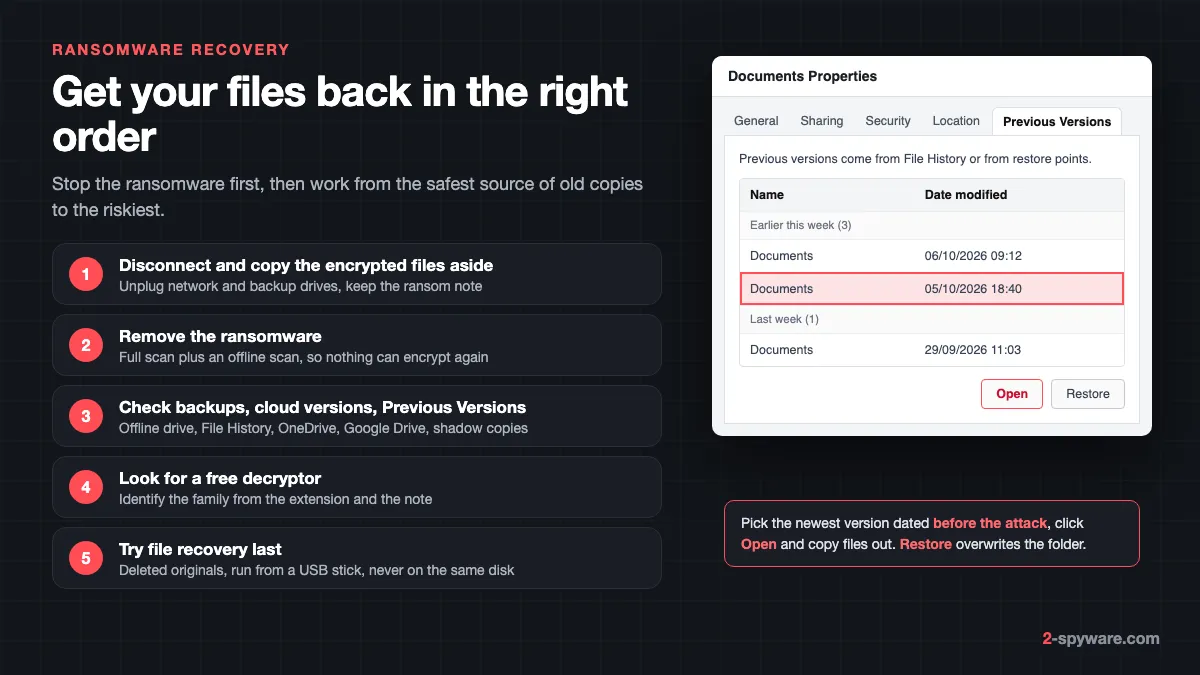
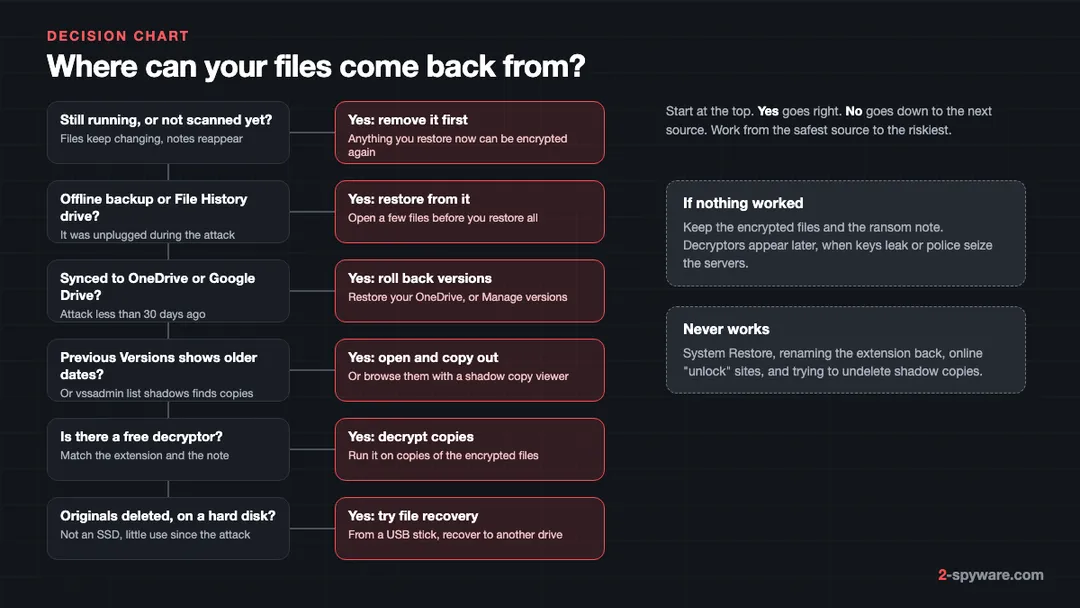
The order matters as much as the sources. Restore files while the ransomware is still active and they can be encrypted a second time. Run a recovery tool on the wrong disk and it can overwrite the very data it is looking for. The steps below go from the safest action to the riskiest.
Step 1: secure what you have before you restore anything
- Disconnect the PC from the network. Unplug the Ethernet cable or turn off Wi-Fi, so the ransomware cannot reach shared folders, a NAS or other PCs.
- Unplug every external drive and USB stick, especially the drive used for backups. A backup that stays connected during an attack is just another drive to encrypt.
- Pause cloud sync. Right-click the OneDrive or Google Drive icon near the clock and pause syncing, so encrypted files do not keep replacing good copies online.
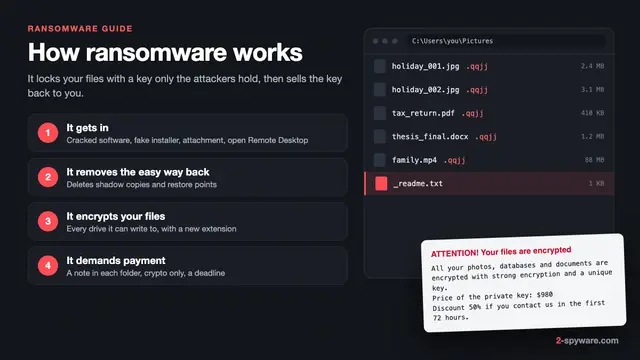
- Photograph or copy the ransom note and one encrypted file name. The extension and the note's file name, such as _readme.txt, identify the family later.
- Copy the encrypted files aside to a spare drive if you can. A failed decryptor or a recovery tool can damage files, and a free decryptor released next year will need the originals.
- Do not reinstall Windows yet. A reset can wipe shadow copies, deleted originals and the files a decryptor needs.
If this is a work computer, stop here and call your IT team. Business attacks often involve stolen passwords and other machines, and how to handle that is a matter for the company, not for one user.
Step 2: remove the ransomware so it cannot encrypt again
Many families keep running after the first pass. They encrypt new files, or files you restore, and some start again at every sign-in. Remove the program before you touch any backup.
- Run a full scan with Microsoft Defender or another up-to-date antivirus.
- Run a Microsoft Defender Offline scan. It starts before Windows loads, so the ransomware cannot hide or block the scanner.
- Run a second-opinion scanner. Fortect, for example, scans for free and removes malware leftovers and damaged system files (our Fortect review). No scanner, Fortect included, decrypts or restores files.
- Check that nothing comes back after a restart: no new ransom notes, no files changing name, no unknown programs in Task Manager under Startup apps.
Ransomware sometimes arrives together with password stealers. STOP/Djvu, for instance, is spread almost entirely through cracks and key generators, and some versions bundle password-stealing Trojans [5]. After removal, change your passwords from a clean device as described in securing your accounts after malware. If the PC still behaves oddly, cleaning or resetting Windows explains when a reset is the better choice, but only after you have copied out everything below.
Step 3: check Previous Versions and Volume Shadow Copies
Volume Shadow Copies are snapshots of a whole drive that Windows creates through the Volume Shadow Copy Service. System Protection makes them before updates, driver installs and on a schedule. The Previous Versions tab in a folder's Properties shows the snapshots, plus any File History versions, that contain that folder.
Why they are usually gone
A surviving snapshot lets you skip the ransom, so most families delete them first. MITRE ATT&CK lists the exact commands under Inhibit System Recovery: vssadmin.exe delete shadows /all /quiet, wmic shadowcopy delete, and diskshadow delete shadows all [1]. The same entry lists wbadmin delete catalog, which erases the Windows Backup catalog, and bcdedit commands that turn off automatic repair at startup [1].
Families documented doing this include WannaCry, Conti, BlackCat, Black Basta, Babuk and RansomHub [1]. BlackCat runs both vssadmin and wmic and also switches recovery off with bcdedit [1]. All these commands need administrator rights. If the ransomware ran without them, if you declined a User Account Control prompt, or if the PC was switched off part way through, snapshots can survive.
Check in Windows 11 and Windows 10
- Open File Explorer and go to a folder that held encrypted files, such as Documents or Pictures.
- Right-click the folder and choose Properties, then open the Previous Versions tab. In Windows 11 you can also choose Show more options > Restore previous versions.
- Look at the dates. Entries dated before the first encrypted file mean you have something to work with. The message There are no previous versions available means no snapshot or File History version covers that folder.
- Select the newest entry dated before the attack and click Open. Check that a few files inside open normally.
- Copy the files you need to another drive. Use Restore only when you are sure, because it replaces the current contents of the folder.
Repeat for each drive that held personal files. Snapshots are kept per drive, and System Protection is often on only for drive C.
List every snapshot with vssadmin
Open Terminal or Command Prompt as administrator and run vssadmin list shadows. Each entry shows the original volume and its creation time. The reply No items found that satisfy the query means no snapshot exists on any drive. To see whether protection was ever on, open Settings > System > About > System protection in Windows 11, or search for Create a restore point in Windows 10.
When the tab is empty but snapshots exist
Sometimes vssadmin lists snapshots that the Previous Versions tab does not show for your folder. A free shadow copy viewer such as ShadowExplorer then lets you pick a snapshot by date, browse it like a drive and export files. Download such tools only from the developer's own site, and run them after removal.
Advanced users can do the same without extra software. In an administrator Command Prompt, mklink /d C:\snap \\?\GLOBALROOT\Device\HarddiskVolumeShadowCopy1\ creates a folder that opens the first snapshot. Use the number vssadmin showed, keep the trailing backslash, and delete the link when you are done.
Step 4: File History and other backups
File History copies changed files from your user folders to an external drive or a network location. Because the versions live on that drive and not on the PC, they survive when shadow copies are deleted, as long as the drive was not connected during the attack.
- Connect the File History drive only after removal is confirmed.
- Open Control Panel > System and Security > File History, then click Restore personal files. In Windows 10 you can also start from Settings > Update & Security > Backup.
- Use the arrows at the bottom to go back to a date before the attack.
- Select folders, then right-click the green Restore button and choose Restore to, so files land in a new folder instead of on top of encrypted ones.
Other backups, such as a disk image, NAS snapshots or a third-party tool, work the same way: restore to a new location and test first. If you had no copy that the PC could not reach, the 3-2-1 backup rule for Windows shows how to build one so the next attack is a nuisance, not a loss.
Step 5: roll back OneDrive or Google Drive
Cloud folders are often the best surprise after an attack. The encrypted files sync up, but the service keeps older versions next to them.
OneDrive
Microsoft 365 subscribers can roll the whole OneDrive back to any point in the last 30 days [3]. Sign in at onedrive.com, select Settings > Options > Restore your OneDrive, pick a date or Custom date and time, and use the activity chart to find when the mass changes started [3]. If OneDrive detected the ransomware itself, it fills in a suggested restore date [3].
Know the limits. Files created after the restore point go to the OneDrive recycle bin, and a file permanently deleted from that recycle bin can never be recovered [3]. Without Microsoft 365, you restore single files instead: right-click a file on onedrive.com and choose Version history, or restore originals from the recycle bin.
Google Drive
For PDFs, photos and other uploaded files, open drive.google.com, select the file, then More > Manage versions [4]. Each older version can be downloaded or marked Keep forever [4]. A version might be permanently deleted after 30 days, or once there are 100 newer versions, so act quickly and pin what you need [4]. Google Docs, Sheets and Slides keep a separate version history inside each document [4].
Many families rename files as they encrypt them. Drive then sees new files and the original names as deleted, so also look in the Trash for your original files.
Step 6: why System Restore does not bring files back
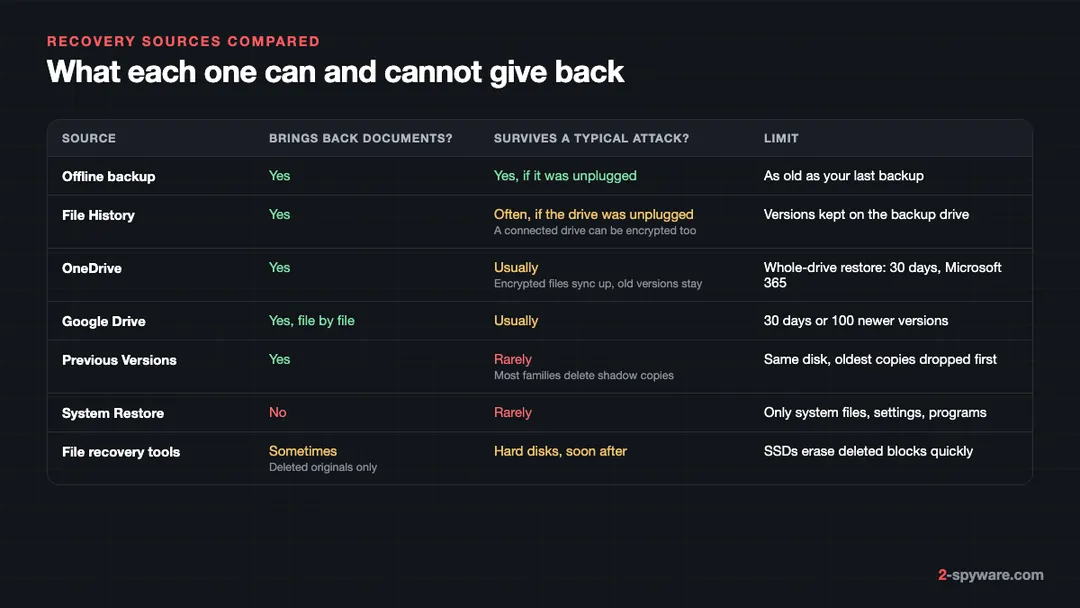
System Restore reverts system files, registry settings and installed programs to an earlier restore point [2]. Microsoft states plainly that it does this without affecting your personal files [2]. So encrypted documents and photos stay encrypted.
It is not a reliable way to remove ransomware either. It may undo a startup entry, but the program's own files can remain. Use it, if at all, after you have copied everything you need out of Previous Versions, because applying a restore point also changes the snapshots on the drive. You can start it with rstrui.exe, or from the Windows Recovery Environment under Troubleshoot > Advanced options > System Restore [2].
Step 7: look for a free decryptor
When no copy exists, the next question is whether the family can be decrypted. Identify it from the extension and the note, then check our list of free ransomware decryptors. Run any decryptor on copies of the encrypted files, never on the only set.
STOP/Djvu shows how mixed the picture can be. Emsisoft's free decryptor handles old Djvu variants when they used an offline key, while for new variants it works only in limited circumstances [5]. For victims with no working tool, Emsisoft's advice is to archive the encrypted data in case a solution appears later [5].
Step 8: data recovery software for deleted originals
Some ransomware writes an encrypted copy of each file and then deletes the original. That original is not overwritten at once, so tools that scan raw disk space, such as PhotoRec or Microsoft's Windows File Recovery, can sometimes find it. This is the last step because it is the least likely to work.
- It works best on a hard disk, soon after the attack, with little use since then.
- On an SSD, Windows tells the drive which blocks are free, and the drive erases them quickly, so results are usually poor.
- It does not work when the ransomware encrypted files in place, overwriting the original data.
- Run the tool from a USB stick or another PC, and recover to a different drive. Installing it on the affected disk can overwrite the files you want.
What never works
- Renaming the extension back. The data inside is still encrypted.
- Online tools that promise to decrypt any file for a fee, or recovery services that quietly pay the attackers and add a markup.
- Trying to undelete shadow copies with recovery software. Snapshot data is not stored as normal files and is rarely usable after deletion.
- System Restore, as described above.
- Paying and hoping. Read should you pay the ransom before you decide, because payment does not always buy a working key.
Whatever the outcome, report the attack. Where to report cybercrime by country lists the right agency, and reports help police seize servers and release keys. For the step-by-step version of this page with screenshots, see ransomware recovery, and for the attack itself, how ransomware works.
Frequently asked questions
Can you recover files encrypted by ransomware without paying?
Often, yes. Remove the ransomware first, then check an offline backup, File History, OneDrive or Google Drive version history, and the Previous Versions tab. If none of them has a copy, look for a free decryptor for your family. Deleted originals can sometimes be found with recovery software on a hard disk. If nothing works, keep the encrypted files, because decryptors are sometimes released years later.
Does removing ransomware restore my files?
No. Removal deletes the program and stops it from encrypting more files, but the files it already locked stay locked. They come back only from a copy made before the attack, from a working decryptor, or from deleted originals that are still on the disk. Removal is still the first step, because anything you restore while the ransomware runs can be encrypted again.
Why is the Previous Versions tab empty after ransomware?
Either the ransomware deleted the shadow copies, which most families do with vssadmin or wmic, or System Protection and File History were never turned on for that drive. Run vssadmin list shadows as administrator to see whether any snapshots exist. If the list is empty, move on to backups, cloud versions and decryptors.
Does System Restore remove ransomware or restore files?
Neither, reliably. Microsoft says System Restore reverts system files, registry settings and installed programs without affecting personal files. Encrypted documents and photos stay encrypted. It may undo a startup entry, but the ransomware's own files can remain, so use a full scan and an offline scan for removal.
Can OneDrive restore files after a ransomware attack?
Yes, within limits. Microsoft 365 subscribers can restore their whole OneDrive to any point in the last 30 days, and OneDrive suggests a date when it detects ransomware itself. Without a subscription, you can restore single files from version history or the recycle bin. Files permanently deleted from the recycle bin cannot be recovered.
How long does Google Drive keep old versions?
For uploaded files such as PDFs and photos, a version might be permanently deleted after 30 days or once there are 100 newer versions. You can mark a version Keep forever and download it from Manage versions. Google Docs, Sheets and Slides have their own version history inside each file.
Can data recovery software recover ransomware-encrypted files?
It cannot decrypt anything. It can sometimes find the original files that the ransomware deleted after writing encrypted copies. This works best on a hard disk soon after the attack and rarely on SSDs. Run the tool from a USB stick and save results to another drive.
Should I reinstall Windows right after a ransomware attack?
Not before you have checked every recovery source. A reset or clean install can wipe shadow copies, deleted originals and the encrypted files a future decryptor would need. Copy the encrypted files aside, check Previous Versions and your backups, then decide between cleaning and resetting.
What is ShadowExplorer used for?
It is a free viewer for Volume Shadow Copies. It lets you pick a snapshot by date and export files from it, which helps when vssadmin shows snapshots but the Previous Versions tab does not list them, as often happens on Windows Home. It cannot recreate snapshots that ransomware deleted.
Sources
- MITRE ATT&CK: Inhibit System Recovery (T1490) read 2026-10-08
- Microsoft Support: System Restore read 2026-10-08
- Microsoft Support: Restore your OneDrive read 2026-10-08
- Google Drive Help: Check activity and file versions read 2026-10-08
- Emsisoft Malware Lab: Emsisoft releases new decryptor for STOP Djvu ransomware read 2026-10-08
 What is ransomware and how to remove it
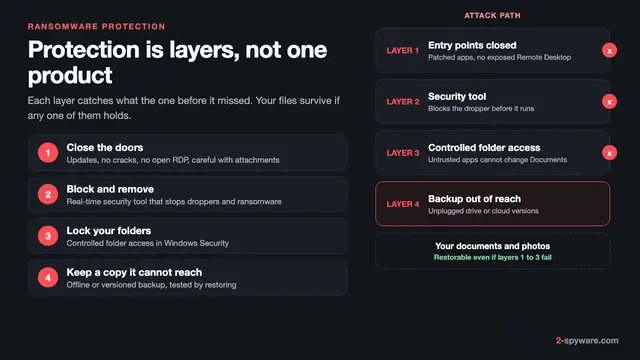 Best ransomware protection in 2026
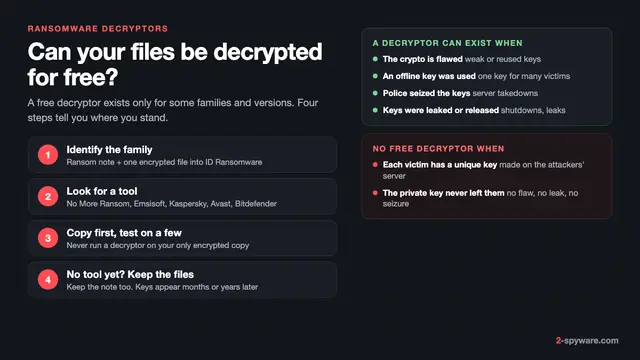 Free ransomware decryptors: when they work and how to use one safely
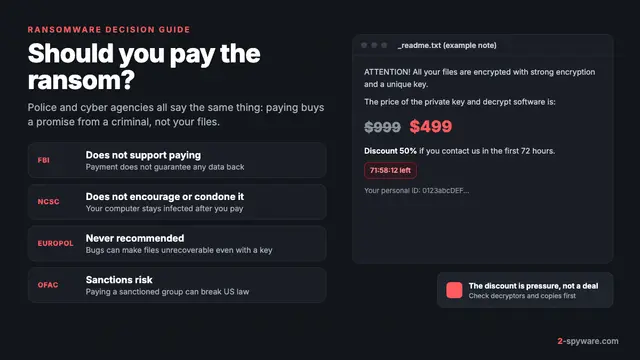 Should you pay the ransomware ransom?