
Block ransomware: what it is and how to remove it
Ransomware attacks have increased by 150% since 2020, and threat actors do not seem to be stopping any time soon. The virus' destructive nature makes it very worthwhile for cybercriminals to keep creating new malicious programs that lock peoples' personal files.
Facts checked October 7, 2026. Removal steps tested on Windows 11 (26H2) and checked against Microsoft's and the browser makers' current documentation. Sections marked as our earlier report are the original text: they describe the threat as it was then and have not been reviewed since. The 2026 status, the removal steps and the questions are current.
Automatic
Get a free scan and check if your PC is infected.
Fortect finds malware, unwanted programs and the Windows damage they leave behind, and repairs it in one pass.
Make sure nothing will rename more files to .block: an automatic scan checks the PC first.
Do it yourself · free Remove Block ransomware yourself 6 steps, about 18 minutes, no software needed.
Start the steps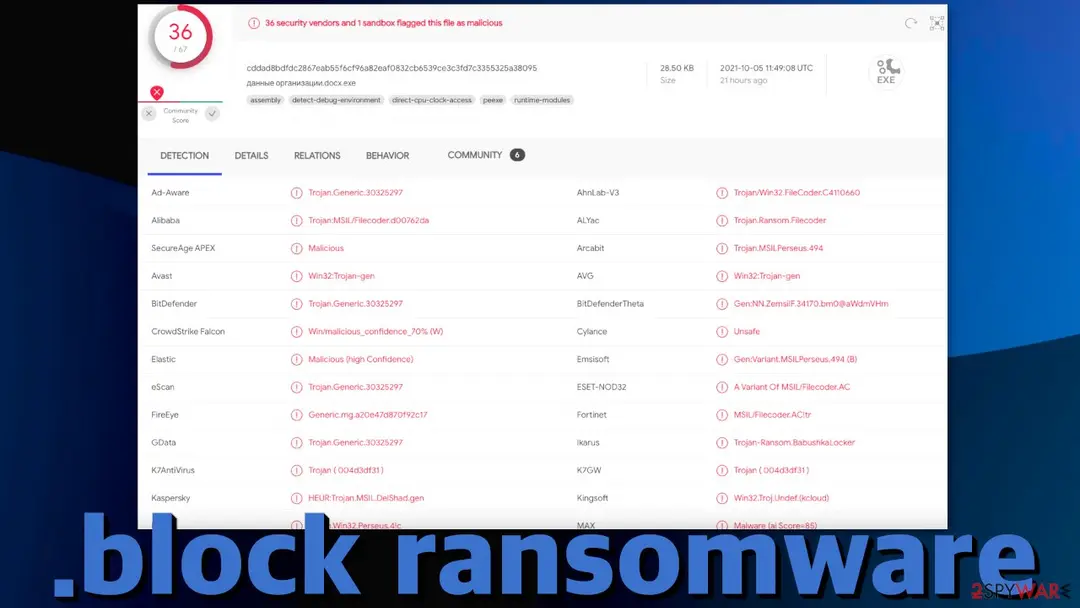
Block ransomware: summary
| Distribution | Email attachments, peer-to-peer file sharing platforms, malicious ads |
|---|---|
| NAME | Block |
| TYPE | Ransomware, cryptovirus, data-locking malware |
| FILE EXTENSION | .block |
| RANSOM NOTE | readMe!.txt; the text is quoted in full below |
| FILE RECOVERY | If no backups are available, recovering data is almost impossible. We list alternative methods that could help you in some cases below |
| Removal | Scan the PC with security software to find and remove the malware and anything installed with it. Fortect scans Windows for malware and repairs the system files and settings it damaged. Remove it nowTo use the full-featured product, you have to purchase a license for Fortect. The scan is free. |
Show 15 more facts
| Detection names | No Microsoft detection name is known |
|---|---|
| Contact | yaga.babushka@yahoo.com |
| Encrypted file extension | .block |
| Decryptor | No free decryptor is known for this variant; check No More Ransom (nomoreransom.org) for updates |
| Damage | Not recorded in the old report |
| Name | Block |
| Type | File-encrypting ransomware |
| Symptoms | Files renamed with a new extension and a ransom note left in folders |
| Evidence | 8 write-ups by security sites; no sample analysed yet |
| Encrypted files | .block |
| Ransom note | readMe!.txt |
| Attacker contacts | yaga.babushka@yahoo.com |
| Free decryptor | No free decryptor is known (checked 7 October 2026) |
| First seen | 6 October 2021 |
| Facts checked | 7 October 2026 |
- File extension:
.block - Note file:
readMe!.txt - Contact:
yaga.babushka@yahoo.com
From our report of Oct 2021 · not reviewed since
More from our earlier report on Block
- Scan your machine with anti-malware software like or to eliminate the malicious files.
- This will not recover your data.
- Malware can seriously tamper with Windows systems, causing errors, crashes, lag, and other stability issues.
How Block ransomware behaves
From our report of Oct 2021 · not reviewed since
.block ransomware creators perform many malicious tasks in order to get paid
Ransomware attacks have increased by 150% since 2020, and threat actors do not seem to be stopping any time soon.
The virus' destructive nature makes it very worthwhile for cybercriminals to keep creating new malicious programs that lock peoples' personal files. The potential reward for ransomware developers can vary from as little as $50 to as big as $10 million (if the target is a big company) from a single PC.
There is almost nothing else that compares to the danger ransomware currently poses.
Warning: If big corporations do not have good security systems in place they can become susceptible to these kinds of attacks and even get sensitive data leaked online if they do not pay huge sums of money in cryptocurrency.
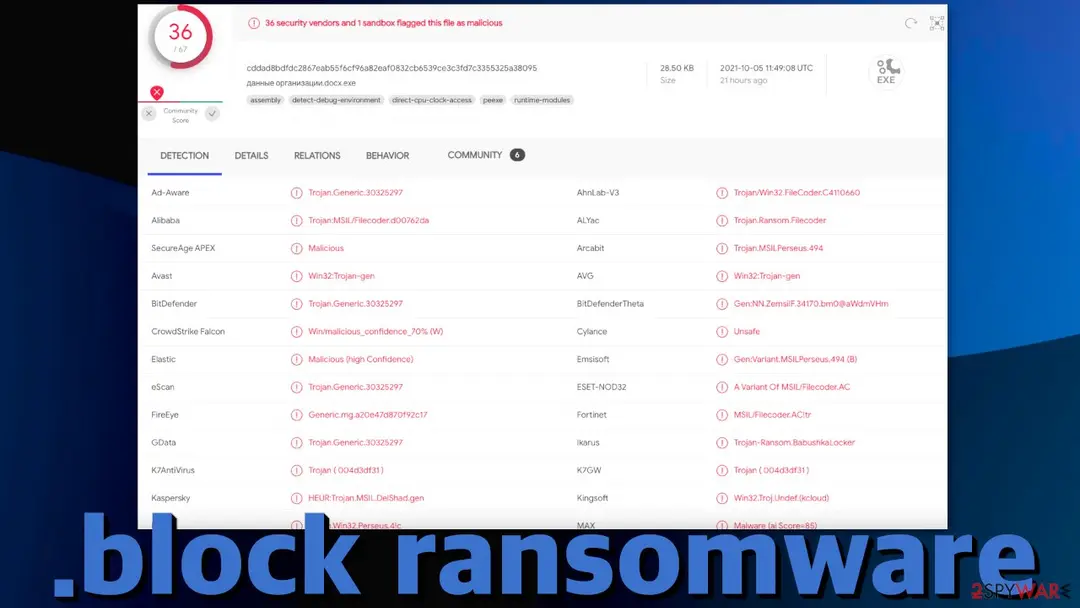
Block ransomware is one of the most recent strains detected by 36 security vendors that seem to be developed by Russian hackers because the ransom note is written in Russian or maybe that is done in order to throw off the authorities.
This particular malicious program encrypts files and appends them with the .block extension. So, if the file was previously names picture.jpg, now it would be named picture.jpg.block, and the icons get changed to white pages. Because of that, users quickly notice that something is very wrong.
Shortly after the encryption process is done, a ransom note by the name readMe!.txt is generated on the victims' computer to inform them about what steps they should take.
Although it might be tempting, we strongly advise against contacting the cybercriminals responsible for the attack, as many previous ransomware victims report that they have never received a response after paying the asked amount, so they not only lost their data but their files too.
From our report of Oct 2021 · not reviewed since
Block virus in detail
Malware researchers from JoeSandbox have done a complete analysis on this malicious program - how it works, what tasks it performs in the background, and other properties it has.
One of the things they found is that the malicious file includes an icon from a different legit application in order to fool users or make it harder to notice the virus.
Another thing is that this malware has machine learning coded into it, which means it can avoid detection. One of the ways it does that is by creating files in the recycle bin. Thanks to machine learning, malware can also avoid removal - disable antivirus protection.
One of the most worrying things Block ransomware does is delete the shadow drive data, which makes it very difficult or even impossible to restore the data after the infection as that deletes all backups from the system itself.
Besides locking files on a target computer, we can also suspect according to abnormal high CPU usage (in some cases over 98%) that the malicious program does something called cryptojacking. This is another way threat actors could be generating revenue with ransomware. It uses the victim's electricity and computing power to mine cryptocurrencies.
The most important thing you should be asking yourself is - how did it end up on my computer? And there are multiple possible answers to that question. One of the most common ways home users infect themselves with ransomware is by installing "cracked" software.
We know that paying for software licenses can add up quickly, but it can pay off in the long run if you keep your system safe and not damaged to a point where various malicious programs have messed it up to the point of making it unusable.
Another way cybercriminals prefer to deliver malware is by email. This method is more used for corporate targets. Hackers attach a malicious file or insert a malicious link in the email in the hopes that at least one employee will open it.
If that happens, from then on, they can infect all the computers that are connected to the same network, potentially making a business lose all data, which could destroy it. That is why it is important to be cautious in your workplace and open attachments only if you were expecting them.
Even if you received an email from someone you know, it is better to double-check if it was them through another platform, as threat actors can infiltrate your email friend list.
From our report of Oct 2021 · not reviewed since
The ransom note
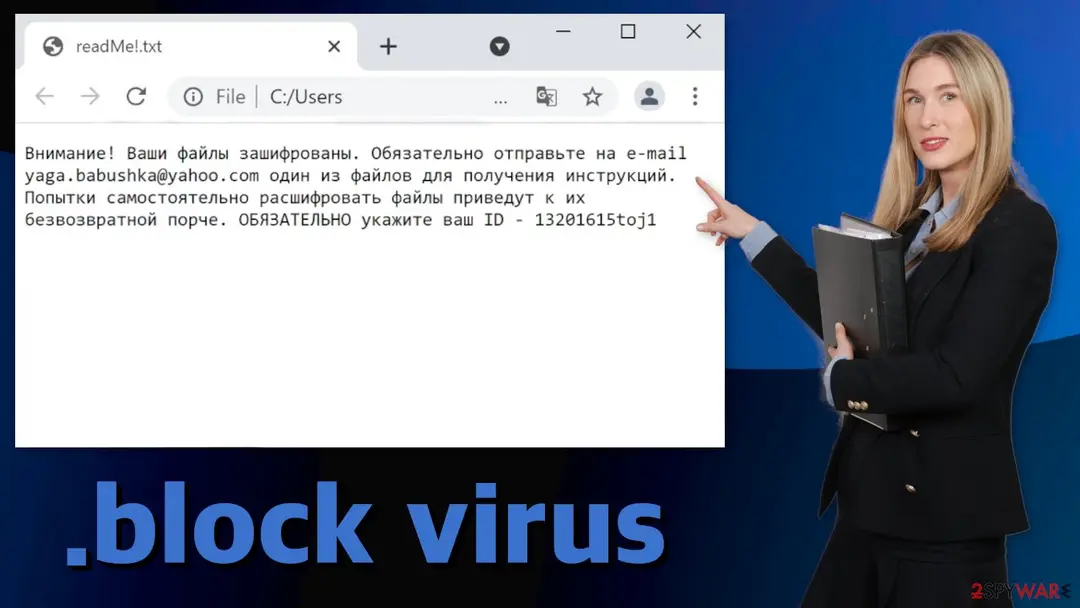
English translation of readMe!.txt:
Unlike many other ransom notes, like from Payransom500, Doydo, and Marlock, this one keeps it short and simple. All the victims learn is that their files are encrypted and that apparently, alternative attempts to recover files can result in permanent damage.
Almost all ransomware developers include this or a similar sentence in their note to discourage people from searching for other ways to get their files back. It is a scare tactic used in the hopes that you will act immediately without thinking and will just send them the asked amount in cryptocurrencies.
Threat actors choose crypto as a form of payment because it is harder to track than regular currency, and it is anonymous - as long as you do not deposit it into a bank account because that requires an identity to be provided. Keep in mind that there are no refunds in the cryptocurrency world - once you complete a transaction there is no going back.
The Block ransomware note
Attention!
Your files are encrypted.
Be sure to email one of the files to yaga.babushka@yahoo.com for instructions.
Attempts to decrypt files on your own will lead to their irrecoverable damage.
ALWAYS provide your ID -
How to remove Block ransomware
Tools you'll need
All of these are free except where noted. Download them on a clean device if the infected PC is offline.
- A USB stick: to keep the ransom note, two or three encrypted files and screenshots off the infected PC.
- Microsoft Defender Offline: built into Windows 11 and Windows 10; scans before Windows starts, so running malware cannot hide.
- Microsoft Safety Scanner: a second, portable scanner with current signatures; each download works for 10 days.
- ID Ransomware: identifies the family from the note and one encrypted file and says whether a decryptor exists.
- No More Ransom: the free decryptors from police and security companies; check it again every few months.
- Fortect (optional): scans Windows for malware and repairs the system files and settings it damaged. The free scan is in the box above.
How to remove Block and get your files back
Work in this order.
Disconnecting comes first, removal comes before any restore, and nothing here asks you to contact the attackers.
Step 1: Disconnect the PC and unplug backup drives
Block encrypts everything it can reach, including drives and shares you connect later. Cut the network first: cable out, or Wi-Fi off from the taskbar.
Then unplug every USB stick and backup disk and pause cloud sync, so the encrypted versions do not replace your online copies. Do not reconnect any of them until the ransomware is removed from the Windows 11 or Windows 10 PC.
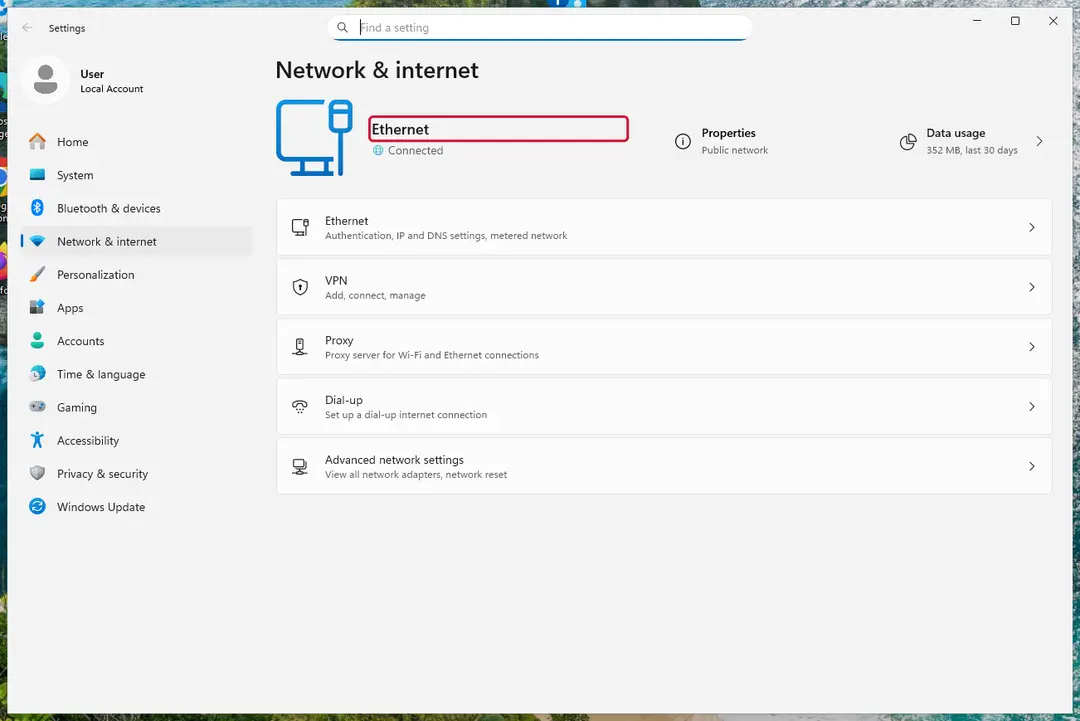
Windows 11: turn off Wi-Fi to take the PC offline. Full procedure with screenshots: Ransomware: first steps, finding a decryptor and recovering files
Step 2: Save the ransom note and confirm the family
Copy
readMe!.txtand one or two files ending in.blockto a USB stick, and leave the originals where they are.From another device, upload the note and a sample file to ID Ransomware or No More Ransom's Crypto Sheriff, which name the family from the note, the extension and the file structure.
Write down the contact address and your personal ID from the note, because a decryptor or the police may ask for them.
Warning: Never contact the attackers from the infected Windows 11 or Windows 10 PC.
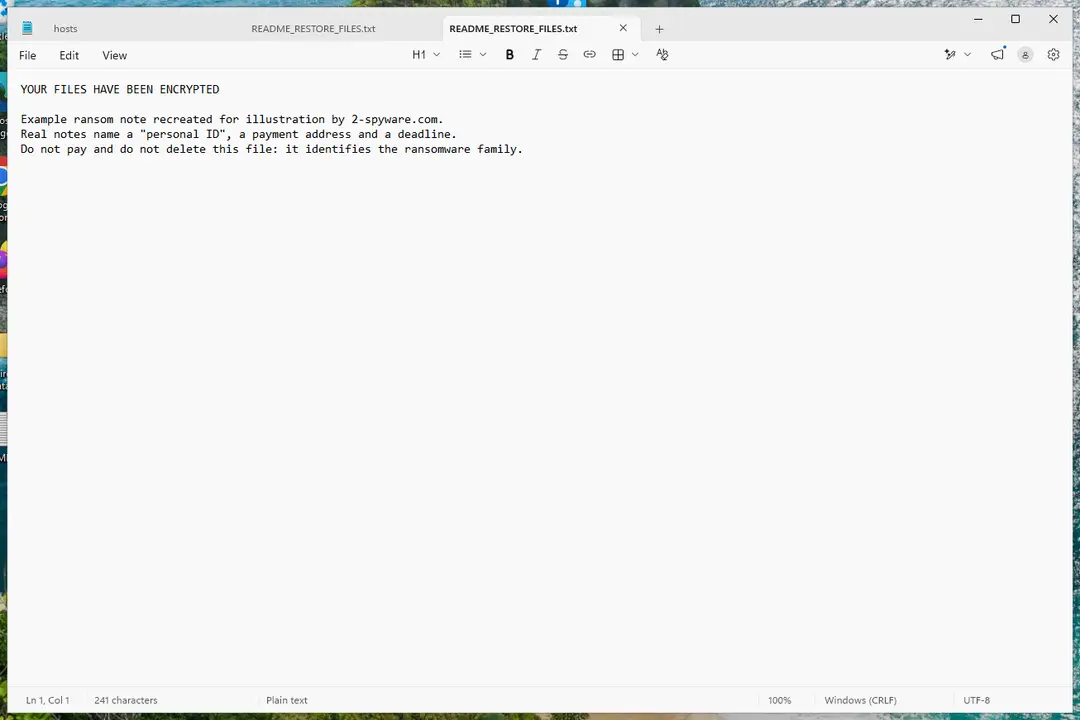
Windows 11: the ransom note and encrypted files to copy for identification. Full procedure with screenshots: Ransomware: first steps, finding a decryptor and recovering files
Step 3: Check for a free decryptor
For Block, no free decryptor is known (checked 7 October 2026). Search the family name in the No More Ransom decryption tools list and in the free decryptors of Emsisoft, Avast and Kaspersky, because new tools appear years after an attack.
Important: Keep the encrypted files even if nothing works today, and do not pay before every free option is ruled out: payment does not guarantee a working key.
Decryptors run on Windows 11 and Windows 10, but only after the ransomware itself is removed.
Full procedure with screenshots: Ransomware: first steps, finding a decryptor and recovering files
Step 4: Remove the ransomware before you restore or decrypt
Restoring or decrypting files while Block still runs lets it encrypt them again. Run a Full scan in Windows Security > Virus & threat protection > Scan options, then the Microsoft Defender Antivirus (offline scan).
If the ransomware blocks Windows Security, start Safe Mode with Networking and scan from there. Some families install a password stealer as well, so let both scans finish on Windows 11 or Windows 10.

Windows 11: Windows Security > Virus & threat protection > Scan options. Full procedure with screenshots: Run a Microsoft Defender Offline scan
Step 5: Look for shadow copies of the files
Open Command Prompt as administrator and run
vssadmin list shadows. If it lists copies dated before the attack, right-click a folder with encrypted files in File Explorer, choose Properties > Previous Versions, and open or restore a version from before that date.ShadowExplorer, a free tool, shows the same copies when the tab is empty or hidden. Most current families delete shadow copies, so an empty list is normal, but the check takes two minutes on Windows 11 or Windows 10.
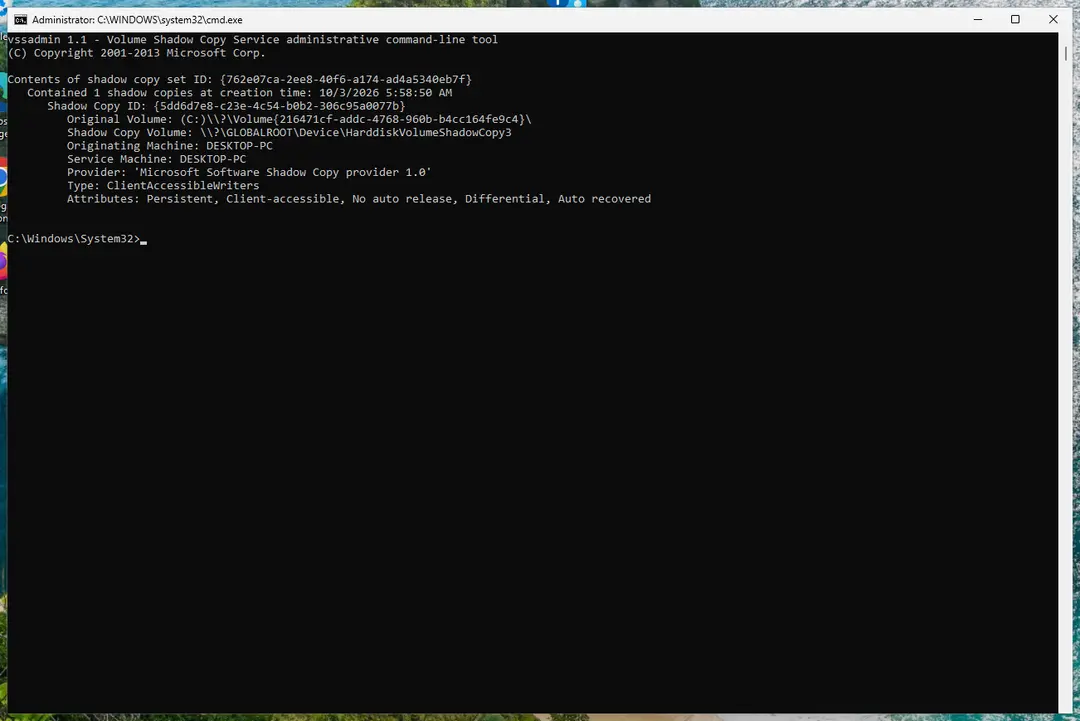
Windows 11: vssadmin list shadows shows whether shadow copies exist. Full procedure with screenshots: Ransomware: first steps, finding a decryptor and recovering files
Step 6: Restore the files from a backup or recover deleted originals
Restore from an external backup, File History or OneDrive's version history, choosing a date before the attack. Connect the backup drive only after the scans are clean, or the ransomware encrypts it too.
If there is no backup, file recovery software can sometimes find the deleted originals, because some ransomware writes an encrypted copy and deletes the original file.
Stop writing to the drive and try recovery on Windows 11 or Windows 10 before new files overwrite the space.
Full procedure with screenshots: Recover deleted files (Recycle Bin, backups, OneDrive) On uGetFix
Instructions for each browser and system
The detailed steps for every browser and system this guide covers. Open the one you use.
Find a working decryptor for your files
File encryption is a process that is similar to applying a password to a particular file or folder. However, from a technical point of view, encryption is fundamentally different due to its complexity. By using encryption, threat actors use a unique set of alphanumeric characters as a password that can not easily be deciphered if the process is performed correctly.
There are several algorithms that can be used to lock data (whether for good or bad reasons); for example, AES uses the symmetric method of encryption, meaning that the key used to lock and unlock files is the same. Unfortunately, it is only accessible to the attackers who hold it on a remote server - they ask for a payment in exchange for it. This simple principle is what allows ransomware authors to prosper in this illegal business.
While many high-profile ransomware strains such as Djvu or Dharma use immaculate encryption methods, there are plenty of failures that can be observed within the code of some novice malware developers. For example, the keys could be stored locally, which would allow users to regain access to their files without paying. In some cases, ransomware does not even encrypt files due to bugs, although victims might believe the opposite due to the ransom note that shows up right after the infection and data encryption is completed.
Therefore, regardless of which crypto-malware affects your files, you should try to find the relevant decryptor if such exists. Security researchers are in a constant battle against cybercriminals. In some cases, they manage to create a working decryption tool that would allow victims to recover files for free.
Once you have identified which ransomware you are affected by, you should check the following links for a decryptor:
- No More Ransom Project
- Free Ransomware Decryptors by Kaspersky
- Free Ransomware Decryption Tools from Emsisoft
- Avast decryptors
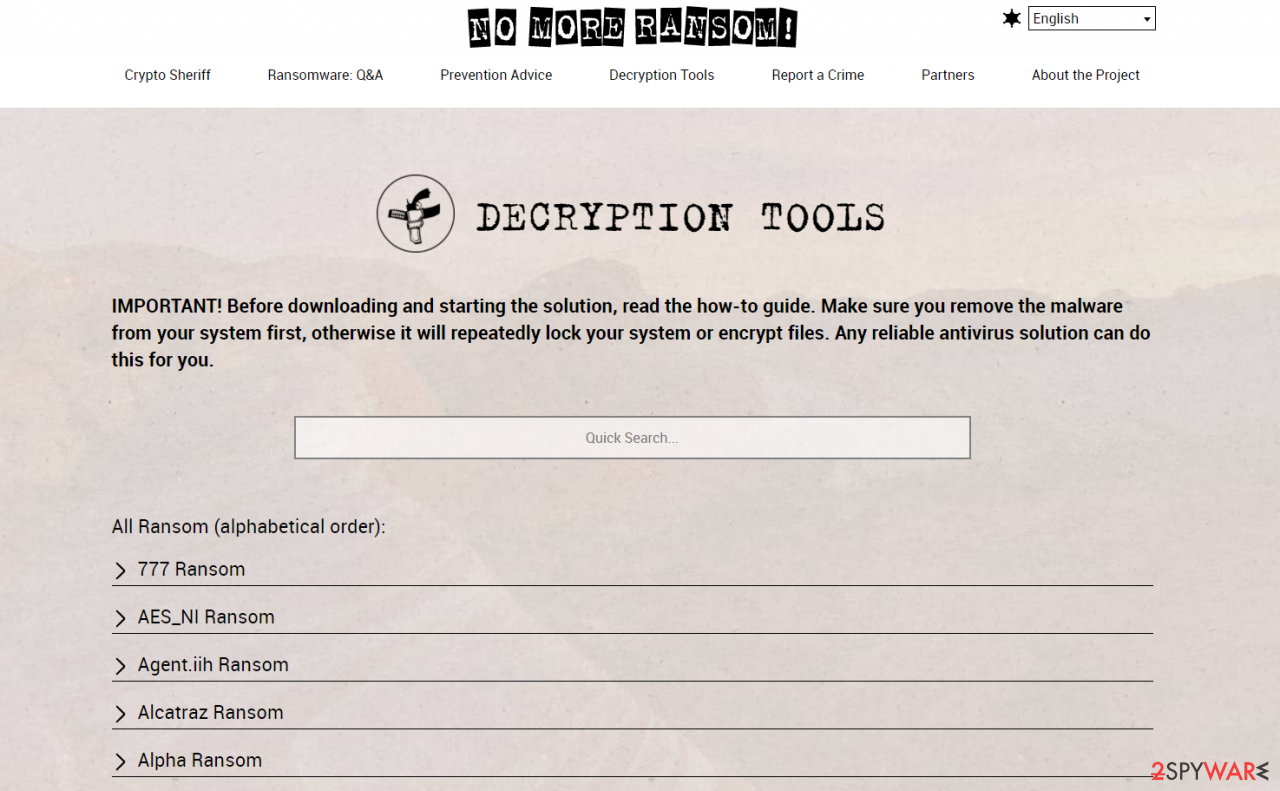
If you can't find a decryptor that works for you, you should try the alternative methods we list below. Additionally, it is worth mentioning that it sometimes takes years for a working decryption tool to be developed, so there are always hopes for the future.
Create data backups to avoid file loss in the future
Report the incident to your local authorities
Ransomware is a lucrative, highly illegal business, and authorities are actively targeting ransomware operators. The level of investigation and follow-up depends on the country, the scale of the incident, and whether the attack is linked to known ransomware groups. To increase the likelihood of identifying the culprits, the agencies need information. In many cases, reports are used primarily for intelligence gathering, trend analysis, and victim support rather than immediate identification of attackers.
Therefore, by reporting the crime, you could help stop the cybercriminal activities and catch the threat actors. Reporting does not guarantee investigation or recovery of data, but it contributes to broader efforts to track ransomware campaigns. Make sure you include all the possible details, including how did you notice the attack, when it happened, etc. Relevant details may also include affected systems, ransom demands, cryptocurrency wallet addresses, and any communication with the attackers. Additionally, providing documents such as ransom notes, encrypted files, or malware executables would be beneficial.
Law enforcement agencies typically deal with online fraud and cybercrime, although it depends on where you live. Here is the list of local authority groups that handle incidents like ransomware attacks, sorted by country:
- USA - Internet Crime Complaint Center IC3
- United Kingdom - ActionFraud
- Canada - Canadian Anti-Fraud Centre
- Australia - ScamWatch
- New Zealand - ConsumerProtection
- Germany - Polizei
- France - Ministère de l'Intérieur
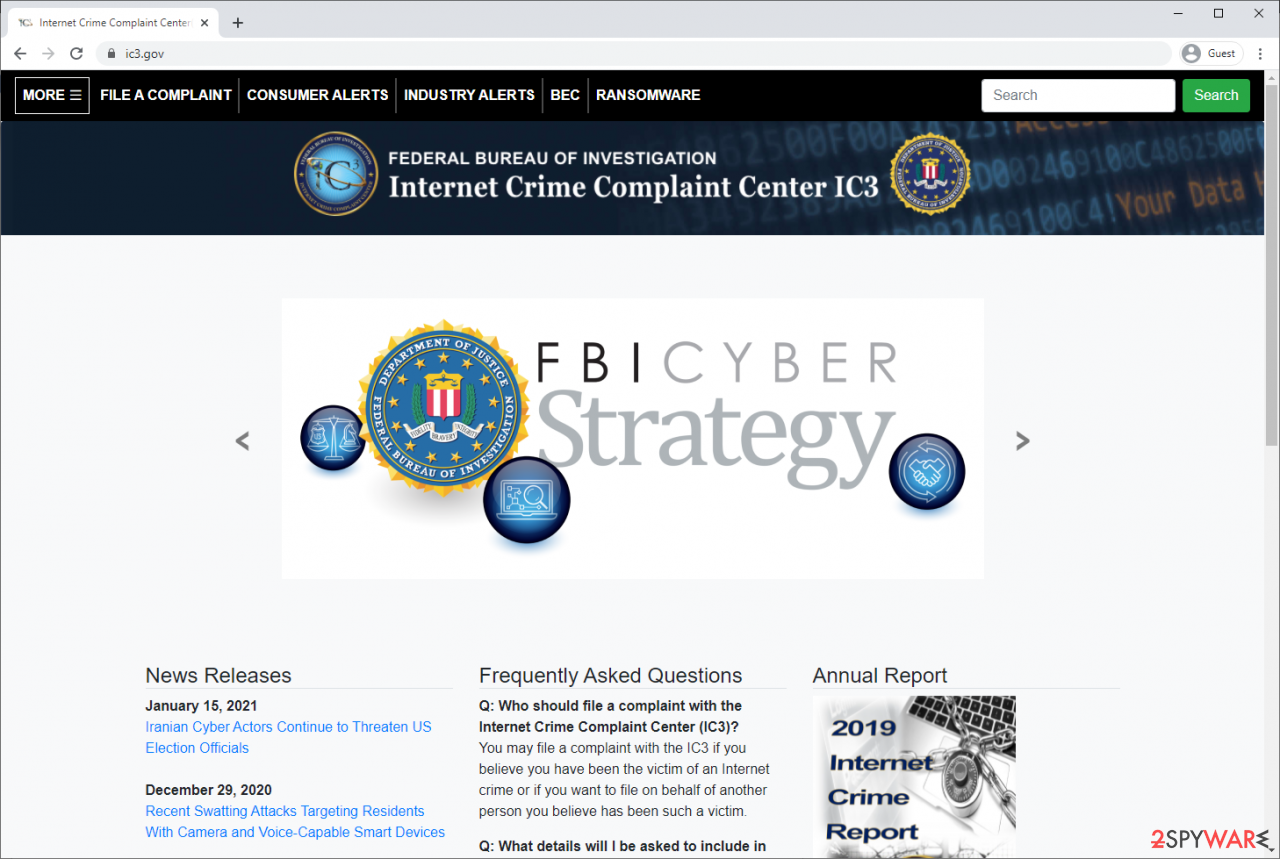
If your country is not listed above, you should contact the local police department or communications center.
Isolate the infected computer
Some ransomware strains aim to infect not only one computer but hijack the entire network. As soon as one of the machines is infected, malware can spread via the network and encrypt files everywhere else, including Network Attached Storage (NAS) devices. NAS devices are commonly compromised via reused administrator credentials and remote access services, and attackers may also delete existing snapshots. If your computer is connected to a network, it is important to isolate it to prevent re-infection after ransomware removal is complete.
In modern environments, ransomware often spreads using stolen credentials, remote management tools, VPN connections, and cloud synchronization services, not only through shared network drives.
The easiest way to disconnect a PC from everything is simply to plug out the ethernet cable. This does not disconnect wireless networks, VPN connections, or cloud services, which must also be disabled separately. However, in the corporate environment, this might be extremely difficult to do (also would take a long time). In many organizations, devices are centrally managed, and network isolation is typically performed by IT or security teams using endpoint security or device management tools. The method below will disconnect from all the networks, including local and the internet, isolating each of the machines involved.
On modern Windows systems, network connections can also be disabled through the Settings app or automatically isolated using endpoint detection and response (EDR) tools.
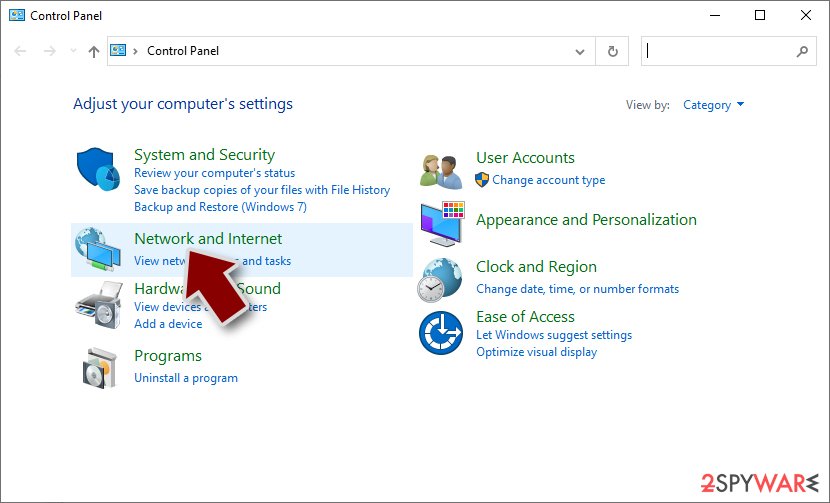
- Type in Control Panel in Windows search and press Enter
- Go to Network and Internet
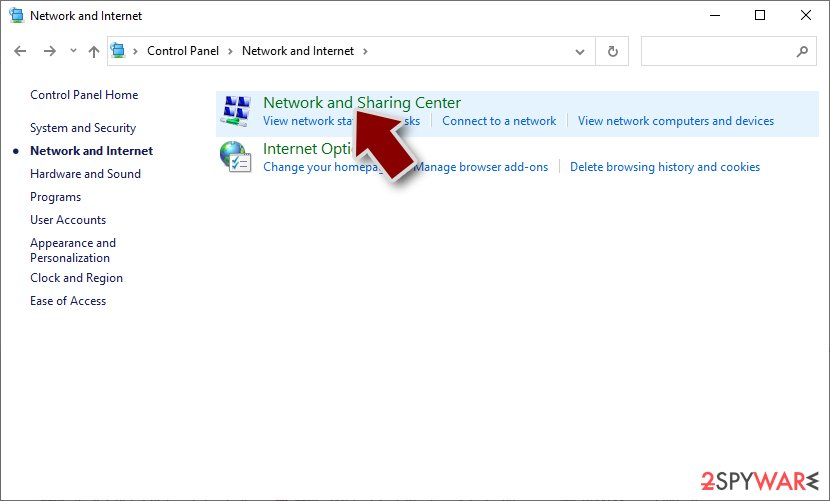
- Click Network and Sharing Center
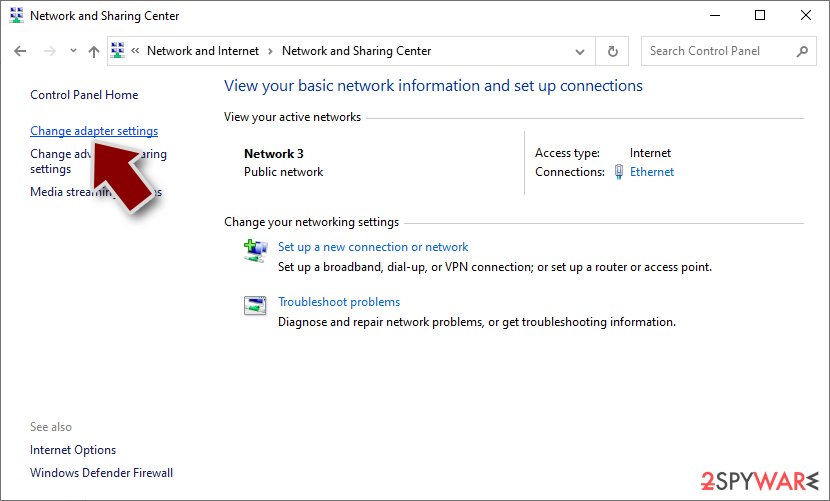
- On the left, pick Change adapter settings
- Right-click on your connection (for example, Ethernet), and select Disable
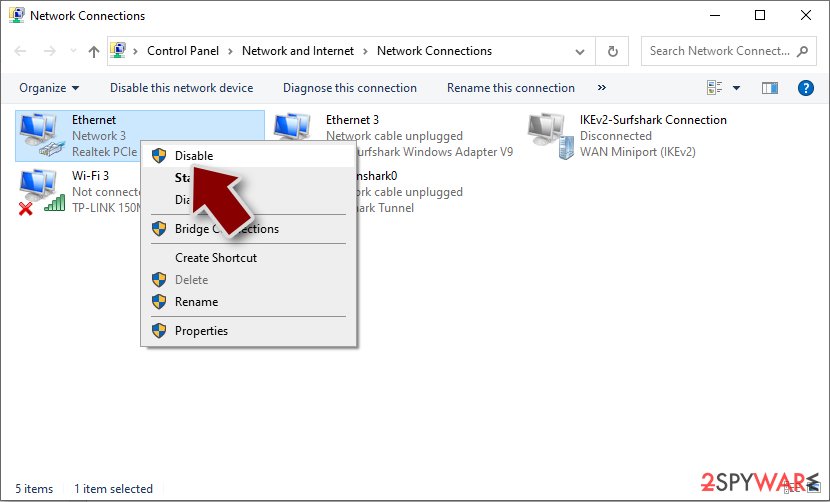
- Confirm with Yes.
If you are using some type of cloud storage you are connected to, you should disconnect from it immediately. It is also advisable to disconnect all the external devices, such as USB flash sticks, external HDDs, etc. Once the malware elimination process is finished, you can connect your computers to the network and internet, as explained above, but by pressing Enable instead. Before reconnecting, credentials should be reset, persistence mechanisms checked, and backups verified to ensure reinfection does not occur.
From our report of Oct 2021 · not reviewed since
Start the removal process
The important thing to do is disconnect the affected machine from the local network as we talked about the dangers of that previously.
For home users, disconnecting the ethernet cable should do the job. If this happened at your workplace, doing that might be complicated, so we have instructions for corporate environments at the bottom of this post.
If you try to recover your data first, it can result in permanent loss. It can also encrypt your files the second time. It will not stop until you remove the malicious files causing it first.
You should not attempt removing the malicious program yourself unless you have experience. Manual removal of ransomware is extremely complicated and is suitable for people with advanced IT skills.
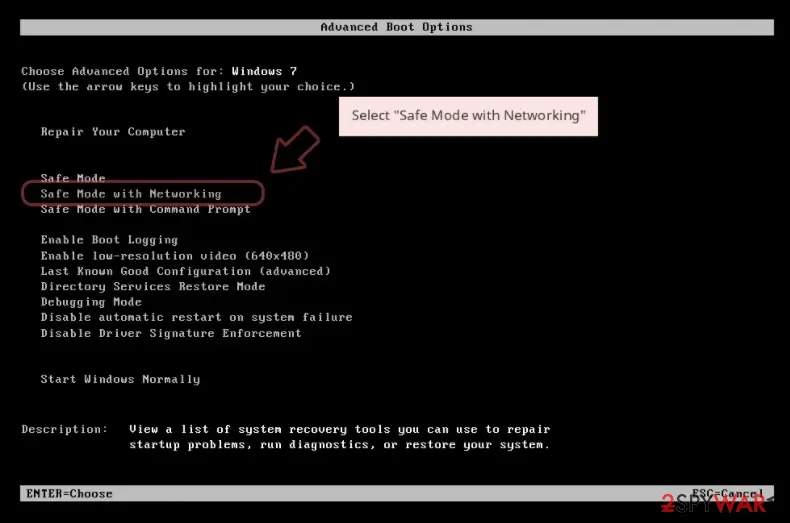
This security software should find all the related files and entries and remove them automatically for you. In some cases, malware does not let you use antivirus in normal mode, so you need to access Safe Mode and perform a full system scan from there:
Windows 7 / Vista / XP
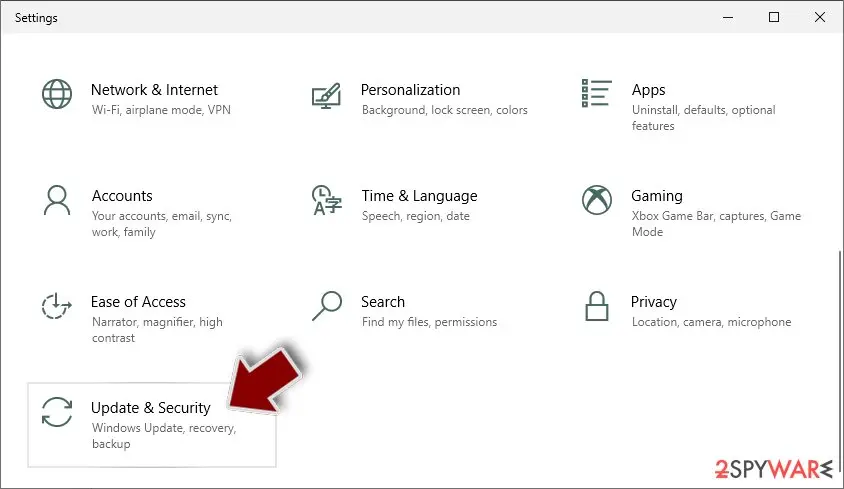
Windows 10 / Windows 8
- Click Start > Shutdown > Restart > OK.
- When your computer becomes active, start pressing F8 button (if that does not work, try F2, F12, Del, etc. - it all depends on your motherboard model) multiple times until you see the Advanced Boot Options window.
- Select Safe Mode with Networking from the list.
- Right-click on Start button and select Settings.
- On the left side of the window, pick Recovery.
- Click Restart now.
- Select Troubleshoot.
- Go to Advanced options.
- Select Startup Settings.
- Click Restart.
- Press 5 or click 5) Enable Safe Mode with Networking.
From our report of Oct 2021 · not reviewed since
Repair corrupted system files
Performance, stability, and usability issues, to the point where a full Windows reinstall is required, are nothing unusual after malware infection.
These types of viruses can alter the Windows registry database, damage vital bootup, and other sections, delete or corrupt DLL files, etc. Once a system file is damaged by malware, antivirus software cannot fix it.
Manual troubleshooting of such damage is also very complicated and can take a long time. This is why was developed. It can fix a lot of the damage caused by an infection like this.
Blue Screen errors, freezes, registry errors, damaged DLLs, etc., can make your computer completely unusable. By using this maintenance tool, you could prevent yourself from having to reinstall WIndows completely.
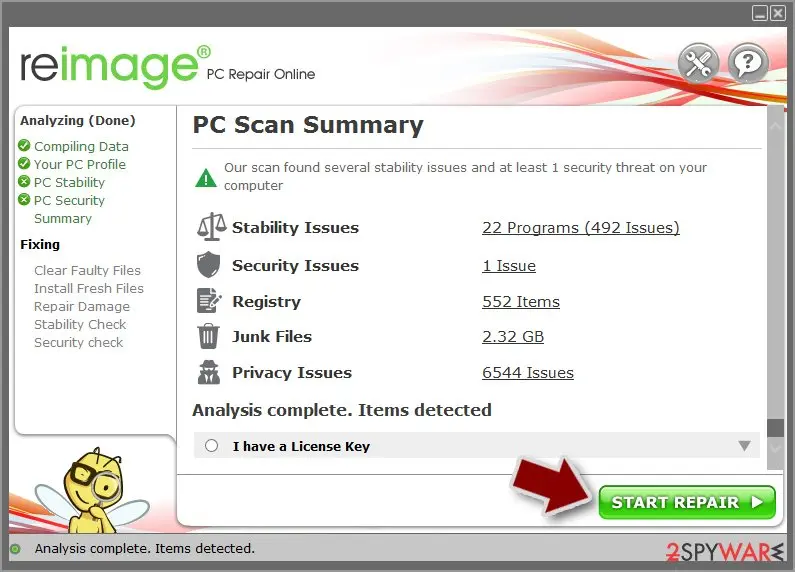
- Download the application by clicking on the link above
- Click on the ReimageRepair.exe
- If User Account Control (UAC) shows up, select Yes
- Press Install and wait till the program finishes the installation process
- The analysis of your machine will begin immediately
- Once complete, check the results - they will be listed in the Summary
- You can now click on each of the issues and fix them manually
From our report of Oct 2021 · not reviewed since
Try recovering data with third-party software
Only hackers hold the decryption key, which can unlock your files, so if you did not back them up previously, there is a good chance that you will never get them back. You can try using data recovery software, but keep in mind that third-party programs cannot always decrypt the files.
Whatever the situation may be, we suggest at least trying this method. Before you proceed, copy the corrupted files and place them in a USB flash drive or another external storage device. And remember - only do this if you have already removed the .block ransomware.
Before you begin, several pointers are important while dealing with this situation:
Install data recovery software
Keep your data safe by doing this:
- Since the encrypted data on your computer might permanently be damaged by security or data recovery software, you should first make backups of it - use a USB flash drive or another storage.
- Only attempt to recover your files using this method after you perform a scan with anti-malware software.
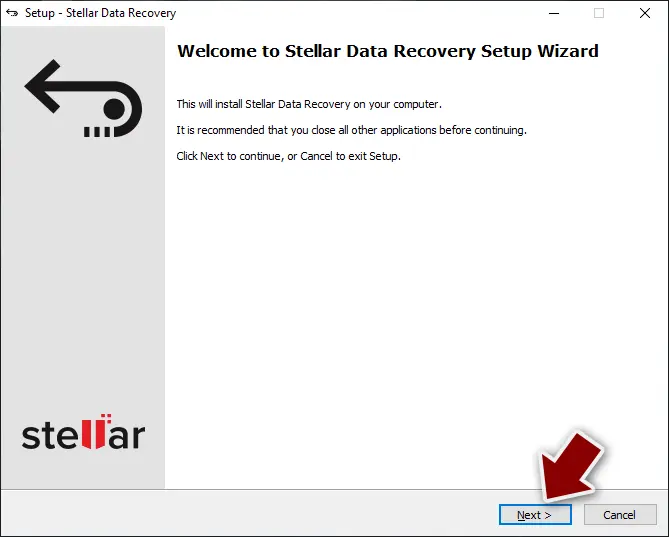
- Download .
- Double-click the installer to launch it.
- Follow on-screen instructions to install the software.
- As soon as you press Finish, you can use the app.
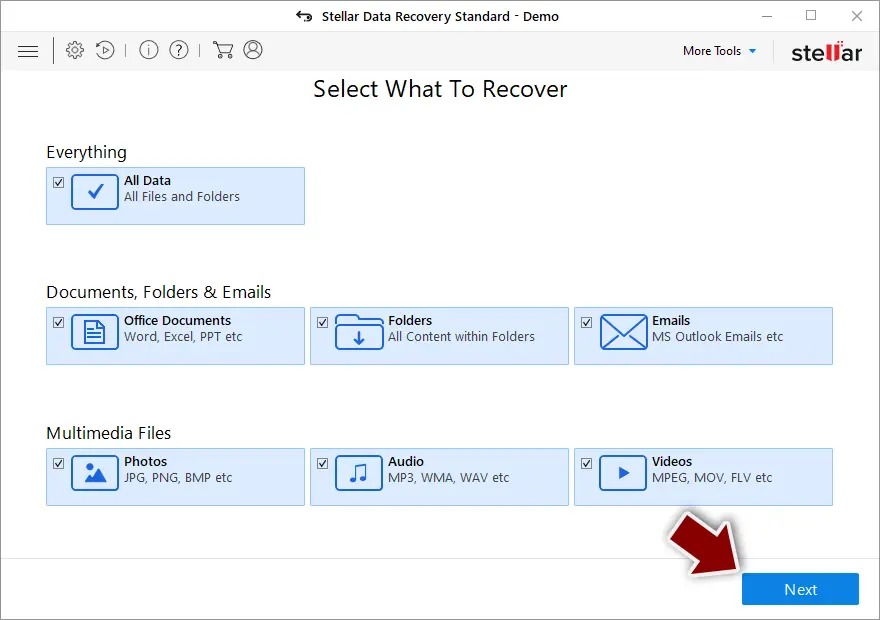
- Select Everything or pick individual folders where you want the files to be recovered from.
- Press Next.
- At the bottom, enable Deep scan and pick which Disks you want to be scanned.
- Press Scan and wait till it is complete.
- You can now pick which folders/files to recover - don't forget you also have the option to search by the file name!
- Press Recover to retrieve your files.
- Keep backups of your data on multiple storage devices
- Do not click on unsafe links
- Do not disclose your personal information to strangers or post it on the Internet
- Do not open suspicious email attachments
- Update your operating system and software as frequently as possible
- Have trusted professional security tools in your system to add an additional layer of safety
Report it and recover your files
Report it
Report the attack even if you do not expect the files back: insurers and banks ask for the report number, and police use the contacts in the note to link cases.
- United States
- FBI IC3 · FTC ReportFraud
- United Kingdom
- Report Fraud (formerly Action Fraud) · NCSC
- Australia
- ReportCyber (ASD)
- EU countries
- Europol: national reporting sites
Give the victim ID, the note and the date the files were encrypted. A business that holds personal data may also have to notify its data protection authority, in the EU within 72 hours.
Protect the files you restore
Restore only after the scans are clean and the PC no longer shows files that end in .block and no longer open; otherwise the restored copies can be damaged again.
Then build a backup that survives the next infection:
- one copy in the cloud with version history
- one on an external drive that is disconnected between backups
- the working copy on the PC
Version history matters because a backup that syncs damaged files overwrites the good ones.
How to do this with the tools built into Windows: the 3-2-1 backup rule on Windows.
Stream videos without limitations, no matter where you are
There are multiple parties that could find out almost anything about you by checking your online activity.
While this is highly unlikely, advertisers and tech companies are constantly tracking you online. The first step to privacy should be a secure browser that focuses on tracker reduction to a minimum.
Even if you employ a secure browser, you will not be able to access websites that are restricted due to local government laws or other reasons. In other words, you may not be able to stream Disney+ or US-based Netflix in some countries. To bypass these restrictions, you can employ a powerful VPN, which provides dedicated servers for torrenting and streaming, not slowing you down in the process.
Data backups are important - recover your lost files
Ransomware is one of the biggest threats to personal data.
Once it is executed on a machine, it launches a sophisticated encryption algorithm that locks all your files, although it does not destroy them. The most common misconception is that anti-malware software can return files to their previous states. This is not true, however, and data remains locked after the malicious payload is deleted.
While regular data backups are the only secure method to recover your files after a ransomware attack, tools such as can also be effective and restore at least some of your lost data.
Questions about Block ransomware
How do I open .block files?
You cannot open them by renaming or by choosing another program. The .block ending shows that Block encrypted the content, and only the matching key can reverse it. Renaming a file back to .docx or .jpg changes nothing except the icon, and it can confuse a future decryptor, so leave the names as they are.
To get the content back, use a backup, an unencrypted copy elsewhere, or a decryptor listed on No More Ransom if one exists for Block. Store the encrypted files on an external disk until then.
Is there a free Block decryptor?
We last checked on 7 October 2026, and for Block no free decryptor is known. We check No More Ransom, which collects free tools from police and security companies, and the decryptor pages of the major antivirus vendors. A working decryptor exists only when the encryption has a flaw or the keys were leaked or seized.
Ignore sites and videos that offer a "Block decryptor" for download or for a fee: these are usually scams or malware. Real decryptors are free and come from known security companies or law enforcement. Keep the encrypted files in case a tool appears later.
Should I pay the ransom?
We advise against it, and so do the FBI, Europol and national cyber agencies. Payment does not guarantee a working tool: some attackers never reply, some tools damage files, and some variants have no decryptor at all. Paying also funds further attacks and can make you a target again.
Before considering payment, try every recovery option in this guide and report the attack. Companies must involve their legal adviser and insurer, because payments to sanctioned groups can be illegal. If files are truly irreplaceable, store the encrypted copies and wait; decryptors sometimes appear later.
Can a data-recovery company decrypt my files for a fee?
Only if a decryptor already exists or the company pays the attackers for you. Some "ransomware recovery" services advertise that they can decrypt families with no known flaw; in practice they negotiate with the attackers and add their own fee. Others use the same free tools listed on No More Ransom.
Before you hire anyone, ask in writing how they will recover the files, whether they will contact the attackers and what happens if they fail. A legitimate service answers clearly. If a free decryptor exists for your family, you can run it yourself.
How did Block get on my computer?
The way Block spreads has not been documented yet, so look at your own recent activity. On home PCs, ransomware most often comes with cracked programs, game cheats, key generators and fake updates, or with an e-mail attachment that was opened. On business networks, attackers usually log in through Remote Desktop with a stolen or guessed password.
Think back to what was downloaded or installed in the days before files that end in .block and no longer open, and check the Downloads folder and Installed apps sorted by date. Keep anything suspicious for your report, but do not run it again.
Did Block steal my files or passwords?
We do not know yet. Nothing published so far shows data theft by Block, but the only confirmed sign is files that end in .block and no longer open, which says nothing about what happened before. Many current ransomware attacks copy files or run a password stealer first, so it is wise to act as if they did.
From a clean device, change the passwords that were saved in the browsers on this PC, starting with e-mail and banking, sign out of all sessions and turn on two-step verification. Watch bank statements and account activity for the next few weeks.
Is Block the same as other ransomware with a similar name?
Not necessarily. Ransomware names come from the file extension, the note or a word in the code, so unrelated families often end up with similar names, and one family can appear under several names. The difference matters: a decryptor or advice for one family does not fit another and can damage files.
Compare the ending added to your files and the exact name of the note with the summary table at the top of this guide, then upload the note and one encrypted file to ID Ransomware from a clean device. If the result names another family, follow the guide for that family instead.
Can I just remove .block from the file names?
You can try it on a copy, but for real ransomware it will not help. The .block extension is only a label; the file content has been scrambled with a key the attackers hold.
If a renamed copy opens normally, the malware only renamed files, which happens with some fake ransomware, and you can rename the rest back. If it does not open, leave the files as they are. Renaming encrypted files can confuse a decryptor later, so always work on copies.
Can I delete readMe!.txt?
Yes, the note itself is harmless text and deleting it does not affect your files. Keep at least one copy first, outside the infected PC. readMe!.txt contains your personal ID and the attackers' contact details, which identification services use to tell which family encrypted your files, and which a decryptor may need later.
Police reports also ask for it. Once you have saved a copy, you can remove the notes from every folder after the ransomware program has been removed and your files are restored or backed up.
Will Fortect remove Block?
Fortect scans Windows for malware and unwanted programs and repairs the system files and settings they change, and its free scan shows what it finds on your PC before you decide anything.
For Block, follow the plan above as well: the browser steps take back permissions and settings that no scanner treats as a threat, and uninstalling the program that brought it removes the source.
Run Microsoft Defender's full scan and, if anything was found, its offline scan as a second opinion. If the symptoms are gone after the plan and both scans are clean, there is nothing more to do.
Sources
- ThreatPost: Encrypted & Fileless Malware Sees Big Growth (read October 7, 2026)
- VirusTotal: Detection (read October 7, 2026)
- Malwarebytes: Cryptojacking – What is it? (read October 7, 2026)
- Gatefy: What is a malicious URL? (read October 7, 2026)
- Wikipedia: Blue screen of death (read October 7, 2026)
- Medium: What are encryption keys and how do they work? (read October 7, 2026)