
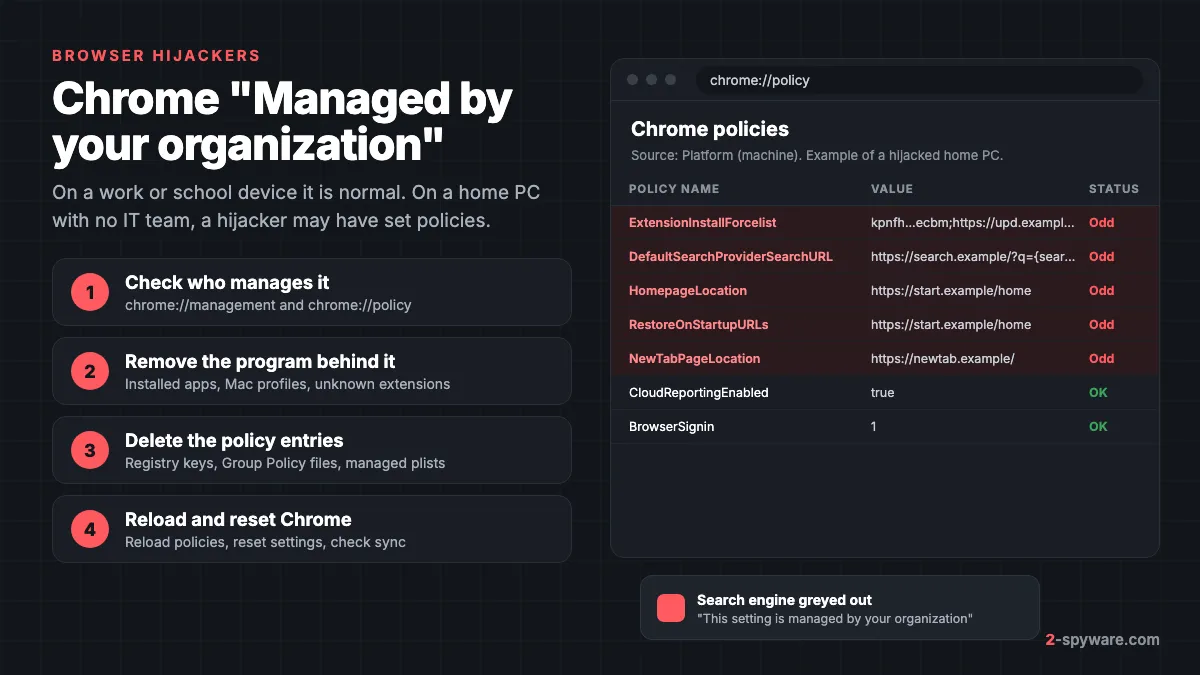
What "Managed by your organization" means
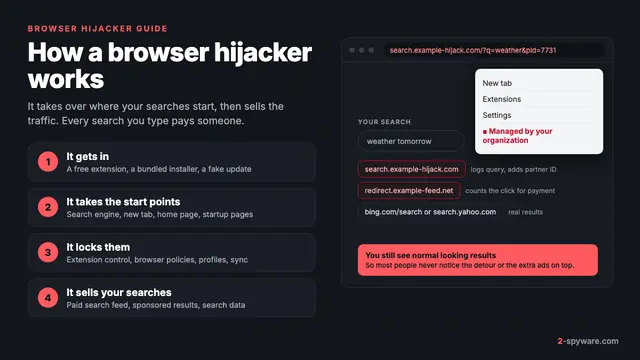
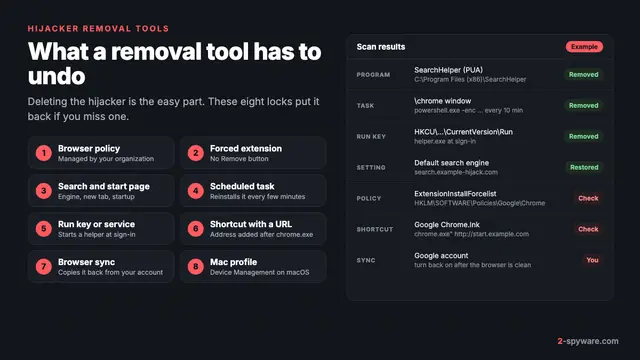
The message means at least one browser policy is set on your computer or account: a setting written by an administrator that the browser obeys and you usually cannot change. Our browser hijacker guide covers every way a hijacker takes over a browser. This page goes deeper on policies and how to remove unwanted ones.
Google describes a managed browser as one set up and maintained by a school, company or other group, whose administrator can restrict features, install extensions and monitor activity [1]. Policies can apply to the whole device or to one user, and can be locked so you cannot change them [2].
Where you see the message
- At the bottom of the Chrome menu (the three dots at the top right). Google says that if you see "Managed by your organization" there, your browser is managed, and if you do not, it is not [1].
- In Edge, as "Your browser is managed by your organization" at the top of Settings and in the Settings and more menu.
- Next to a setting that is greyed out, for example the search engine or the home page, with a building icon and the text that the setting is managed.
- On an extension in chrome://extensions or edge://extensions that has no Remove button. Our guide to the "Installed by enterprise policy" extension covers that case.
When the message is legitimate
Rule out a real administrator first. The message is expected, and the policies should stay, in these cases:
- A work or school device. Companies manage Chrome with Windows Group Policy, Mac configuration tools or a cloud console [2], and Edge through Group Policy or Microsoft Intune [4].
- A work or school Google account signed in to Chrome. A personal account ends in @gmail.com; a managed Workspace account ends in a custom domain such as @company.com or @yourschool.edu [1].
- A Windows PC joined to a company domain or enrolled in Intune, the two cases where Microsoft supports setting Edge policies through the registry [4].
- Security software you installed on purpose. Some antivirus suites add a policy to force-install their own browser extension.
- Parental control tools that set policies to enforce SafeSearch, block sites or keep their extension installed.
Windows can show related messages for the same reason. If you also see "Your virus and threat protection is managed by your organization" or "Your organization manages your update settings", something wrote Windows policies too, and those guides explain each one.
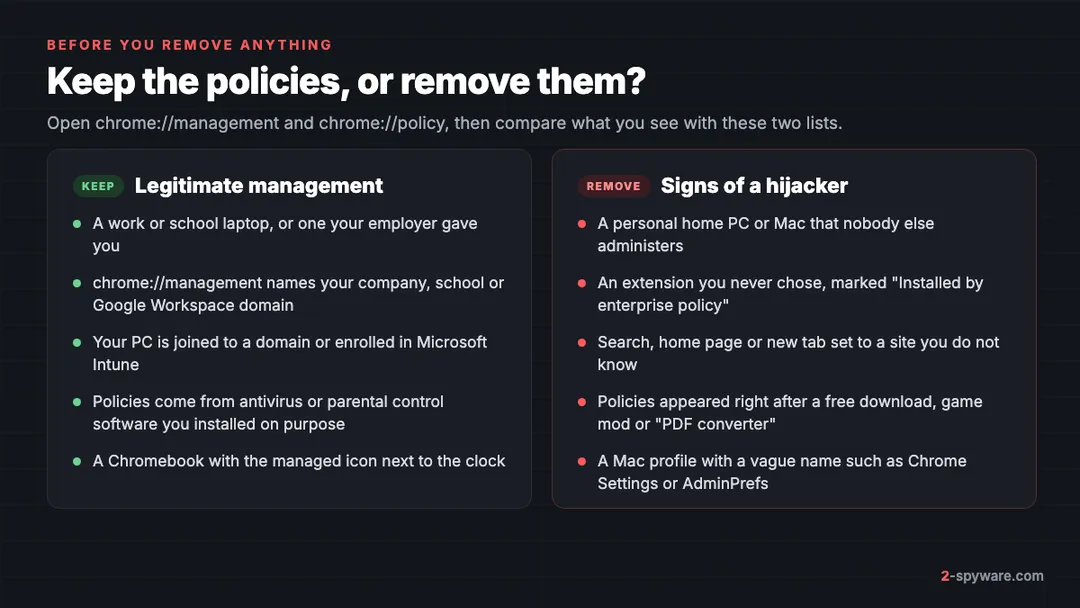
How to check what is managing your browser
- Type chrome://management in the Chrome address bar and press Enter [1]. If a domain manages the browser or your account, its name appears at the top, along with extensions installed by policy [1].
- Type chrome://policy and press Enter to list every policy that is set [1].
- Click Reload policies so the list matches the current registry or profile, and click Show value to read a long entry in full [3].
- In Edge, use edge://management and edge://policy, the page Microsoft uses to confirm applied policies [4].
- Click your profile picture at the top right of Chrome and read the email address of the signed-in account [1].
- On Windows, open Settings > Accounts > Access work or school. An entry there means the PC is connected to an organization.
| Column | What you may see | What it tells you |
|---|---|---|
| Source | Platform | Set on this computer: Windows registry or Group Policy, or a Mac configuration profile. Hijackers almost always land here. |
| Source | Cloud | Sent from an online admin console, through a Workspace account or a cloud enrollment token |
| Applies to | Machine or Current user | Machine means every user of the PC (HKLM on Windows). Current user means only your account (HKCU). |
| Level | Mandatory or Recommended | Mandatory locks the setting. Recommended is a default you can change [4]. |
How hijackers abuse browser policies
Adware and hijackers use a small set of Chrome policies, all of them listed in Google's public policy reference [6]. Each one locks a setting that the hijacker earns money from. Edge uses the same names, because it reads Chromium policies from its own registry key [4].
| Policy | What it controls | What a hijacker does with it |
|---|---|---|
| ExtensionInstallForcelist | Extensions installed without asking, as ID;update URL pairs | Force-installs its own extension so you cannot remove or disable it |
| ExtensionSettings | Per-extension rules, including force_installed and blocked | Same goal. Google notes that force_installed extensions cannot be disabled or removed by the user [3]. |
| DefaultSearchProviderEnabled, DefaultSearchProviderSearchURL, DefaultSearchProviderName | The search engine in the address bar | Sends every search through its own page, which forwards it and adds ads |
| HomepageLocation | The page the Home button opens | Points it to the hijacker's start page |
| RestoreOnStartup and RestoreOnStartupURLs | What opens when Chrome starts | Opens the hijacker's page every time you start the browser |
| NewTabPageLocation | The page shown in a new tab | Replaces the new tab with a page full of search boxes and ads |
The values are easy to spot. An extension ID is a 32-character string [3] that belongs to something you did not choose, and the search URL points to an unfamiliar domain with a {searchTerms} placeholder. The same domain often repeats in the home page, startup and new tab policies.
Families that use this method include Optimum Search and the older Delta Search hijackers. Many fake search engines and malicious extensions turn to policies when an extension alone does not stay installed.
Before you remove anything: back up
- Take a screenshot or a photo of chrome://policy and edge://policy, so you know what was set.
- On Windows, create a restore point: search for "Create a restore point", select your system drive and click Create.
- Export each policy key before you delete it. In Registry Editor, right-click the key and choose Export, or run reg export "HKLM\SOFTWARE\Policies\Google\Chrome" %USERPROFILE%\Desktop\chrome-policy.reg in an administrator Command Prompt.
- If the computer holds files you cannot lose, follow a 3-2-1 backup before larger changes.
How to remove Chrome and Edge policies on Windows
Work from the source outward. If the program that wrote the keys is still installed, it writes them back.
1. Uninstall the program that set the policies
On Windows 11, open Settings > Apps > Installed apps and sort by Install date. On Windows 10, open Settings > Apps > Apps & features. Remove anything installed around the time the message appeared that you do not use, such as PDF tools, search helpers or download managers [1]. Our page on potentially unwanted programs shows the usual names.
2. Delete the policy keys in Registry Editor
Press Windows key + R, type regedit and press Enter. Microsoft confirms that Edge stores Group Policy settings under HKLM\SOFTWARE\Policies\Microsoft\Edge [4]. Chrome uses the same pattern under Google. Check all of these keys:
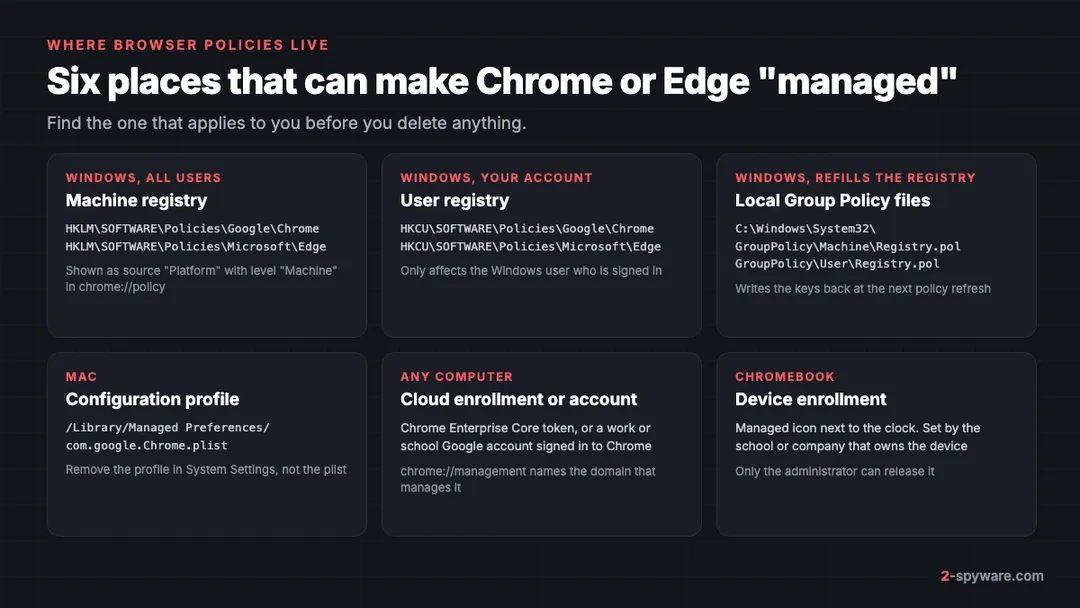
- HKEY_LOCAL_MACHINE\SOFTWARE\Policies\Google\Chrome
- HKEY_CURRENT_USER\SOFTWARE\Policies\Google\Chrome
- HKEY_LOCAL_MACHINE\SOFTWARE\Policies\Microsoft\Edge
- HKEY_CURRENT_USER\SOFTWARE\Policies\Microsoft\Edge
- HKEY_LOCAL_MACHINE\SOFTWARE\WOW6432Node\Policies\Google\Chrome (some 32-bit installers write here)
Inside each key, values carry the policy names, such as HomepageLocation, and a subkey such as ExtensionInstallForcelist holds numbered values with extension IDs. On a home PC with no real management, delete the whole Chrome or Edge key. Otherwise delete only the hijacker's values.
From an administrator Command Prompt, the same cleanup for Chrome is reg delete "HKLM\SOFTWARE\Policies\Google\Chrome" /f, then the same command with HKCU. Run it only after the export in the backup step.
3. Clear the local Group Policy files
Some hijackers write into the local Group Policy store, and Windows then rewrites the deleted keys at the next refresh. Paste C:\Windows\System32\GroupPolicy into the File Explorer address bar and check the Machine and User folders for a Registry.pol file dated around the infection.
On a home PC that never had Group Policy settings of its own, rename the GroupPolicy folder to GroupPolicy.old, and do the same with C:\Windows\System32\GroupPolicyUsers if it exists. Then run gpupdate /force in an administrator Command Prompt, the same command Microsoft gives for refreshing policies [4]. Renaming rather than deleting keeps a way back.
On Windows Pro you can instead open gpedit.msc and set each unwanted entry to Not Configured. Chrome policies sit under Computer Configuration > Administrative Templates > Google > Google Chrome [2], and Edge under Computer or User Configuration > Policies > Administrative Templates > Microsoft Edge [4].
4. Check for a cloud enrollment token
If chrome://policy shows Cloud as the source and you have no work account, look for a CloudManagementEnrollmentToken value under HKLM\SOFTWARE\Policies\Google\Chrome and an Enrollment key under HKLM\SOFTWARE\Google\Chrome. Both enroll the browser in someone else's admin console. Delete them, then close Chrome completely.
5. Reload and confirm
Restart the PC, open chrome://policy and click Reload policies [3]. A clean home PC shows no policies, and the managed line disappears from the Chrome menu [1]. If entries return after a restart, something still running writes them. Check Task Manager > Startup apps and Task Scheduler, or ask in our Windows help forum.
How to remove Chrome policies on a Mac
On a Mac, Chrome reads its policies from a property list in the com.google.Chrome domain [2]. Adware puts them there through a configuration profile, which is why you cannot fix the problem by editing Chrome settings.
1. Remove the configuration profile
On macOS Sequoia 15 and later, open Apple menu > System Settings > General > Device Management [7]. On macOS Sonoma 14, open System Settings > Privacy & Security and scroll to Profiles at the bottom. Double-click a profile to see what it sets [7]. Adware profiles often carry vague names such as Chrome Settings or AdminPrefs and contain a homepage or search URL. Select it, click the minus button and enter your password [7].
If a profile has no minus button or came from device enrollment (MDM), the Mac is enrolled in a management service. On a company Mac, that is a matter for IT.
2. Check the managed and user preference files
Removing the profile also removes the managed file at /Library/Managed Preferences/com.google.Chrome.plist, or the per-user copy in /Library/Managed Preferences/<your user name>/. Do not delete those files by hand while a profile still exists, because macOS recreates them. To list any profiles left, run sudo profiles show -type configuration in Terminal.
Some adware skips profiles and writes values into your own preferences instead. Chrome treats those as recommended policies. Run defaults read com.google.Chrome in Terminal to see them. If you see HomepageLocation, NewTabPageLocation or a search URL you did not set, quit Chrome and remove each one with defaults delete com.google.Chrome HomepageLocation, using the name of the value.
3. Do the same for Edge
Edge for Mac uses the com.microsoft.Edge domain, so check /Library/Managed Preferences/com.microsoft.Edge.plist and run defaults read com.microsoft.Edge. Then remove the app that installed the profile. Our guide to removing adware from a Mac covers Login Items, LaunchAgents and Applications.
After removal: reset Chrome and check sync
Once chrome://policy is empty, Google's sequence ends with removing unknown extensions, resetting Chrome and restarting [1].
- Remove extensions you do not recognize in chrome://extensions or edge://extensions. Our extension removal steps cover each browser.
- Reset the browser. In Chrome, open Settings > Reset settings > Restore settings to their original defaults. In Edge, open Settings > Reset settings > Restore settings to their default values. Our browser reset guide has the full steps.
- Check Chrome sync. If you are signed in, a hijacker's search engine or start page can sync back from another computer. Fix every synced device, or clear the synced data from your Google Account sync settings and sync again.
- Change passwords if the forced extension could read your pages. Our account security steps show the order to follow.
Chromebooks and managed Google accounts
On a Chromebook, select the time at the bottom right. If the managed device icon is there, the device is managed by a school, company or other group [5]. Google's advice for a managed Chromebook is to ask your administrator for help [5]. Enrollment is tied to the device, so a powerwash or a new account does not remove it.
If the message comes from your account rather than the device, sign out of the work or school account and sign in with a personal one. A Chromebook with ads or redirects but no managed icon has a different problem, covered in our Chromebook virus guide.
When you should not remove the policies
- The device belongs to your employer or school. Those policies enforce security settings and approved extensions, and removing them can cut you off from company systems and break workplace rules.
- chrome://management names your company or school domain, even on a personal device where you signed in with a work account.
- The forced extension belongs to your antivirus, password manager or parental control app.
- You are not sure. Google's advice is to contact your Google Account or device administrator [1].
If you are unsure whether a domain or extension is safe, our free link check can look up a URL found in a policy value. Mac users can also ask in our Mac help forum.
Frequently asked questions
Why does Chrome say Managed by your organization on my personal computer?
Because at least one browser policy is set on the computer or on the account signed in to Chrome. On a personal PC with no work account, the usual cause is a program you installed, often a hijacker or adware, that wrote policies to lock your search engine, home page or extensions.
Is Managed by your organization a virus?
The message itself is a normal Chrome feature. It becomes a problem when the policies behind it point to search pages, start pages or extensions you never chose. That pattern is the work of a browser hijacker or adware, and the policies should be removed together with the program that set them.
How do I see which policies are set in Chrome?
Type chrome://policy in the address bar and press Enter. The page lists every policy with its value, source and status. chrome://management shows who manages the browser and which extensions were installed by policy. In Edge, use edge://policy and edge://management.
How do I remove Chrome policies on Windows?
Uninstall the program that set them, export the keys as a backup, then delete HKLM and HKCU\SOFTWARE\Policies\Google\Chrome in Registry Editor. If they return, rename C:\Windows\System32\GroupPolicy, run gpupdate /force and restart.
Why do the policies come back after I delete them?
Something on the PC rewrites them. It can be the program that installed them, a scheduled task, or a local Group Policy file that Windows applies again at the next refresh. Remove the program first, then clear the Group Policy files, then delete the registry keys.
How do I remove Managed by your organization on a Mac?
Open System Settings and go to General > Device Management on Sequoia, or Privacy & Security > Profiles on Sonoma. Remove the profile you did not add. Then run defaults read com.google.Chrome in Terminal and delete any home page or search values you did not set.
Can I remove Managed by your organization from a work or school laptop?
You should not. Your employer or school set those policies on purpose, and removing them can cut off access to company systems. If something looks wrong, ask your IT team.
Will resetting Chrome remove the policies?
No. A reset restores the search engine, start pages and pinned tabs and turns off extensions, but policies sit outside Chrome in the registry or a Mac profile. Remove the policies first, then reset Chrome so the clean settings stick.
Sources
- Google Chrome Help: Check if your Chrome browser is managed read 2026-10-08
- Chrome Enterprise and Education Help: Set Chrome browser policies on managed PCs read 2026-10-08
- Chrome Enterprise and Education Help: Set Chrome app and extension policies (Mac) read 2026-10-08
- Microsoft Learn: Configure Microsoft Edge policy settings on Windows devices read 2026-10-08
- Chromebook Help: Check if your Chromebook is managed read 2026-10-08
- Chrome Enterprise: Policy list read 2026-10-08
- Apple Support: Use configuration profiles to standardize settings on Mac computers read 2026-10-08
 What is a browser hijacker and how to remove it
 Best browser hijacker removal tools in 2026