
What is a browser extension, and what is a malicious one?
A browser extension, also called an add-on or plug-in, is a small program that adds a feature to your browser. Password managers, ad blockers, translators, coupon finders and grammar checkers are all extensions. You install them from a store such as the Chrome Web Store, Microsoft Edge Add-ons, Firefox Add-ons or the Mac App Store.
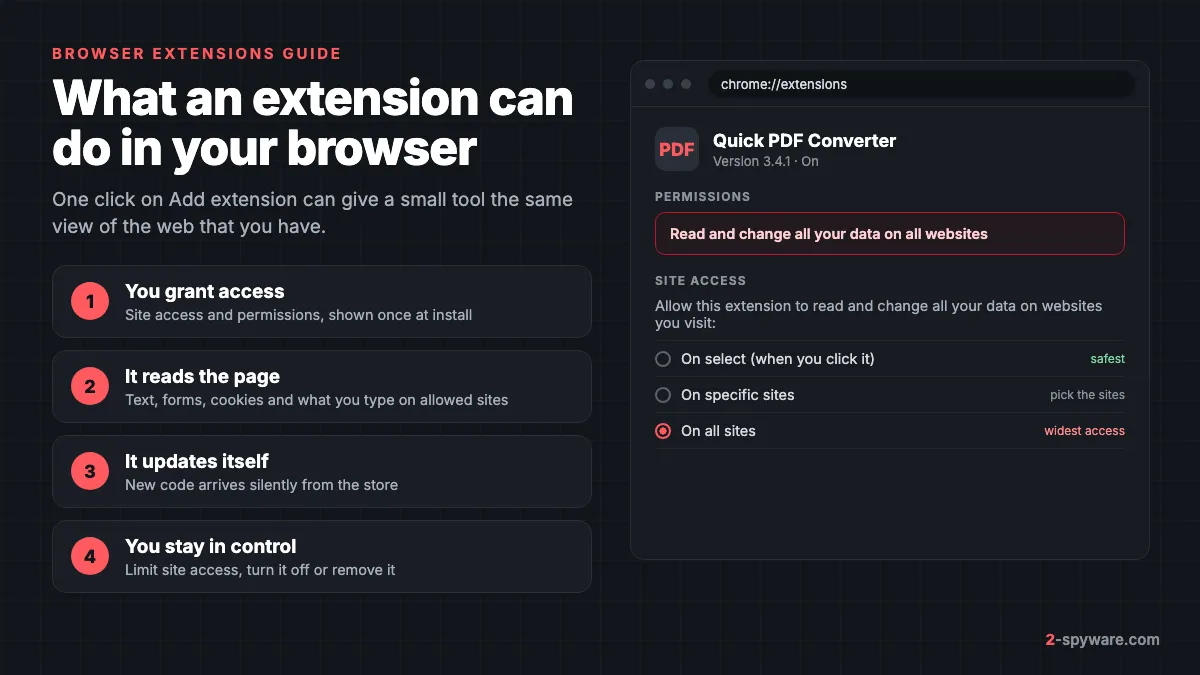
What makes an extension powerful is where it runs. It sits between you and every website, so it can see a page as you see it. Mozilla puts it plainly: an extension with access to all websites could read the content of any page you visit and the data you enter, such as usernames and passwords [4]. Password managers, shopping tools and ad blockers need that access to do their job [4].
A malicious extension uses the same access against you. It may log every site you open, inject ads, swap affiliate links, change your search engine, or copy the cookies that keep you signed in. Some do one small useful thing on the surface so you keep them. Others are copies of a famous extension with a similar name and logo.
This rubric collects our guides to extensions and toolbars, from the Swagbucks toolbar and Tampermonkey to Swift Search and Websearch.com. If your main problem is a changed search engine, read our browser hijacker guide. If it is pop-ups and ad pages, start with the adware guide. This page is about extensions themselves.
Are Chrome extensions safe?
Most Chrome extensions from known publishers are safe to use. The store reviews them, Chrome warns you about sensitive permissions, and Google removes extensions that break its rules. But safe at install is not the same as safe forever, and the review does not catch everything.
Google gives you one extra check. With Enhanced protection turned on in Chrome, the browser warns you when an extension is not trusted, with the message This extension is not trusted by Enhanced Safe Browsing [1]. An extension counts as trusted when its developer follows the Chrome Web Store program policies, and Google says new developers usually need a few months to reach that status [1].
So the honest answer is that an extension is as safe as three things: the permissions you give it, the person who controls its updates, and the store listing being genuine. The rest of this page shows you how to check each one.
Is a malicious extension a virus?
Not in the strict sense. An extension does not copy itself into other files or spread across a network. Security vendors usually label unwanted extensions as adware or potentially unwanted programs, and label data-stealing ones as spyware or trojans. The label matters less than what the extension can read, which is the subject of the next section.
What extension permissions mean
When you click Add to Chrome, some extensions show a list of permissions they need, and you approve them with Add extension [1]. Google's own advice at that point is to approve only extensions you trust [1]. Some permissions show no warning at all, while others trigger a warning you have to accept [2].
The warning that matters most reads Read and change all your data on all websites. It comes from host permissions, which list the sites an extension may touch. A pattern that covers every address gives the extension the run of every page you open, including your email, bank and work tools.
| Warning you see | What the extension can do | Who needs it legitimately |
|---|---|---|
| Read and change all your data on all websites | Read page content and what you type on any site, and change the page [4] | Password managers, ad blockers, translators, shopping tools [4] |
| Read and change your data on a list of sites | The same, but only on the named sites | Tools for one service, such as a mail or video site |
| Read your browsing history | See and change the list of pages you visited | History cleaners, tab managers |
| Control browser proxy settings | Send some or all of your traffic through another computer [4] | VPN and proxy extensions |
| Communicate with cooperating native applications | Talk to a program installed on your computer [4] | Password managers, download helpers |
| Change your search settings | Replace your default search engine | Search providers, and most hijackers |
Chrome hides some warnings when a broader one already covers them. Google's example is that the tabs warning does not appear if the extension also asks for access to all URLs [2]. One wide warning can therefore stand in for several narrower powers.
There is also a quieter permission called activeTab. It shows no warning and gives the extension temporary access only to the site you are on when you click it [2]. A well-built extension that only acts when you click it should use this instead of asking for every site.
Site access: the setting most people never change
Chrome lets you narrow an extension's reach after install. Open the menu, then Extensions, then Manage extensions, and select Details on the extension. Next to Allow this extension to read and change all your data on websites you visit, choose On select, On specific sites or On all sites [1].
You can also do it from the toolbar. Select the Extensions puzzle icon, then More next to the extension, and point to This can read and change site data. Then pick When you select the extension, On the current site or On all sites [1]. Google notes that this control does not reach extensions that work through VPN or proxy settings [1].
Firefox shows a similar list at install, and it also lets an extension disclose what personal data it collects [4]. Safari lets you click an extension's button in the toolbar and choose how much access it has [5]. Apple adds a plain warning: extensions may access the content of the webpages you visit, so check which ones you installed and what they do [5].
What Manifest V3 changed
Manifest V3 is the current version of Chrome's extension platform. Its biggest security change is the end of remotely hosted code. An extension can now run only JavaScript that ships inside its package and goes through Chrome Web Store review [3]. Under the old rules, an extension could fetch new code from its own server at any time.
Manifest V3 also deprecates the blocking version of the webRequest API, which forced extensions to see all network traffic to filter it [3]. The newer declarativeNetRequest API lets an extension block or change requests by rules, without reading every request itself [3]. Chrome now disables older extensions that do not meet the new requirements [1].
These rules shrink the risk but do not remove it. A malicious version can still pass review, and once an extension has wide host permissions, its packaged code can do a lot within them.
How good extensions turn bad
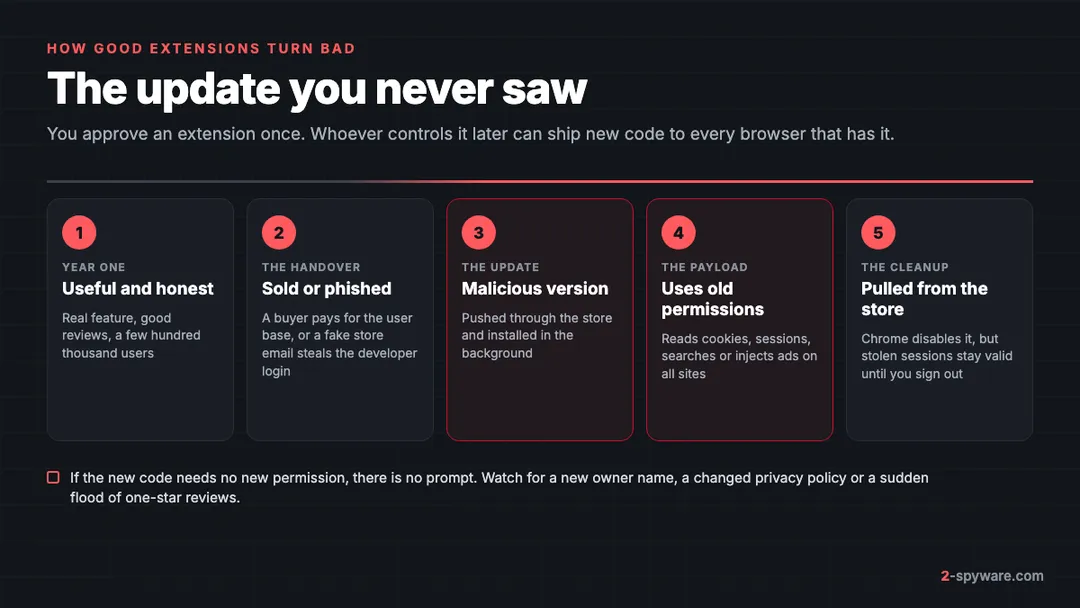
The most damaging extension cases did not start as malware. They started as popular, honest tools with a large user base. That user base is worth money, and there are two common ways someone else ends up controlling it.
Sold to a new owner
Developers of free extensions often get offers to buy their extension or to add a data collection library for a monthly fee. A buyer can then ship a new version to every user at once. The Great Suspender, a tab manager with over two million users, was sold in 2020, and Google removed it as malware in early 2021. Nano Adblocker and Nano Defender changed hands in 2020 and began abusing their access soon after.
A phished developer account
In December 2024, an employee at the data security company Cyberhaven fell for a phishing email made to look like a Chrome Web Store policy notice. The attacker gained publishing rights and uploaded a malicious version of Cyberhaven's extension, which went out automatically to users over the Christmas holiday [6]. That version tried to steal session cookies and logins, with a focus on Facebook advertising accounts. Researchers then linked the same campaign to dozens of other extensions [6].
Chrome does protect you in one case. When an update asks for a new permission that triggers a warning, Chrome disables the extension until you accept it [2]. If the malicious version fits inside permissions you already granted, though, nothing pops up. That is why limiting site access matters even for extensions you trust.
Signs an extension you trust has changed
- A new publisher name or a new website on the store listing.
- A run of fresh one-star reviews mentioning ads, redirects or a changed search page.
- Chrome reports that the extension was disabled because it asks for new permissions [2].
- The store page disappears, or Chrome turns the extension off as malware.
- Ads, affiliate tags or extra tabs appear on sites where you never saw them.
Types of browser extensions that cause trouble
Unwanted extensions fall into a few repeat groups. Our malicious browser extensions collection holds the full list. Here are the groups readers search for most.
Fake AI and ChatGPT extensions
Since 2023, AI assistants have been the most copied extension theme. Fake ChatGPT, Gemini and AI writing helpers copy the name and icon of a real product, then ask for access to all websites. Some forward your prompts to a third party. Others steal session cookies for Facebook or Google accounts. Use the official site of the AI service to find its real extension, if it has one.
Fake and free VPN extensions
A VPN extension needs control of your proxy settings, which lets it route your traffic through another computer [4]. That is exactly the access you would not give to a stranger. Free VPN add-ons from unknown publishers have been caught selling browsing data or turning user devices into exit nodes. Our unwanted VPN and proxy apps collection covers the common ones.
Coupon and shopping extensions
Shopping helpers read product pages to find prices and codes, which Mozilla lists among the normal uses of all-site access [4]. The trouble starts when they show their own ads, track every purchase, or replace a creator's affiliate code with theirs at checkout. Shopping Guide and Avast SafePrice show the range, from bundled add-ons to brand-name tools. Our coupon and shopping extensions page lists more.
Copycats of trusted names
Some extensions borrow a famous brand so you install them without a second look. Our guides on the Google Translate scam and the LastPass virus describe add-ons that had nothing to do with those companies. Always check the publisher name on the store page against the real company.
Userscript managers such as Tampermonkey
Tampermonkey, Violentmonkey and Greasemonkey are real, popular tools. They let you run small scripts, called userscripts, that change how websites look or work. The manager itself is usually not the problem. Each script you add is new code with its own access to the sites it targets, and it does not go through store review.
Firefox has a permission for exactly this, worded Allow unverified third-party scripts to access your data. Mozilla warns that unverified scripts can run harmful code or track website activity, and says to run scripts only from sources you trust [4]. If you did not install a userscript manager yourself, or you find scripts in it you do not remember adding, treat it as unwanted and remove it.
Search and new tab extensions
These are the most common unwanted add-ons of all. A themed new tab or a search box sets its own search engine and sells your queries. That pattern belongs to hijackers, which our browser hijacker guide covers in full, along with fake search engines.
The toolbar era: Ask, Babylon, Conduit and friends
Before extension stores, browser add-ons came as toolbars. From the mid-2000s to around 2014, a row of extra buttons and a search box in Internet Explorer, Firefox or early Chrome was common on home PCs. Most arrived through software bundling: a free program's installer added a toolbar unless you unticked a box.
- The Ask Toolbar came bundled with many free programs and for years with Java updates. Scanners still flag its remains as PUP.Optional.Ask.
- The Babylon toolbar grew out of a translation tool and set Babylon search as the start page. See our Babylon toolbar collection.
- Conduit let anyone build a branded toolbar, and each one pushed Conduit search. Our Conduit guide and Conduit hijackers collection cover its many spin-offs.
- Mindspark toolbars set MyWay search behind themes such as recipes, maps and file converters. See Mindspark toolbars.
- Brand toolbars from security and media companies, such as the MSN Toolbar, the AVG SafeGuard Toolbar and the Swagbucks toolbar, were legitimate but often installed without a clear choice.
Toolbars faded as browsers closed the doors they used. They still turn up on old PCs and in installers for old software, and their search domains still redirect in some cases. The business model simply moved into extensions, which are smaller and harder to spot.
Signs of a malicious extension
| What you see | What it usually means | Where to look first |
|---|---|---|
| An extension you do not remember installing | Added by a bundled program, a fake update or sync | The extensions page, then installed programs |
| Installed by enterprise policy, with no Remove button | A program wrote a browser policy | chrome://policy or edge://policy |
| Ads, coupons or pop-ups on sites that never had them | An ad-injecting or shopping extension | Extensions with access to all sites |
| Your search engine or new tab changed | A search extension or hijacker | Search settings and the extension list |
| You are signed out of accounts, or see unknown logins | Stolen session cookies | Your account security pages |
| The extension is disabled and asks for new permissions | The update wants more access [2] | The extension details page |
The private window test helps here. Most extensions do not run in incognito or private mode unless you allow them. If the problem stops in a private window, an extension is the likely cause. A desktop program that redirects all traffic would keep doing it there.
Installed by enterprise policy
If an extension shows Installed by enterprise policy, or the browser says it is managed, a policy forces it in place. On a work device that is normal. On a home PC, a program usually wrote the policy. Our guide to Managed by your organization walks through finding and deleting those policies on Windows and Mac.
How to audit your extensions
Set aside ten minutes every few months to go through each browser you use, including ones you rarely open. For every extension, ask three questions. Do I still use it? Does its access match its job? Is the publisher the same one I installed it from?
- Chrome: type chrome://extensions in the address bar. Select Details on each item to see its site access and permissions [1]. Turn on Developer mode at the top right to see each extension's ID, which helps you match it to a policy or a store listing.
- Edge: type edge://extensions. Select Details on each extension and review Site access and the permission list. Edge's choices are similar to Chrome's.
- Firefox: type about:addons, open Extensions, and select an extension. The Permissions tab lists what it can do and lets you switch off optional ones. Check the Run in Private Windows setting as well [4].
- Safari on a Mac: choose Safari, then Settings, then Extensions [5]. Select each extension to see its websites access, and use the Edit Websites button to limit it.
- Repeat for every browser profile, because each profile has its own extension list.
When an extension does not need to run everywhere, limit it. In Chrome and Edge, set site access to On select or On specific sites [1]. In Safari, click the extension's toolbar button and narrow its access [5]. A coupon tool can be set to run only when you click it on a shop page.
How to remove a browser extension from Chrome
Our step-by-step page on how to remove a browser extension has screenshots for each browser. Here are the exact steps for Chrome.
- Right-click the extension's icon to the right of the address bar and select Remove from Chrome [1].
- If the icon is hidden, open the menu at the top right, then Extensions, then Manage extensions, select Remove on the extension and confirm with Remove [1].
- If Chrome says an extension was added by a program on your computer, choose Remove at the prompt instead of Enable [1].
- If an extension keeps getting corrupted after you repair it, Google says a suspicious program might be changing its files. Run an anti-malware scan and remove programs that may affect Chrome [1].
- If there is no Remove button, the extension is installed by policy. Clear the policy first, then remove it.
How to remove a browser extension from Edge
- Open the menu, then Extensions, then Manage extensions, or type edge://extensions.
- Select Remove under the extension and confirm.
- Check Edge's settings for Search and services, Start, home and new tab page to make sure the extension did not leave its pages behind.
- If Edge shows Your browser is managed by your organization, check edge://policy before you try again.
How to remove a browser extension from Firefox
- Open the menu, then Add-ons and themes, or type about:addons.
- Select Extensions, then the three-dot button next to the extension, then Remove.
- If the Remove option is missing, type about:policies to see if a policy installed it.
- Check Settings, then Home and Search, because some add-ons change both.
How to remove a browser extension from Safari
- Choose Safari, then Settings, then Extensions [5].
- Select the extension and click Uninstall [5].
- Safari extensions come inside apps, so Apple says you can also delete the app that contains the extension [5]. Move that app from Applications to the Trash, or the extension may return.
- If you use Share across devices, extensions installed on another Mac, iPhone or iPad can appear again [5]. Remove them on every device.
After any removal, a browser reset clears leftover search, home and new tab settings. Our guide on how to reset your browser covers each browser. A reset turns off extensions in Chrome but does not delete them, so remove them first.
How to remove a browser extension from Windows and Mac when it reinstalls
An extension that comes back has a source outside the browser. Removing it from the extensions page only treats the symptom. These are the five places it usually comes from.
| Source | How it reinstalls | What to do |
|---|---|---|
| An installed program | Chrome lets Windows and Mac apps add an extension [1] | Uninstall the program in Settings, then Apps, then Installed apps, or move it from Applications to the Trash |
| Browser policies | A force-install policy puts it back at every start | Follow our policy removal guide |
| Browser sync | Another computer on your account pushes it back | Pause sync and remove it on every device |
| Another profile | Each profile has its own extensions | Check every profile in the profile menu |
| A Safari app or Mac profile | The extension ships inside an app, or a profile sets the browser | Delete the app and check Device Management in System Settings |
On Windows 11 and 10
- Pause sync in every browser while you clean.
- Open Settings, then Apps, then Installed apps on Windows 11, or Apps and features on Windows 10. Sort by install date and uninstall anything you do not recognize from the day the extension appeared.
- Check chrome://policy and edge://policy. If you see ExtensionInstallForcelist on a home PC, follow the Managed by your organization steps.
- Remove the extension from each browser and each profile, then reset the browser.
- Look for leftover scheduled tasks and services. Our guide on removing malware leftovers shows where.
Some toolbar-era programs also run desktop parts. Massive Engine.exe, for example, is a Windows program that uses your processor for crypto mining. In that case, removing a browser add-on will not end it, and a scan is the faster route.
On a Mac
- Move unknown apps from Applications to the Trash. Search helpers and Safari extensions often hide inside apps that look like players or converters.
- On macOS Sequoia and newer, open System Settings, then General, then Device Management, and remove profiles you did not add. On Sonoma, look in Privacy and Security, then Profiles.
- Open System Settings, then General, then Login Items and Extensions, and check both the login items and the extension list.
- Remove the extension from Safari, Chrome and any other browser, and reset each one.
Mac adware often adds launch agents that reinstall a browser helper. Our guide on how to remove adware from a Mac lists every folder to check.
Extensions on phones: iPhone, Samsung Internet and Android
Phone browsers support far fewer extensions, which makes the problem smaller but not zero.
- iPhone and iPad: Safari extensions come from the App Store inside apps. Open Settings, then Apps, then Safari, then Extensions on iOS 18 and newer, or Settings, then Safari, then Extensions on older versions. Turn off or delete the app behind any extension you do not use. Extensions you installed on a Mac can also appear here through Share across devices [5].
- Samsung Internet: open the menu, then Add-ons or Extensions, depending on the version. Turn off anything you did not add.
- Chrome for Android: it does not support extensions. Ads or redirects on Android usually come from apps or from notification permissions, which our Android help forum can help with.
- Kiwi and other Chromium browsers on Android: some of them could install desktop extensions. Kiwi Browser stopped development in 2025, so it no longer gets security fixes. Move to a maintained browser.
For iPhone problems that look like an extension but are not, such as calendar spam or a configuration profile, ask in our iPhone help forum.
How to choose safe extensions and keep them safe
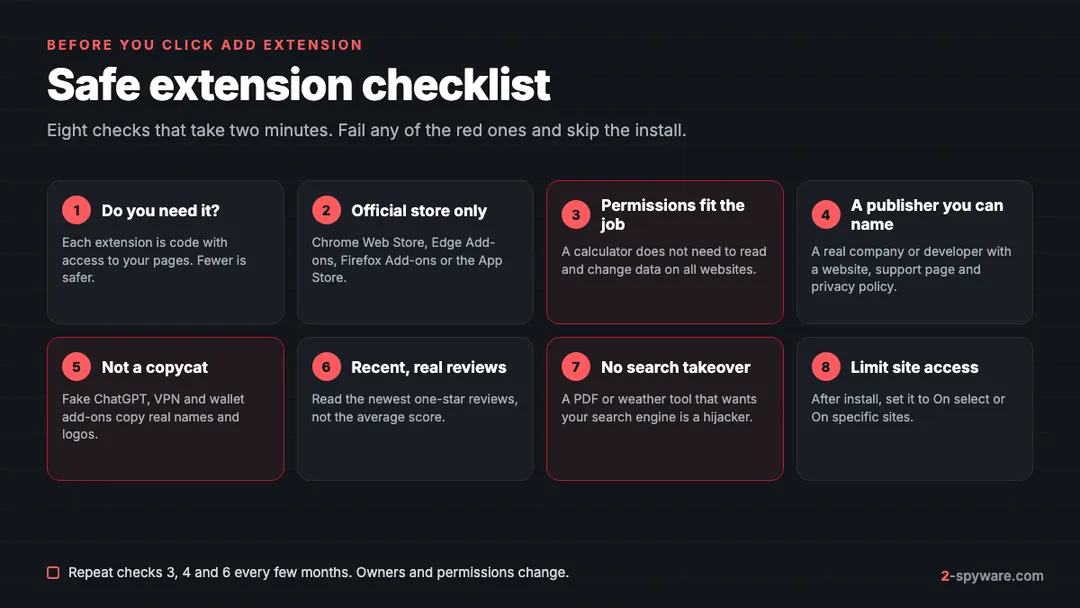
- Install only what you need. Each extension is one more party with access to your pages.
- Use the official store. Apple calls the Mac App Store the safest way to get Safari extensions, because Apple reviews them and they update automatically [5].
- Turn on Enhanced protection in Chrome so you get a warning for untrusted extensions [1].
- Read the permission prompt. If a calculator or theme asks to read and change data on all websites, cancel.
- Check the publisher, the website and the privacy policy. Mozilla requires add-ons to tell you what personal data they collect [4].
- Prefer extensions that act only when you click them, since activeTab gives temporary access without a warning [2].
- Do not let extensions run in private windows unless you need them there [4].
- Never install an extension from a pop-up, an email link, or a site that says you need it to play a video.
- Before you approve a work or school extension request, make sure it really came from your IT team.
If an extension already had access while you used email, banking or work accounts, sign out of all sessions and change passwords. Stolen session cookies keep working until the session ends. Our guide on how to secure your accounts after malware lists the order to do it in.
When to use a scanner
You can remove a single extension by hand in a minute. A scanner earns its place when the extension keeps returning, when a policy or profile reappears, or when you cannot find which program installed it. It also finds tasks, services and launch agents that you would miss by hand.
On Windows, Fortect runs a free scan in about five minutes and repairs malware leftovers, damaged system files and broken registry entries that unwanted programs leave behind. On a Mac, our Mac adware removal guide covers the built-in tools and when a scanner helps. Our comparison of browser hijacker removal tools sets the options side by side.
Not sure if a site an extension opens is safe? Paste the address into our free link check. For a specific add-on name, search the guide list on this page, or ask in our Windows help forum or Mac help forum.
Frequently asked questions
Are Chrome extensions safe?
Most Chrome extensions from known publishers are safe, but each one can read pages within its site access. Install only what you need, check the publisher and permissions, turn on Enhanced protection, and review your list every few months because owners and updates change.
What does Read and change all your data on all websites mean?
It means the extension can read the content of every page you open, including text you type into forms, and can change what the page shows. Ad blockers and password managers need it. A simple theme, calculator or wallpaper extension does not.
How do I know if an extension is malicious?
Warning signs include an extension you did not install, ads or coupons on sites that never had them, a changed search engine, a new publisher name, a sudden run of bad reviews, or an extension that cannot be removed because it is installed by policy.
What does installed by enterprise policy mean on a home computer?
It means a browser policy forces the extension in place, so the Remove button is missing. On a work device that is normal. On a home PC, a program usually wrote the policy, and you need to delete the policy before the extension can be removed.
How do I remove a browser extension that keeps coming back?
Find the source outside the browser. Uninstall the program that came with it, clear browser policies, pause sync and remove the extension on every device and profile, then reset the browser. On a Mac, also delete the app that contains a Safari extension and check configuration profiles.
Is Tampermonkey safe?
Tampermonkey itself is a real, widely used userscript manager. The risk comes from the scripts you add, which run with access to their target sites and skip store review. Use scripts only from sources you trust, and remove the manager if you did not install it.
Are free VPN extensions dangerous?
They can be. A VPN extension controls your proxy settings and can route all your browser traffic through its servers. Free ones from unknown publishers have been caught selling browsing data. Pick a known provider with a clear privacy policy, or skip it.
Can a browser extension steal my passwords?
Yes, if it has access to the sites where you type them. An extension with access to all websites can read data you enter into pages and copy session cookies that keep you signed in. If you suspect this, remove it, sign out of all sessions and change passwords.
Do browser toolbars still exist?
Classic toolbars such as Ask, Babylon and Conduit are mostly gone from current browsers, but they still appear on old PCs and in old installers. Their business model moved into search and new tab extensions, which do the same job with less visible screen space.
Does resetting the browser remove extensions?
Not fully. A Chrome reset turns extensions off and restores search and start page settings, but it does not delete the extensions. Remove unwanted ones from the extensions page first, then reset.
Sources
- Chrome Web Store Help: Install and manage extensions read 2026-10-09
- Chrome for Developers: Permission warning guidelines read 2026-10-09
- Chrome for Developers: Extensions and Manifest V3 read 2026-10-09
- Mozilla Support: About permission request messages for Firefox extensions read 2026-10-09
- Apple Support: Get extensions to customize Safari on Mac read 2026-10-09
- Darktrace: Cyberhaven supply chain attack exploiting browser extensions read 2026-10-09