
What is rogue anti-spyware?
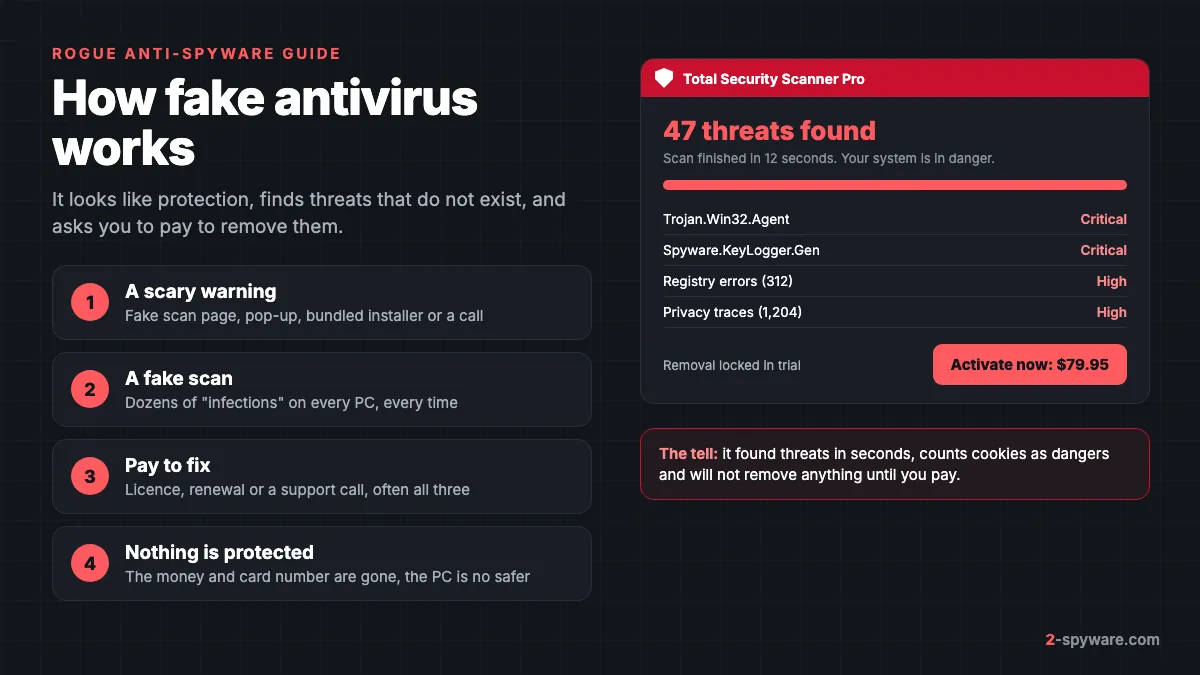
Rogue anti-spyware is software that looks like a security product but does not protect anything. It runs a scan, lists infections that do not exist and refuses to remove them until you buy the full version. The same thing goes by many names: rogue antivirus, rogue security software, fake antivirus, fake AV and scareware.
Microsoft gives the category a plain definition. It classes rogue security software as malware that pretends to be security software but provides no protection, displays alerts about threats that do not exist and tries to get you to pay [1]. That is the whole business model in one sentence.
Scareware is the wider family. It covers any software or page that sells by fear: fake virus scans, PC optimizers that report thousands of problems, and pop-ups that copy the look of Windows, Apple, McAfee or Norton. Microsoft lists the same tricks among the signs of unwanted software: exaggerated claims about your device's health, misleading claims about files and registry entries, and alarming warnings that demand payment to fix the problem [1].
This rubric holds more than 190 guides to named rogue products, from early cases like SpySheriff to recent fakes such as Total Antivirus 2020. The rogue antivirus topic gathers every family in one list.
Is fake antivirus a virus or a scam?
It is both, depending on the form. An installed rogue antivirus program is malware: Microsoft puts rogue security software in the same malware list as trojans, ransomware and password stealers [1]. Security products detect it and remove it like any other threat.
A fake virus warning in your browser is a scam page, not an infection. A website cannot scan the files on your computer or phone, so any result it shows is made up. Closing the tab ends it, unless a notification permission or an adware program keeps bringing it back.
Between the two sit cleaners, driver updaters and optimizers that use scare tactics but do run real code. Scanners often label them as potentially unwanted rather than as malware. Our page on potentially unwanted programs and the system tools rubric cover that milder end.
| Type | What it wants | How it behaves | Where to read more |
|---|---|---|---|
| Rogue antivirus program | Licence money and card numbers | Installed app with a fake scan, alerts and locked removal | This guide |
| Fake virus alert page | A click on Renew, a download or a phone call | Web page with a scan animation, a timer or a phone number | Push notification spam |
| Tech support scam | Remote access, then fees and bank access | Fake error with a support number, or a cold call | Tech support scams |
| Scareware optimizer | Subscription sales | Real program that inflates junk files into hundreds of problems | Fake optimizers and cleaners |
A short history of fake antivirus
Rogue anti-spyware was one of the most profitable kinds of malware of the late 2000s. Most families came from a few operations that released the same program again and again under new names, colours and years in the title. The year in a name such as Antivirus 2009 or System Doctor 2014 was there to make the product look current.
The largest legal case shows the scale. In 2008 the US Federal Trade Commission charged an operation with tricking more than one million consumers into buying software to remove malware that fake scans had supposedly found [4]. Its ads, placed on ad networks and popular sites, showed a system scan that always found dangerous files, then asked $40 to $60 for the fix [4]. In 2012 a court imposed a judgment of more than $163 million on the final defendant [4].
These are the families readers still search for most, with what our own removal guides recorded about each one.
| Name | What it did | Family or delivery |
|---|---|---|
| WinFixer | Exaggerated error reports to sell its full version, and spread other malware | One of the earliest rogue products |
| SpySheriff | Fake scan reports, blocked internet access and hijacked the browser | Early rogue anti-spyware |
| Antivirus 2009 | Fake system errors and blue screens, marked Microsoft.com as malicious | Rebrand of System Antivirus, AntiSpyware 2008 and others |
| Antivirus XP 2010 | Impersonated Windows Security Center, blocked Task Manager and security tools | Bogus online scanners and fake video sites |
| Security Tool | Flagged hundreds of fake threats and blocked programs from starting | Same family as Total Security 2009 and System Security |
| Windows Protection Suite | Scanned at every logon and imitated Windows Security Center | Trojans and fake online scanners |
| ThinkPoint | Forced a restart, then a fake scan | Fake Microsoft Security Essentials Alert |
| Mac Defender | False alarms on Macs to sell a $59.95 to $79.95 licence | Fake software updates and poisoned search results, 2011 |
| Smart Fortress 2012 | Fake scan results and warnings, could install more malware | Fake Flash Player and Windows updates |
| Live Security Platinum | Blocked real antivirus and flagged safe system files | Winwebsec family, spam and hacked sites |
| System Doctor 2014 | Forged alerts about problems that did not exist | Trojans exploiting security holes |
Installed rogue antivirus is rarer on Windows today. Built-in protection, signed installers and better browser blocking made the old model harder. The fraud moved into the browser and onto the phone, where it needs no installation at all.
Modern scareware: the forms you see today
Fake virus alerts in the browser
A page opens full screen, often with a siren sound, and shows a scan of your C: drive or your iPhone. It uses the colours of Windows Security, Apple or a known antivirus brand. Microsoft describes the same tricks: full-screen mode, pop-ups that will not close, a disabled Task Manager and recorded audio messages [2]. Examples in our database include VIRUS ALERT FROM MICROSOFT and VIRUS ALERT FROM APPLE.
Fake McAfee and Norton subscription pop-ups
These claim your McAfee or Norton subscription expired today and show a Renew button with a discount and a timer. Some send you to the real vendor's checkout through an affiliate link, so the purchase is genuine even though the warning was fake. Others lead to a fake checkout. Our guides to Your McAfee Subscription Has Expired and the Norton renewal center scam show the typical wording, and the fake McAfee and Norton topic lists the rest.
Renewal invoice e-mails
An e-mail says you were charged a few hundred dollars for an antivirus or tech support renewal and must call within 24 hours to cancel. The FTC describes the next steps: the caller asks for remote access, opens a spoofed refund page, claims to have refunded too much, then demands the difference in gift cards, crypto or a wire transfer [3]. The Microsoft Defender Subscription Invoice scam is a common version.
Tech support scam pages
These copy a blue screen or a Windows Defender warning and add a phone number. The FTC says real security pop-ups never ask you to call a phone number [3], and Microsoft says its error and warning messages never include one [2]. The full playbook is in our tech support scams guide.
Push notifications saying you are infected
If you once clicked Allow on a page that asked to show notifications, that site can send warnings to the corner of your screen even with the browser closed. Most "virus found" and "your protection expired" messages that appear this way come from such permissions. Our guide to push notification spam explains how they work.
Fake cleaners on phones
On Android, pages like the Cleaner Update pop-up scam say your phone is damaged or full of viruses and push you to install a cleaner app. On iPhone the same pages push weekly subscriptions to "security" or "cleaner" apps. A phone does not need a cleaner to delete viruses that a web page claims to have found.
How scareware gets onto your device
- Fake scan pages. You reach them through malicious ads, typo domains and redirects from pirated video, software and download sites [2].
- Notification permissions. One click on Allow lets a site send fake alerts for months.
- Bundled installers. Free programs from download portals add an optimizer or "security" offer you did not ask for. See the software bundling topic.
- Fake updates. Smart Fortress 2012 and Mac Defender both spread as fake Flash Player or software updates, and the trick is still used. See fake updates.
- Phone calls and e-mails. A scammer who gets remote access can install a program that brings back alerts later [2].
- Search ads. Scammers buy ads or push pages into search results for help with a slow or infected PC [3].
How to tell a real security warning from a fake one
This is the question most people actually have when they search. The answer comes down to where the warning appears and what it asks you to do.
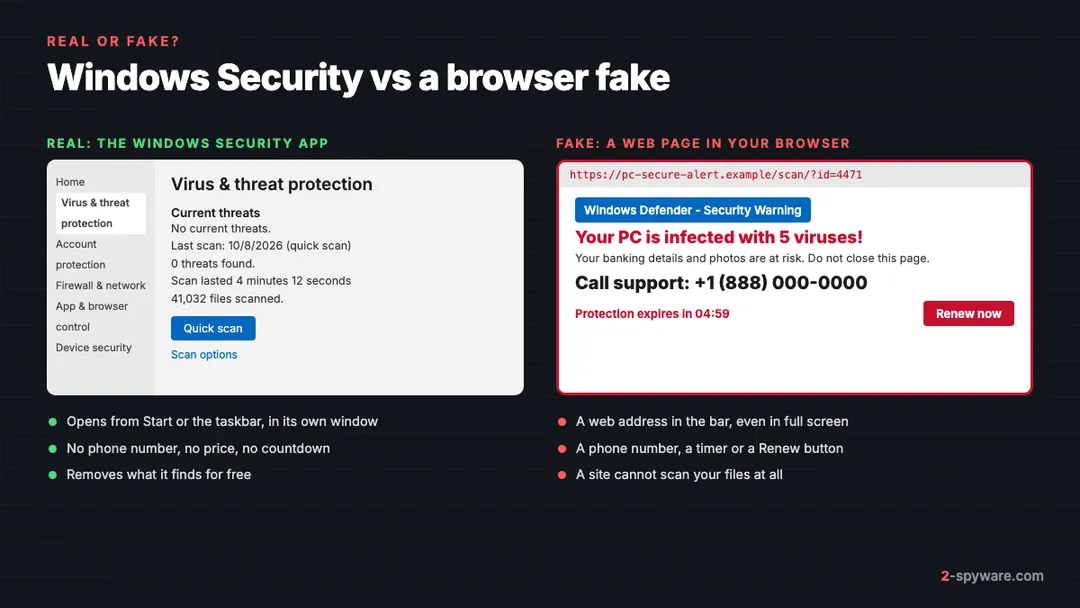
| Check | Real warning | Fake warning |
|---|---|---|
| Where it appears | Inside the Windows Security app, your installed antivirus, or a macOS dialog | A browser tab, a site notification or an app you do not remember installing |
| Web address | None, it is part of the system | A web address in the bar, or a site name under the notification |
| Phone number | Never [2] | Often, in large type |
| Price or Renew button | Only inside the product you actually own | Prominent, with a discount and a timer |
| Number of threats | Usually none, sometimes one named file | Dozens, found in seconds, the same on every device |
| What it asks | Quarantine or remove, at no cost | Call, pay, download or allow remote access |
| Closing it | Closes normally | Fights back: full screen, loops of pop-ups, sound [2] |
When in doubt, check from the other direction. Do not use the warning's buttons. Close the browser, then open your security software yourself. On Windows 11 and 10, open Start, type Windows Security and go to Virus & threat protection. If it shows no current threats, the warning was fake.
For a renewal message, sign in to the vendor's site by typing its address yourself, or open the installed program and look at the subscription page. The FTC adds one more check: look at your card statement. If there is no charge for the subscription, the message was a scam [3].
Not sure about a site that showed you a warning? Paste its address into our link check before you go back to it.
Is scareware dangerous?
The program itself rarely destroys files. The danger is in what it gets you to hand over.
- Money. A licence, then a renewal, then a support plan. The FTC notes that scammers prefer gift cards, wire transfers and crypto because the money is hard to get back [3].
- Card details. A rogue checkout may store and reuse your card number. Our guides to Mac Defender and Antivirus XP 2010 both note this risk.
- Remote access. Microsoft warns that scammers who connect to your PC often install malware, ransomware or other unwanted programs [2].
- Disabled protection. Families like Antivirus XP 2010 and Live Security Platinum blocked real antivirus and Task Manager. Microsoft calls disabling security software a form of tampering [1].
- Stolen identity. The FTC says the end goal of tech support scammers is your money or your identity [3].
What to do if you paid for fake antivirus
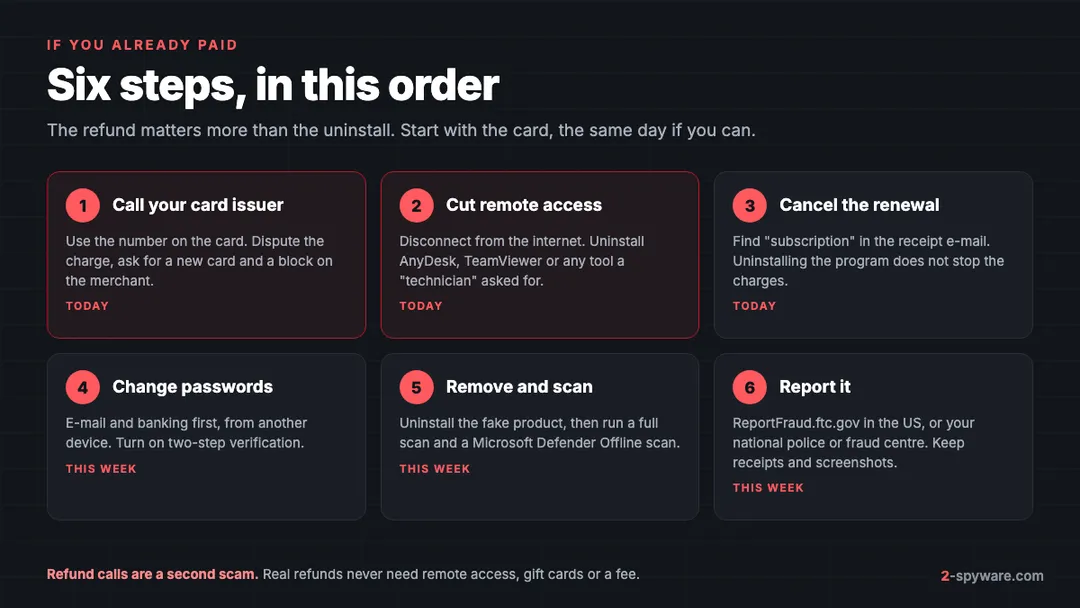
Act on the money first. Card disputes have time limits, and every day of delay makes a chargeback harder.
- Call your card issuer on the number printed on your card. Microsoft advises calling your credit card provider to contest the charges; they will likely cancel and replace the card [2]. Ask for a block on future charges from the same merchant.
- If you see a charge for a subscription you never bought, report it to the card company or bank and ask for it to be reversed, as the FTC recommends [3].
- If you paid with PayPal, a payment app, a gift card or crypto, follow our step-by-step guide on what to do after paying a scammer. Each method has its own contact route.
- Cancel the renewal. Look for "subscription" or "auto-renewal" in the receipt e-mail. Uninstalling the program does not cancel anything.
- If you let a "technician" connect, disconnect the device from the internet and uninstall the remote access tool. Microsoft suggests a reset if fake errors keep appearing [2].
- Change passwords you typed while the scammer was connected, starting with e-mail and banking, from a different device. Our guide to securing accounts after malware gives the order.
- Report it. In the US, use ReportFraud.ftc.gov [3]. Microsoft also takes reports at microsoft.com/reportascam [2]. Other countries are listed on our cybercrime reporting page.
Expect a second wave. People who paid once are targeted by refund and recovery offers. A real refund goes back to your card without anyone connecting to your computer, and it never costs a fee, a gift card or crypto.
How to remove rogue anti-spyware from Windows
Do not use any uninstall, support or "remove threats" button that the rogue program shows. Work through Windows itself, in this order.
- Close the program. Press Ctrl + Shift + Esc to open Task Manager, select the fake antivirus and click End task. If Task Manager is blocked, go to step 3 first.
- Uninstall it. On Windows 11, open Settings, then Apps, then Installed apps. On Windows 10, open Settings, then Apps, then Apps & features. Sort by install date and remove the fake product and anything installed the same day. Screenshots are in how to uninstall a program.
- If it blocks you, start in Safe Mode. Open Settings, then System, then Recovery, and click Restart now next to Advanced startup. Choose Troubleshoot, then Advanced options, then Startup Settings, then Restart, and press 5 for Safe Mode with Networking.
- Remove its startup entries. In Task Manager, open the Startup apps tab and disable anything with the rogue's name or an odd name pointing to AppData or ProgramData.
- Run a full scan in Windows Security, then a Microsoft Defender Offline scan. The offline scan runs before Windows loads, so a rogue that blocks your tools cannot stop it.
- Check that protection is back. In Windows Security, under Virus & threat protection settings, real-time protection should be on. Rogue products often turn it off.
- Turn on Potentially unwanted app blocking under App & browser control, then Reputation-based protection settings. It stops many bundled scareware offers at download.
Old families sometimes changed proxy settings, the hosts file or file associations so that .exe files would not open. If a program still will not start after removal, our guide to what malware leaves behind covers those repairs. When nothing helps, cleaning up or resetting Windows explains a reset that keeps your files.
How to remove rogue anti-spyware from a Mac
Mac Defender in 2011 showed that Macs were a target, and today's Mac scareware is mostly fake cleaners and browser alerts. Apple's XProtect checks apps at first launch and when signatures update, and blocks and moves known malware to the Trash [5]. Rogue apps that you approve yourself can still get through, so check by hand.
- Quit the app. If it will not quit, press Option + Command + Esc and choose Force Quit.
- Open Finder, then Applications, and drag the fake security or cleaner app to the Trash. Our Advanced Mac Cleaner topic lists its many clones.
- Remove its login items. On macOS Sequoia and newer, open System Settings, then General, then Login Items & Extensions. On Sonoma, open System Settings, then General, then Login Items. Remove it from both Open at Login and Allow in the Background.
- Check the LaunchAgents folders in your user Library and in /Library, and /Library/LaunchDaemons, for a .plist with the app's name, and delete it.
- Look for configuration profiles. On Sequoia, open System Settings, then General, then Device Management. On Sonoma, open Privacy & Security, then Profiles. Remove any profile you did not install.
- Cancel any App Store subscription in the App Store under your account, then Subscriptions.
Every folder to check, in order, is in our walkthrough on how to remove adware from a Mac, which applies to fake Mac cleaners too. More Mac cases are in the Mac viruses rubric.
How to remove rogue anti-spyware from Chrome, Edge, Firefox and Safari
Most modern scareware lives in the browser. Close the fake alert first: if the page will not close, end the browser in Task Manager on Windows or with Force Quit on a Mac, and do not restore the tabs when it reopens. Then remove the permission or extension that keeps bringing it back.
Google Chrome
- Notifications: open Settings, then Privacy and security, then Site settings, then Notifications [6]. Remove every site under Allowed that you do not know.
- Extensions: open the menu, then Extensions, then Manage extensions, and remove anything you did not add.
- Chrome blocks notifications from some sites it finds abusive or misleading [6], but you still need to remove permissions you granted earlier.
Microsoft Edge
- Notifications: open Settings, then Cookies and site permissions, then Notifications, and remove unknown sites.
- Extensions: open the menu, then Extensions, then Manage extensions.
- Turn on Microsoft Defender SmartScreen and Block potentially unwanted apps under Privacy, search, and services. Microsoft says Edge blocks known support scam sites with SmartScreen [2].
Mozilla Firefox
- Notifications: open Settings, then Privacy & Security, then Permissions, then Settings next to Notifications.
- Add-ons: open the menu, then Add-ons and themes, then Extensions.
Safari
- Notifications: open Safari, then Settings, then Websites, then Notifications, and set unknown sites to Deny or remove them.
- Extensions: open Safari Settings, then Extensions, and uninstall unknown ones.
Step-by-step screenshots are in how to stop website notifications, how to remove a browser extension and how to reset your browser. If the same fake warning still comes back after all of this, adware is the likely source; see the adware guide.
How to remove rogue anti-spyware from Android and iPhone
Android
Phone scareware is usually a notification permission or a cleaner app. Google Play Protect is on by default and checks apps from Google Play and other sources [7].
- Stop the alerts. Open Chrome, tap the three-dot menu, then Settings, then Site settings, then Notifications, and block unknown sites.
- Uninstall fake cleaners, boosters and antivirus apps you installed after a warning. Open Settings, then Apps, and tap Uninstall. On Samsung One UI the path is the same.
- If an app will not uninstall, remove its device admin rights first. On Samsung, open Settings, then Security and privacy, then Other security settings, then Device admin apps.
- Check Play Protect. In the Play Store app, tap your profile icon, then Play Protect, then Settings, and turn on Scan apps with Play Protect [7].
- Cancel subscriptions in the Play Store under your profile icon, then Payments and subscriptions, then Subscriptions.
The full walkthrough for stubborn apps is in how to remove adware from Android. More cases are on the Android topic page.
iPhone and iPad
An iPhone that shows "your iPhone is infected" in Safari is showing a web page. iOS apps cannot scan other apps, so no App Store app can find a virus that a page claims to have found.
- Close the tab, then clear history and website data under Settings, then Apps, then Safari on iOS 18 and newer, or Settings, then Safari on iOS 17.
- Delete spam calendar subscriptions under the Calendar settings, in Calendar Accounts.
- Cancel any weekly "security" or "cleaner" subscription in Settings, then your name, then Subscriptions.
- Remove profiles you did not install under Settings, then General, then VPN & Device Management.
See the iPhone topic page for named iPhone scams.
How to avoid scareware
- Treat any page that says it scanned your device as fake. Close the tab without clicking anything on it.
- Never call a number in a pop-up. Microsoft, Apple and real antivirus companies do not put phone numbers in warnings [2][3].
- Click Block when an unknown site asks to show notifications.
- Buy security software only on the vendor's own site, typed by hand, never through a warning, an ad or a phone call.
- Download software only from the developer or an official store. Microsoft warns that third-party download sites can bundle malware [2].
- Keep Windows Security, XProtect and Play Protect switched on, and keep the system updated.
- Tell older relatives what a fake warning looks like. The FTC suggests talking to someone you trust before you act on one [3].
How to check that a security product is real
The best defence against fake antivirus is knowing what a real one looks like before you need it. Run any product through these checks before you pay.
- A named company. The licence agreement and the site should name a registered company with an address. Rogue products hide behind a domain and a support form.
- Independent lab results. Real antivirus engines take part in tests by AV-TEST and AV-Comparatives, and the results are published on the labs' own sites, not only as badges.
- Certification you can verify. AppEsteem certifies software that meets its consumer protection rules and publishes a list of deceptive apps it calls Deceptors. Check the product on AppEsteem's own site, not just the badge on the seller's page.
- Honest scan results. A real scanner may find nothing. A scanner that always finds dozens of critical threats on a new PC is lying.
- Clear price, renewal and refund terms shown before checkout, and a normal uninstall through Installed apps.
- A route you chose. You searched for the product or typed its address. You did not meet it through a pop-up, a notification or a cold call.
When to use a security tool
You can remove most fake antivirus by hand with the steps above. A scanner helps when the rogue program blocks Windows tools, when alerts return after cleanup, or when a scammer had remote access and you do not know what they installed.
Start with what you already have. Windows Security is built into Windows 11 and 10, and a free second opinion like Microsoft Safety Scanner runs without installing. On a Mac, XProtect removes known malware it finds [5].
If you want a paid tool, our first pick on Windows is Fortect. We earn a commission if you buy it through our links. Our Fortect review scores it 9.2: its free scan takes about five minutes, paid plans add real-time antivirus, and it repairs the damaged Windows files and settings that rogue programs leave behind. It comes from Fortect Ltd. in Tel Aviv, first purchases carry a 60-day money-back policy, and its homepage shows AppEsteem, AV-TEST and AV-Comparatives badges.
For Macs, see our reviews of Combo Cleaner and Intego. The full comparison, with prices and what each free version covers, is in best malware removal tools. Whatever you choose, buy it through the vendor's own site, and use the checks above. If a scanner name confuses you, our page on antivirus detection names explains labels like Rogue:Win32 and FakeAV.
Frequently asked questions
What is scareware?
Scareware is software or a web page that frightens you into paying. It shows a fake scan, a virus warning or a list of problems, then offers one way out: buy a licence, renew a subscription or call a support number. Fake antivirus is the best-known kind. The problems it reports do not exist, and paying does not make your device any safer.
Is the virus warning on my screen real?
If it appears in a browser tab, in a notification from a website, or shows a phone number, a countdown or a Renew button, it is fake. Websites cannot scan your files. Real warnings appear inside Windows Security, your installed antivirus or a macOS dialog, and they never ask you to call anyone. Close the browser and open your own security app to check.
How can I tell if my antivirus is fake?
Fake antivirus finds threats seconds after installing, finds a different list each time, will not remove anything until you pay, and often blocks real security tools. Check the publisher in Installed apps, then run a scan in Windows Security. If Windows Security finds nothing while the other program shows dozens of threats, the other program is inventing them.
Is the McAfee or Norton expired subscription pop-up a scam?
If it appears as a web page or a browser notification, it does not come from McAfee or Norton. These pages copy the brand to make you click Renew. Some lead to the real checkout through an affiliate link, others to a fake one. Check your subscription by opening the installed program or signing in on the vendor's site yourself, and remove the site's notification permission.
I paid for fake antivirus. Can I get my money back?
Often yes, if you act quickly. Call your card issuer on the number on your card, say you were sold software with false claims, and ask for a chargeback and a new card. Cancel any auto-renewal from the receipt e-mail. Keep the receipt and screenshots. Payments by gift card, wire or crypto are much harder to recover, so report those at once.
Someone called offering a refund for my antivirus. Is it real?
Almost certainly not. Refund calls about antivirus renewals are a common scam. The caller asks for remote access to process the refund, claims to have sent too much, then demands the difference in gift cards or crypto. Real refunds go back to your card without anyone connecting to your computer. Hang up and check your account on the vendor's site yourself.
Can a website scan my computer or phone for viruses?
No. A website has no access to the files on your device, so any scan animation on a page is a video, not a scan. The same goes for pages that say your iPhone or Android phone is damaged or infected. Close the tab and, if the warnings keep coming, remove notification permissions for unknown sites.
Is fake antivirus dangerous if I did not pay?
A fake warning page you closed without clicking is harmless. An installed rogue program should be removed, because older families blocked real antivirus and could download more malware. If you downloaded anything from the warning, run a full scan and an offline scan in Windows Security, and check your installed apps for anything added that day.
How do I know a security product is legitimate before I buy it?
Check that a registered company with an address stands behind it, that independent labs such as AV-TEST or AV-Comparatives list it, and that any AppEsteem certification shows up on AppEsteem's own site. Look for clear prices, renewal and refund terms. Buy only through the vendor's site, never through a pop-up, a notification or a phone call.
Why do fake antivirus programs have years in their names?
Names like Antivirus 2009, Smart Fortress 2012 or System Doctor 2014 were chosen to look current and official. The same operators released one program under many names, changing the year, colours and logo each time so that blocklists and warnings about the old name would not apply.
Sources
- Microsoft Learn: How Microsoft identifies malware and potentially unwanted applications read 2026-10-08
- Microsoft Support: Protect yourself from tech support scams read 2026-10-08
- FTC Consumer Advice: How To Spot, Avoid, and Report Tech Support Scams (September 2025) read 2026-10-08
- FTC: FTC Case Results in $163 Million Judgment Against Scareware Marketer (October 2012) read 2026-10-08
- Apple Platform Security: Protecting against malware in macOS read 2026-10-08
- Google Chrome Help: Use notifications to get alerts read 2026-10-08
- Google Play Help: Use Google Play Protect to help keep your apps safe and your data private read 2026-10-08